

Shopline is a powerful, all-in-one e-commerce solution that enables entrepreneurs to easily get started selling online. With Shopline e-commerce, your online business venture is simplified into an all-inclusive package.

Everything you need to set up an online store and achieve e-commerce success is available in Shopline. We created this guide to help users set up their Shopline e-commerce store and get started.
Key Takeaways
- Shopline is a powerful all-in-one e-commerce solution that simplifies online selling by integrating store management, domains, and hosting into a single platform.
- Building a store involves utilising variants and collections to create an organised, user-friendly catalogue.
- Merchants must establish their logistics by indicating warehouse locations and configuring diverse shipping options, including local delivery, in-store pickup, and international shipping zones.
- Enabling SHOPLINE Payments on your store requires that your website is befitting an e-commerce business (e.g., the website is functional, product photos and pricing are clear and understandable).
- A successful store launch requires driving high-quality leads through a combination of search engine marketing, organic social media, influencer partnerships, and physical in-store promotions.
What is Shopline E-commerce

Source: https://www.chichiclothing.com/
Lots of services are involved in running an e-commerce store. You’ll need store management functions, a domain, hosting, and a built website front end.
These are typically separate services that you’ll need to acquire. However, Shopline e-commerce streamlines online selling by integrating these functions into a single platform.
Shopline e-commerce refers to e-commerce within the Shopline ecosystem. Stores that have achieved sustainable revenue growth and an online presence on Shopline include Chanel, Salomon, and Chi Chi.
How to Set Up Your Shopline E-Commerce Store
Building your Shopline e-commerce store can be simplified into five steps. By the end of these five steps, you’ll have your store set up—complete with the backend logistics and the frontend website in place. This serves as the foundation of your business.
Step 1: Add Your Store Products

First, add your store products. Adding your SKUs to Shopline lets Shopline track your range of products. This allows Shopline to do the following frontend and backend tasks:
- Display products to customers by creating a dedicated product page for each.
- Display all your products in a catalogue page.
- Track inventory.
- Integrate your catalogue with plugins and features (e.g., upselling / cross-selling apps; shop-the-look website features)
We recommend adding your store products as the first step in your Shopline store.
There are two ways to add your store products: one at a time or in bulk.
Adding Shopline Products One By One
Adding your products one by one is ideal if this is your first time in e-commerce.
The manual process of adding products one at a time allows you to deliberate on the details of each product.
You might even be more familiarised with each of your products after the process, which is ideal if you’ll be working closely with the marketing team.
To add your Shopline products one by one,
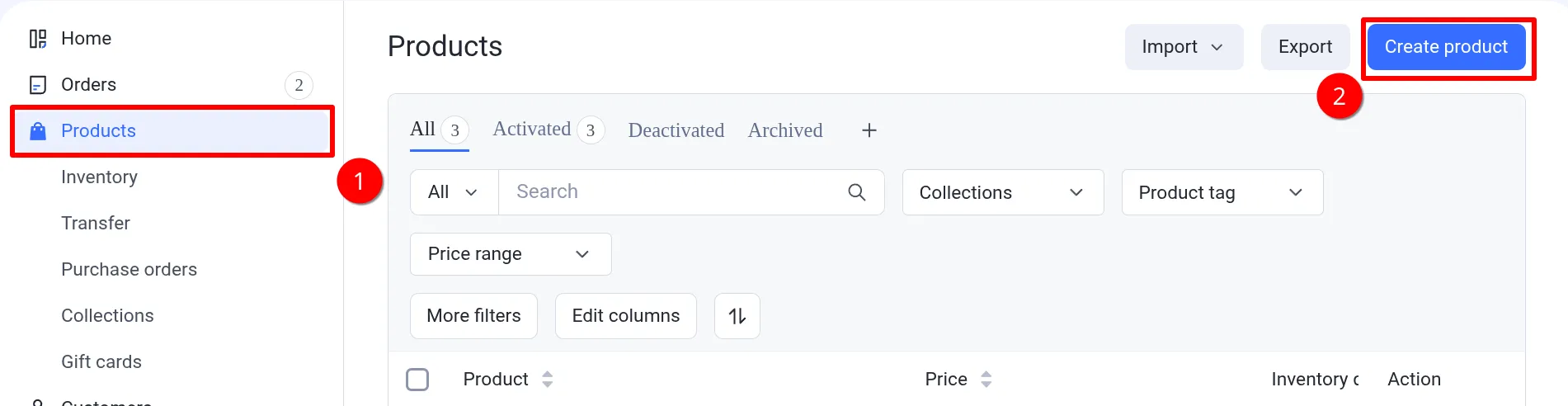
- Click on Products from the admin panel
- Select Create Product
- Fill out all the required details. This includes:
- Product information (e.g., name, description)
- Product prices
- Product images and videos
- Under Product Settings, toggle on Activate. This enables the product to be listed on the website we’ll be creating later.
- Save your changes.
At the basic level, that’s how you add products to the Shopline store. But as you go deeper through this guide, you’ll uncover tips which you can apply to this process.
Adding Shopline Products In Bulk
Adding Shopline products in bulk is ideal if you already have a spreadsheet-based inventory tracker or are migrating from a different e-commerce platform (e.g., Shopify, WooCommerce).
To add your Shopline products in bulk,

- Click on Products from the admin panel
- Click on the Import dropdown
- Select the option which applies to you. For this guide, we’ll select Import Locally, as it applies to most users.

- Upload your business’ inventory CSV. Shopline will interpret the fields and import the data accordingly.
- Alternatively, you can download Shopline’s CSV template and fill that out instead.
- Click Import.
- Once your CSV has been imported, review the newly added products and correct any inaccuracies or misinterpretations.
- Add product images and videos.
Shopline supports a one-click migration from Shopify. So, if you’re a Shopify user and wish to migrate your store to Shopline, you can seamlessly do so.
Simply select Shopify One-click Migration and fill in your Shopify store’s details. Shopline will retrieve your Shopify catalogue, including images and descriptions, so you can continue your Shopify business through Shopline.
Tips for Adding Your Products
There are a few tips to remember when adding your products.
These tips will determine how your product pages appear, which are among the most important pages in an e-commerce store.
The product page should provide customers with a complete understanding of the product, bridging the physical, tactile gap created by online shopping.
We strongly recommend applying these tips to your Shopline catalogue.
Be Descriptive with the Product Details

Be descriptive about the product. Include information that would be useful to shoppers.
- Begin with an overview paragraph that describes what the product is used for (e.g., ideal for summer, ideal for vintage enthusiasts)
- Highlight the product’s benefits (e.g., comfortable to wear, ideal for performance swimming, competition-compliant, etc.)
- Describe the product:
- If you’re selling clothing, indicate the material used (e.g., leather, wool), the construction (e.g., if describing coats, determine if it’s full canvas, half-canvas, or unlined), and the type of fit (e.g., if describing pants, determine if they’re skinny, regular, wide, etc.)
- If you’re selling tech, make sure to outline the specs.
- Depending on the industry and niche, you’d want to highlight the key specs that people look out for (e.g., for shoes, it could be blake-stitched soles or vegan leather)
Following these product description tips will give human readers, search algorithms, and AI crawlers a clear understanding of each of your products.
Images and Videos Should Provide a Detailed Idea About the Product

Source: https://www.chichiclothing.com/products/chi-chi-bridal-kirsty-dress
In addition to a detailed product description, your product pages should visually convey the product’s value to site visitors.
Also, remember that unlike physical retail stores, where customers can hold and turn the product by hand, online stores can’t offer that level of interaction.
As such, the images should be detailed enough that customers can “hold” the product in their hands. Your product page should contain the following images:
-
- A 360-degree view of the product. Make sure to take photos of the product from the front, from the side, and at a 45-degree angle to simulate viewing it on shelves.
- Close-ups. Provide close-up shots and macro images of the product. This highlights the product’s finer details, such as intricate weaves and textures—things that customers would otherwise feel and touch.
- The product being used. Wide shots help picture the product in its natural “habitat.” For example, cars on the road or ATVs on the beach. Or perhaps IKEA furniture in the living or dining area, in addition to being on a blank, white background
- A video. Some products are better visualised through videos. Videos help illustrate your product in use better than a series of photos. This is especially true for more complex products, such as kitchen appliances or consumer electronics.
Refer to our previous step-by-step section on adding products and follow the bullet points above as you fill in each product’s details.
Leverage Variants
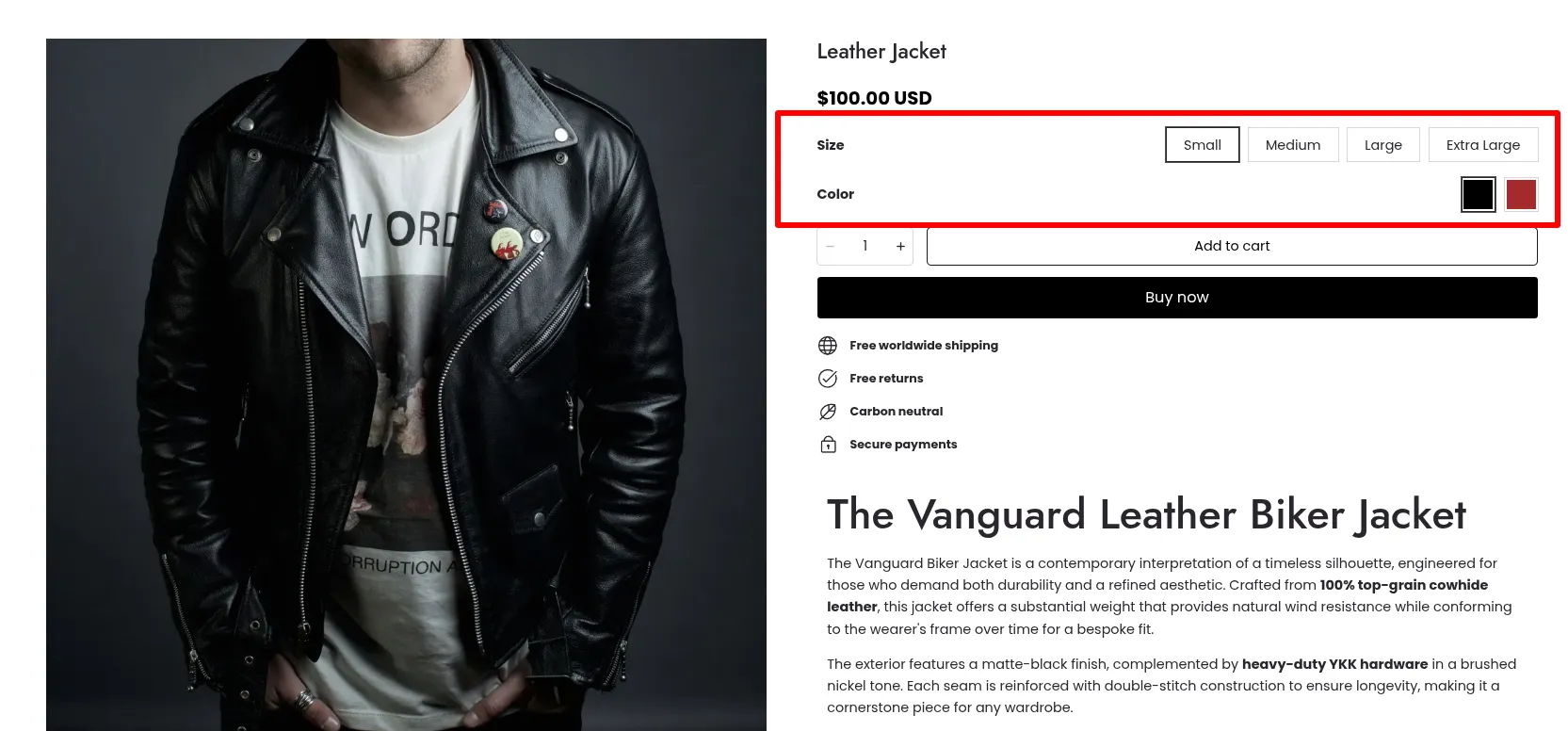
Less is more.
When it comes to e-commerce stores, you wouldn’t have a listing for every product variant in your store. Your catalogue wouldn’t show a separate listing for “Leather Jacket – Small” and “Leather Jacket – Medium.”
Rather, they’re underneath one listing. Small, Medium, Large, and Extra Large are simply variants underneath the “Leather Jacket” listing.
That way, your catalogue is cleaner, and your SKUs are more organised.
Here’s how you can add variants to each of your products:

- Click on Products, then select an SKU you’d want to add variants to.

- Scroll down to Variants, then click ‘+ Add variant options’

- Click on the left field, then select either ‘Colour’, ‘Size’, ‘Material’, or ‘Style’.
- In the right field, fill in the variations of the product that correspond to the left field.
- For example, if you indicated ‘Size’, then you should type in “Small”, “Medium”, “Large”, and “Extra Large.”
- Separate them with commas.
- Click + Add variant option, then repeat the process for a different variant category. (e.g., Colour: Black, Brown)
Below the Variants section, a Variant List will appear. You can add an image for each new variant, set its price, and its inventory count.

Since we added four size variants and two colour variants, our total number of variants is now eight (e.g., Small – Brown; Medium – Brown; Large – Brown; etc.). Be sure to indicate a price and count for each of these eight variants (or however many you have).
Leverage Collections

If you have a large product range, collections will help organise your products and make navigation for site visitors much easier.
Merchants can also run promotions for specific collections (e.g., summer, winter, back-to-school).
How to set up collections for your Shopline store:

- Navigate to Products > Collections from the admin panel.
- Click on Add Collection.
- Fill in the details of the collection (e.g., title, collection description)
- Add a collection cover and a collection banner. These will be the images for each collection (e.g., the summer collection might feature beach imagery).

- Underneath “Choose how you’ll manage your collection”, you can choose between Manual and Smart hierarchy. For the sake of this guide, we’ll choose Manual.
- Click Choose products.
- Tick the checkboxes of the products you wish to add to this collection.
- Click Add, then Save your changes.
Repeat this process for all the collections you wish to add to your store.
If you’re a clothing store, it’s ideal to maintain collections by gender, style, and season. So, a men’s collection, a women’s collection, a street collection, a business collection, a summer collection, and a winter collection, just to name a few.
Step 2: Indicate Your Store and Warehouse Locations

Once you’ve added your products and collections, you’ll need to specify your shipping origin in Shopline.
Syncing your stores and warehouses with Shopline brings the following benefits:
- It allows you to track your inventory across locations
- It lets you service the immediate area within each location
- It lets you route orders to either of your locations
If you’re a brick-and-mortar merchant with multiple outlets and want to drive online sales, the following steps will help you establish an online service.
How to add locations to your Shopline store:

- From the admin panel, go to Settings > Locations.
- Click Add.
- Enter the location details of a store, outlet, or warehouse you’d want to add
- The Phone Number field should be an attended phone number. It could be the branch manager’s business number.
- Click Add.
Repeat this process for every store, showroom, warehouse, outlet, office, fulfilment centre, and any other location where you store inventory.
This will help establish a broader presence and expand your online store’s service area.
Step 3: Set Up Your Shipping Destinations
Once you’ve set up your store’s locations, indicate your shipping destinations.
There are two types of e-commerce businesses: those that serve only their local markets and those that expand globally, shipping their products across borders and seas.
If you’re the former, then this first step-by-step is for you:
Local Delivery & In-Store Pick Up

Local delivery and pick-up options are excellent for markets within a one-mile radius of your warehouse(s).
With local delivery, you can use in-house or on-demand (e.g., Grab, Ninjavan) means to deliver orders to your customers.
In-store pickup allows customers to collect their orders from your store or warehouse.
How to set up local delivery and pick-up in Shopline:

- Go to Settings > Shipping and delivery.
- Scroll down to the Local Delivery and In-Store Pickup sections
- Under Local Delivery, click on a location you wish to provide Local Delivery services from

- Tick on “Local delivery is available at this location”
- Indicate the post code of the service areas that the location will service
- Repeat the process for every location that provides local delivery
- Under In-Store Pickup, click on a location you wish to provide In-Store Pickup from

- Tick on “This location supports in-store pickup”
- Determine the ‘Estimated pickup time’. This is a dropdown, ranging from an hour to five days.
- Save your changes.
Once these changes are made, customers near your locations will see local delivery and/or pickup options at checkout.
Setting Up Shipping
Shipping involves partnering with a 3PL to deliver your parcel to the customer, domestically or internationally.
If you’re planning to expand your market to one that can’t be reached via Local Delivery or In-Store Pick-up, leveraging shipping is your go-to.
Here’s how to set up shipping in Shopline:

- Go to Settings > Shipping and delivery
- Click “Create” underneath ‘Custom Shipping Profile’.

- Input a profile name
- Click Add Product
- Add the products you wish to make available for this shipping profile.
- Click OK.

- Click Add a Shipping Zone
- Tick all the countries and regions you wish to add to this zone. Ideally, this should be regions with similar shipping rates
- Click Create
- You can create multiple shipping zones

- Under each shipping zone, click on Add the Shipping Rates.
- Choose either ‘Set your own shipping rates’ or ‘Use a carrier or third-party app to calculate rates’
- Input details corresponding to the shipping option you wish to provide
- You can add multiple shipping rates for each shipping zone.
Following the steps above not only sets up shipping but also informs Shopline which areas you serve. Shopline will automatically display relevant shipping, delivery, and in-store pick-up services to each customer based on their location.
You’d also want to set up the necessary offline implementations in place for each of your warehouses. That way, they’ll know what to do when an order comes their way.
You can also partner with a fulfilment centre and integrate your Shopline store’s processes with their system. That way, as an order is placed, the fulfilment centre will immediately pick, pack, and ship the item(s) out to their respective customers.
Step 4: Add Payment Methods
You’ll need a way for customers to pay for their orders.
This step will enable merchants to accept a range of payment methods, from credit cards and Apple Pay and Google Pay to offline options such as cash on delivery and bank transfers.
Providing a wider range of payment methods positions your e-commerce store for success by giving merchants more options to pay for their orders.
We highly recommend adopting two payment channels: through SHOPLINE payments and custom payment methods.
Setting up SHOPLINE Payments

If you’re in Singapore, you can use SHOPLINE Payments to process third-party payments.
With SHOPLINE Payments, credit card fees start at 2.4% + 0.25 USD per order. Transaction fees for payments made via Apple Pay, Google Pay, GrabPay, and similar services are free.
How to set up SHOPLINE Payments:

- Go to Settings > Payments from the Shopline admin panel.
- Click on Activate SHOPLINE Payments
- Scroll down to Singapore and click Activate.
- You’ll be asked to provide the following:
- ACRA document
- ID Copies
- Bank statement
Shopline will also review your website to determine whether it is eligible for SHOPLINE Payments.
Website Requirements for SHOPLINE Payments eligibility
SHOPLINE Payments’ low credit card fees and free transaction fees are considered a reward for accessible, engaging websites.
As such, Shopline outlines the following rules that websites should follow before being considered for SHOPLINE Payments.
- Be accessible and operational
- Should not contain placeholder, templated, or dummy photos
- Should include:
- Contact details of the business
- Include a delivery policy
- Include a return & exchange policy
- At least 7 products (not including variants)
- Product price and currency should be clearly shown and indicated for each product
- Product pictures and descriptions for each product should be clear
- No patent or copyright infringement violations
This isn’t just a checklist for being eligible for SHOPLINE Payments. It’s a checklist that ensures you’re running a proper business with an engaging store that Shopline likes.
Setting Up Custom Payment Methods


Custom payment methods are offline payment methods processed outside Shopline.
They’re excellent for offering flexible payment options, especially for customers without debit or credit cards.
However, be cautious when setting up manual payment methods. Since these transactions occur outside Shopline, they’re less secure than SHOPLINE Payments and third-party payment methods integrated with Shopline.
Here’s how you can set up custom payment methods on Shopline:

- Go to Settings > Payments from the Shopline admin.
- Under ‘Custom Payment Methods’, click Add.
- Input the following:
- Payment Method Name. (e.g., bank transfer)
- Payment Method Description. This should clearly outline the instructions customers must follow when paying for their order through this method.
- We highly recommend ticking on ‘Customers upload payment proof or voucher’. That way, customers will be required to upload proof of payment before their order can be processed.
- Finalise by clicking ‘Add custom payment methods.’
- Repeat this process for every custom payment method you wish to add.
For cash-on-delivery, Shopline already has this payment method in the custom payment method section.
How to Enable Cash-On-Delivery for Your Shopline Store
To add a cash-on-delivery option,
- Make sure Local Delivery is turned on. Refer to the Local Delivery & In-Store Pick Up section on how to do that.

- Navigate to Settings > Payments from the Shopline admin
- Click on ‘Enable’ next to ‘Cash On Delivery’.
- Input instructions that customers should follow for the cash-on-delivery option.
- Click ‘Add Cash on Delivery.’
When cash-on-delivery options come through your Shopline orders management, they will be unpaid orders.
You’ll need to instruct the courier to collect the customers’ payments on your behalf. This will require a return route to your store and cash handling, which may incur additional charges if you’re using on-demand delivery.
Step 5: Build The Store

Once you have your e-commerce foundation—you’ve added your products, indicated your store and warehouse locations, and set up shipping and payments—you can then build the frontend of your Shopline store.
There’s a lot that goes into building your Shopline store, and website design should be an entire, separate article of its own.
So, we’ll only go through the basics.
Here’s how you can build a Shopline store:

- Go to Online Store > Design from the Shopline admin panel
- You’ll see ‘Fashion’ is the default theme used. Click on ‘Design’ to edit it.
- Alternatively, you may browse more themes by clicking on the Theme shop tab.
- After clicking ‘Design,’ you’ll be taken to the Shopline theme editor.
Parts of the Shopline Theme Editor
The Shopline theme editor is an overwhelming dashboard with numerous tools and functions that can be jarring for first-time website builders, and even more so for merchants.
Here’s a general overview of the tools and buttons you’ll find in the Shopline theme editor:

- The dropdown titled ‘Home page’ lets you choose which page to edit. You can edit your homepage, collections list, product page templates, collection page templates, blog templates, cart, and checkout.
- The Phone and PC icons allow you to preview the website’s responsive design on different devices
- Each page is divided into the following sections. Each of these sections is fixed. A component in the header section cannot be moved to the template section
- Header
- Template
- Footer
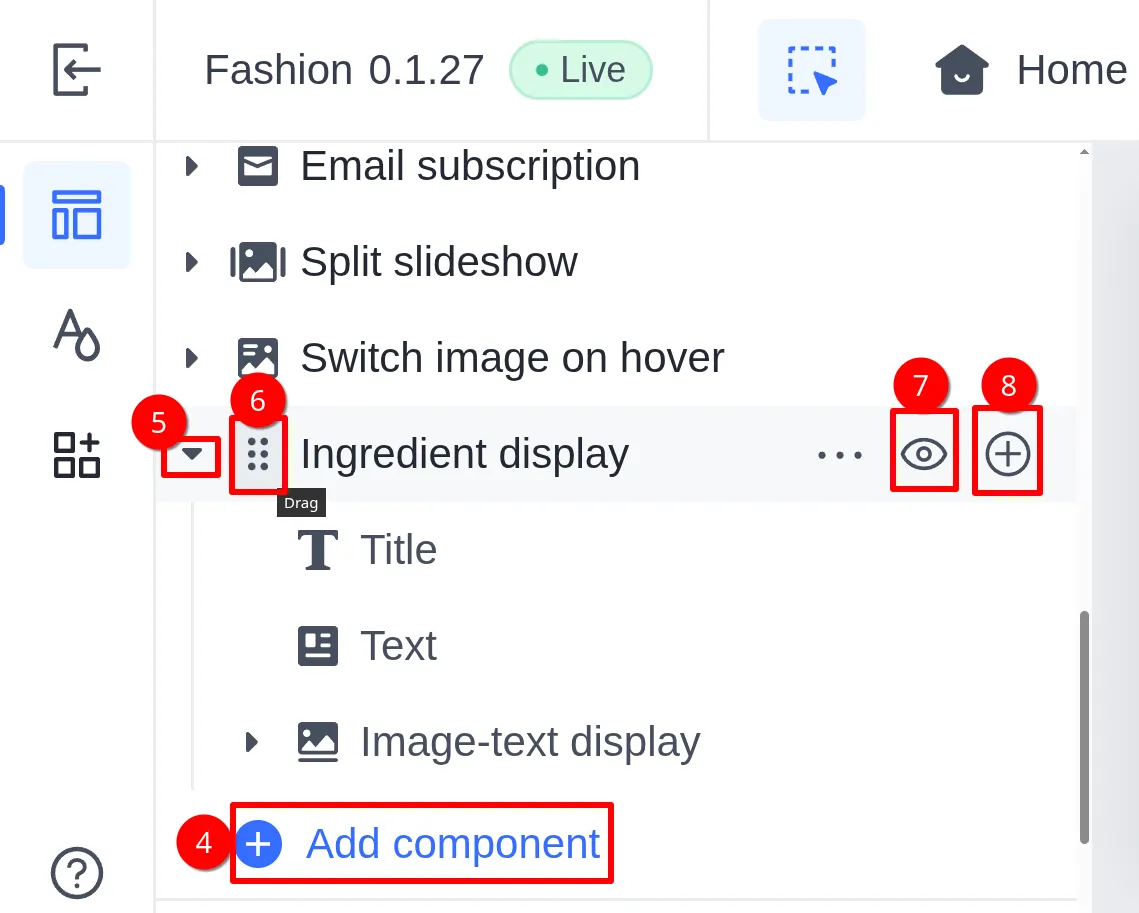
- The + Add Component Button adds a component to the section it belongs to. These components include slideshows, video banners, shoppable images, and more that you can add to your online store.
- The arrow next to each component lets you collapse it. They show you the components that make up the component (e.g., the Rich text section consists of a title, rich text, and a button group).
- The six-dotted icon lets you drag a component to reposition it on the website layout.
- The eye icon allows you to toggle the visibility of the section
- The plus-inside-a-circle icon lets you add content within that particular component.

- The Global Settings let you tweak the overall appearance of the website. It lets you change colours, fonts, and button shapes, and add opacity and drop shadows to specific elements on the website (among other features).
- The Global Settings of the theme you chose will appear in the right-hand column
Experiment with these tools and functions until you achieve the store layout and design you want.
Once you’re done, save your changes and your store should be up and running.
Additional Tips for Setting Up Your Shopline E-commerce Store
Now that you have your store, here are a few more tips to help establish your e-commerce business as reliable.
Purchase an On-Brand Domain
By default, your store will bear a ‘myshopline.com’ domain. It will read something like “johnsfrozenpizza.myshopline.com.”
Although you can sell from this myshopline.com domain, it doesn’t reinforce your brand or project the authenticity, professionalism, and authority you want.
To get a custom domain,
- Go to Settings > Domains
- Click Add a Domain
- Type the domain you want to search for. Choose from the available domains.
- From the Domains dashboard, click the domain you just bought and set it as your primary domain.

Investing in a custom domain will give your brand the authority and trustworthiness of a reliable, reputable store. It also improves your SEO for navigational searches.
Add Additional Pages Besides the Primary Ones

There are some pages you’ll want to include that aren’t part of the initial sitemap. These pages include the following:
- A delivery policy.
- A return & exchange policy.
- An About Us page.
- An Our Mission page.
- A Contact Us page.
Adding custom pages follows the step-by-step instructions below. For clarity, we’ll create an About Us page.

- Creating the page
- Go to Online Store > Page from the Shopline admin panel.
- Click Create a New Page
- Input the Page Title (i.e., About Us) and the Content.

- Creating a custom template for the page
- To further customise this page, go to the Shopline Theme Editor.
- Click on the Home page dropdown, then click Custom page > Create a template

- We’ll name this ‘About-Us’
- This will create a new template which you can apply to your newly-added page
- Tweak the template to your desired layout and design.
- Applying the custom template to the created page

- Go back to Online Store > Page
- Select the About Us page you made.
- Under the Theme Template section, select ‘About-Us’

- This will apply the template we created in the theme editor to the page we created earlier.
- Save changes.
Repeat this process for each new page you add to your Shopline store.
Invest in Paid Shopline Themes

Shopline’s default theme, Fashion, offers extensive functionality and customisation, enabling e-commerce merchants to create distinctive, standout stores.
Despite its clothing-focused name, it can also be used for tech, food, toys, pet essentials, and hobby items, among many other e-commerce wares.
However, paid themes can offer more functionality than Fashion.
For one, Fashion has 38 components, whereas paid themes will have more. Dietrich, for one, has 48 components. Its unique features over Fashion include a scrolling text section (ideal for promotions) and a pop-up (ideal for lead generation).
Paid themes offer enhanced styling, functionality, and conversion rates compared to the default Fashion theme. Here’s how you can explore different paid themes before paying for them:
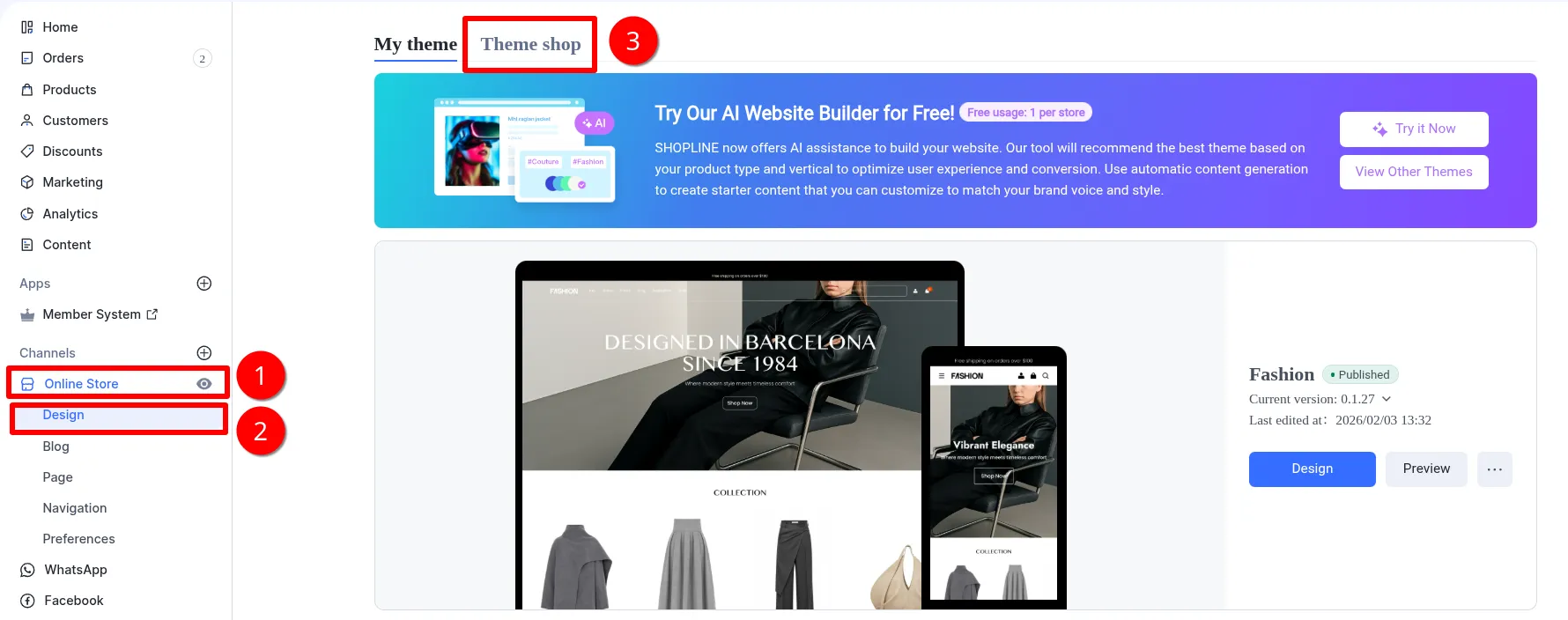
- Navigate to Online Store > Design from the Shopline admin panel.
- Click on the Theme Shop tab
- Choose the Theme you wish to explore (Note: Don’t choose based on how the theme looks! Images and colours can be edited later)

- Clicking ‘Preview theme’ opens a preview store that showcases the theme’s features.
- Clicking on ‘Free Trial’ will add the theme to your theme library. This allows you to edit the theme and explore its full functionality.

- After clicking ‘Free Trial’, click on ‘Design’ next to the trial theme you just added. This will let you edit the theme and preview how your store will look.
- You can’t publish changes unless you buy the theme.
Repeat this process for each theme you want to try.
Avenues You Can Use to Launch Your Shopline E-commerce Store
Once you’ve finalised and fleshed out your website, it’s time to launch your store.
At this point, your store doesn’t yet have the traction to be self-sustaining. You’ll need to kick-start its growth by driving high-quality traffic and leads.
Here are some of the best ways to do that:
Physical In-Store Promotions
If you already have a network of physical stores and outlets that get decent foot traffic, you can drive that loyal customer base to your website.
Simply include your website’s URL in your promotional in-store material. It could be through:
- Strut Cards. These are small, card-sized promotional materials that are placed on restaurant tables and cashier counters.
- Banners. These are larger collaterals placed on the walls of retail stores.
Social Media Marketing
Social media marketing is a powerful option for launching your online store, as it reaches active online users.
There are two main avenues of social media marketing:
- Paid Social Media Marketing. Using ad platforms such as Meta Ads Manager, businesses can run paid ads to target specific demographics, driving high-quality traffic and high-intent leads.
- Organic Social Media Marketing. This approach involves creating regular content to be seen and engaged with by an avid, interested audience. However, it takes scale and consistency for your content calendar to gain traction.
Remember, social media is an attention-heavy, fast-paced platform. As such, effective social media marketing content should hook and engage in the first split second.
Effective social media content includes short-form videos and native, authentic images—leveraging multiple channels such as the news feed, Reels, and 24-hour Stories to drive brand awareness and site traffic.
Search Engine Marketing (SEM)
Search engine marketing involves placing your website’s search snippet in the sponsored section of the SERP.
This is done strategically to drive high-intent traffic.
The marketing specialist would consider which search queries and keywords will drive the most high-intent traffic, and also work within the business’ budget (since different keywords have different Pay-Per-Click rates).
Blog Articles
Adding a blog to your website does two things: it establishes thought leadership within your niche, and it allows your website to rank for more keywords.
By scaling written content creation for your e-commerce store, you increase your search engine visibility. You’ll also gain high-intent visibility, since people using search engines are making an intentional, conscious decision to search for a solution to their problems (e.g., top 10 shoe cleaners, how to wash coffee stains off clothes).
Influencer Marketing
Whatever your industry or niche may be, there’s an influencer with authority on the audience you aim to cater to.
There are tech influencers, fitness influencers, lifestyle influencers, gaming influencers, and Dungeons & Dragons influencers, just to name a few.
Leveraging influencer marketing exposes your website to a wider audience. However, its main benefit is that it harnesses influencers’ authority over their followers. This builds greater trust in your brand, making it appear more credible and premium.
Partner with an E-commerce Agency for Your Shopline E-Commerce Business Today!
Even after your store is built, Shopline e-commerce remains a massive, day-to-day undertaking. You’ll have to manage store operations, monitor marketing metrics, and continuously iterate on the website’s layout to keep it fresh.
MediaOne has helped hundreds of Shopline stores achieve e-commerce success. Our extensive experience in social media marketing, email campaigns, and SEO, along with having worked across a variety of industries, gives us the e-commerce expertise to grow our clients’ businesses.
We leverage AI tools to scale campaigns, enabling us to deliver the best possible KPIs within your budget.
Get a free strategy call with MediaOne today. Let’s work together to grow your Shopline website into a robust pillar of your business.
Frequently Asked Questions
Can I sync my online inventory with my physical retail store’s POS system?
Yes. Shopline also offers an integrated Point of Sale (POS) system. This ensures that if a customer buys the last “Leather Jacket” in your physical boutique, your online store automatically updates to “Out of Stock” in real-time.
What is the “Smart Hierarchy” option for collections, and should I use it?
It allows you to set rules, such as products with the ‘Summer’ tag and a price under $50 will all be placed into a specified collection. This is useful if your store regularly has new products. You’ll commonly see this with fashion stores.
Does Shopline support dropshipping if I don’t have my own warehouse?
Absolutely. Shopline integrates with various dropshipping apps. This allows you to import products from suppliers directly into your catalogue. When a customer orders, the supplier handles the fulfilment.
Is there a limit to how many product images or videos I can upload?
While Shopline encourages detailed visuals and 360-degree views, there are generous storage limits based on your subscription tier. To keep your site fast, it is always a good idea to use compressed WebP images so high-quality close-ups don’t slow your page load.
What happens if I want to change my theme after my store is live?
You can switch themes at any time. However, if you decide to upgrade from the “Fashion” theme to a paid theme, you’ll need to rebuild your store’s layout on the new theme you wish to use. Until then, keep the store built on the “Fashion” theme operational while the new one is fully developed.
Upgrading to a paid theme won’t discard your old website.