
| AI Summary
Website maintenance is the scheduled work that keeps a business site secure, accessible and functional through updates, monitoring, backups and recovery testing. For Singapore businesses, a risk-based calendar should also cover performance, access controls, third-party integrations and PDPA incident procedures. This guide explains what to check daily through annually, how to troubleshoot common failures and how to choose between in-house, managed and hybrid maintenance. |
Website maintenance is not something you do after your site breaks. It is the scheduled, documented work that stops the breaking from happening in the first place.

Most site owners treat maintenance reactively: they wait for slowdowns, security alerts or downtime before acting. The result is predictable. An emergency can create staff costs, lost trading time and recovery work that routine monitoring might have reduced. When you maintain your site on a calendar, with clear ownership and measured outcomes, planned maintenance can lower the frequency and impact of avoidable incidents.
Whether you run a single e-commerce store, a content platform, a SaaS application or a blog, the principles are the same: measure what is important, act before it fails, and document what you did so the next person knows where to start.
Key Takeaways
- Website maintenance is not optional upkeep. It lowers the risk of outages, security incidents and disrupted sales, although no schedule can eliminate failures.
- A documented maintenance calendar gives teams earlier warning of problems and clearer recovery responsibilities.
- Set backup frequency to your recovery needs; monitor security alerts continuously and review performance and restoration procedures on a timetable.
- Certificate renewal failures, database growth and plugin conflicts are preventable sources of disruption, although their frequency varies by site.
- Choosing between in-house and managed maintenance depends on team bandwidth and risk appetite, not budget alone. Many organisations save money by outsourcing but lose operational control; others spend more in-house but gain transparency.
Why Website Maintenance Is Important
Neglected websites can degrade gradually or fail without warning, affecting performance, security and revenue until a costly repair becomes necessary.
The Hidden Cost of Neglect
Site owners often focus on maintenance as a direct line-item cost rather than recognising its broader value. They track the hours spent patching, the tools subscribed to, and the contractors invoiced. They miss the real expense: the compounding damage of inaction.
A site that runs without scheduled maintenance does not stay stable. It accumulates technical debt. Unpatched plugins may retain known vulnerabilities. Heavy queries can grow costly as data accumulates. Certificates nearing expiry require renewal checks. The cost is invisible until it manifests as lost transactions, damaged reputation or emergency remediation bills that dwarf routine maintenance spending.
The OWASP Top 10 2025 supply chain guidance identifies outdated or unsupported components as an application risk. Patch management, a component inventory and monitoring for disclosed vulnerabilities address part of that exposure. Security audit costs depend on scope and should be quoted in SGD.
Downtime carries its own hidden tax. Availability is not a direct proxy for sales. A SaaS application with 99% uptime is unavailable for approximately 3.65 days per year, but actual losses depend on outage timing, customer demand, failed transactions and recovery. Estimate lost sales from affected sessions, conversion rate and average order value rather than multiplying downtime by monthly revenue.
What Breaks Without Regular Maintenance
Specific, predictable failures emerge when maintenance is skipped.
Database bloat and query slowdown. Every CMS generates orphaned data: deleted posts that leave metadata behind, log entries that pile up, transient options that expire but never delete. WordPress databases can accumulate logs, revisions and unused records; performance impact depends on query design, indexes and data volume. Page load times increase. Conversion rates drop.
Plugin and theme incompatibility. A site running unsupported WordPress core or plugins can encounter compatibility issues when extensions require newer software. The site either stalls at an outdated version (remaining vulnerable) or an update breaks functionality without warning.
Certificate expiration and SSL failures. A missed SSL certificate renewal (a single calendar event) causes browsers to show security warnings on every visitor session. Visitors may be blocked by certificate warnings. Email delivery is not automatically affected, and recovery depends on the cause and configuration.
Broken integrations and API drift. Payment gateways, email services and third-party APIs evolve. An unmaintained site calling deprecated endpoints will begin failing unpredictably: failed transactions, undelivered notifications, broken reports.
Search engine indexing loss. Stale sitemaps, broken internal links and 404 errors accumulate silently. Broken links, accidental noindex directives and inaccessible pages can reduce search visibility; use Search Console to confirm the actual cause.
Security Risk Escalation Over Time
Delaying security work extends the period in which known vulnerabilities may be exploited.
A security vulnerability disclosed by a software vendor or researcher gives attackers an opportunity before affected installations are patched. Sites patched within days are protected. Sites that wait weeks enter a high-risk zone. Prioritise patches based on whether a vulnerability is exploitable, exposed to the internet and under active attack.
Attackers scan continuously. If your site runs an outdated WordPress version with a known vulnerability, automated scanners may find it, potentially enabling malware or unauthorised access. You discover the breach only when a customer reports strange activity or your hosting provider suspends the site for spam distribution.
Old admin accounts, abandoned user roles and forgotten SSH keys linger without audit. A contractor from three years ago may retain access. An ex-employee’s credentials still work. Permissions accumulate: users gain access rights but never lose them.
Logs rotate and disappear. Without a log retention policy, forensic investigation after a breach becomes impossible. In Singapore, organisations handling personal data should maintain controls that support breach assessment and notification under the PDPA. You cannot respond to what you cannot see.
Each skipped security audit extends the window. Each unreviewed access log hides a footprint. Each expired penetration test assumption becomes outdated. Audit frequency should reflect the site’s exposure, changes and risk profile; scans do not replace patching and access controls.
The progression is clear: sporadic maintenance leads to overlooked vulnerabilities, which lead to compromise, which lead to emergency remediation, notification obligations, potential fines and customer loss. Emergency remediation typically exceeds the cost of planned maintenance by a significant margin, varying by incident severity and industry context.
Core Maintenance Tasks: A Prioritised Checklist
A structured maintenance schedule catches many avoidable problems before they become outages. The key is matching task frequency to the impact of failure: security checks run daily, performance reviews monthly, and infrastructure audits annually.
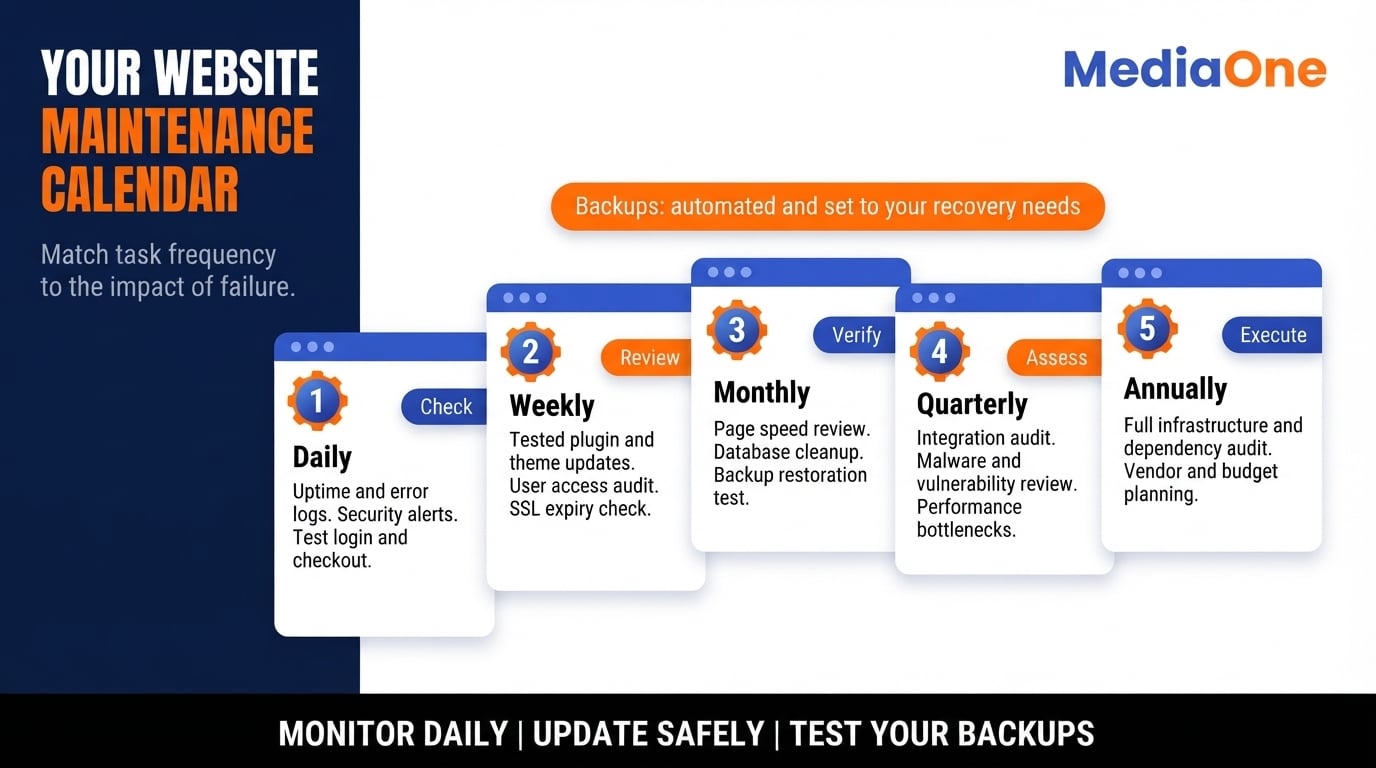
The table below shows the standard cadence for a typical business website. Increase monitoring for sites processing payments or personal data. For low-change static sites, reduce routine effort only after assessing hosting, dependencies and recovery needs.
| Task | Frequency | Time Required | Why It is important |
| Check site uptime and error logs | Daily | 5 minutes | Catches outages before customers report them |
| Review security alerts and patches | Daily | 10 minutes | Exploits spread within hours of disclosure |
| Test critical user flows (login, checkout) | Daily | 10 minutes | Broken features cost revenue immediately |
| Back up database, files and configuration | Risk-based | Automated | Restores content, media and essential settings |
| Update plugins, themes, extensions | Weekly | 30 minutes | Reduces vulnerability window |
| Audit user access and permissions | Weekly | 15 minutes | Detects unauthorised changes |
| Check SSL certificate expiry date | Weekly | 2 minutes | Expired certificates cause browser trust warnings |
| Review page load times | Monthly | 20 minutes | Slow sites lose visitors and rank lower |
| Clean database tables (revisions, spam, logs) | Monthly | 30 minutes | Bloat slows queries and increases backup size |
| Test backup restoration | Monthly | 45 minutes | Backups are useless if you cannot restore them under current infrastructure |
| Audit third-party integrations | Quarterly | 60 minutes | Detects API changes, data leaks, or unused services |
| Scan for malware and vulnerabilities | Ongoing and quarterly review | Varies | Investigates alerts and checks exposure |
| Review performance bottlenecks | Quarterly | 90 minutes | Identifies database queries, caching gaps, or asset waste |
| Full infrastructure and dependency audit | Annually | 4 hours | Plans for upgrades, vendor changes, or capacity growth |
Note: Adjust frequencies upward for high-traffic sites, payment processors, or those handling personal data.
Daily and Weekly Tasks
For a small site, daily checks can be brief when monitoring, backups and alerts are automated.
Start each day by logging in to your hosting control panel or monitoring service. Use an uptime monitor or your cloud provider’s dashboard to receive alerts for outages. If you missed a notification, check your error logs for crash times, memory exhaustion, or database connection failures. Record the error type, its timestamp, and whether it recurred.
Test your highest-priority user workflow. For an e-commerce site, attempt a complete purchase from a fresh browser. For a SaaS platform, log in, perform a key action such as exporting data or changing settings, then log out. For a blog, verify the search function works and a recent post loads without formatting breaks. This takes 5 minutes and catches broken links, missing images, or failed integrations before customers notice.
Check for new security patches. Most content management systems (WordPress, Drupal, Shopify) and hosting providers (AWS, Netlify, Kinsta) announce critical updates on their security pages or email lists. Subscribe to these notifications and review them daily. If a patch addresses active exploitation, treat it as urgent: take a recoverable backup, test critical functions quickly where feasible, deploy a controlled update and monitor the outcome. If immediate patching is impossible, consider temporary mitigations from the vendor.
Review user access changes. For WordPress, Drupal, or custom applications, check the admin user log for new accounts, role changes, or login attempts from unexpected locations. Remove users who have left your team. This limits how long unnecessary access can remain available.
Weekly tasks review changes, backup health and upcoming renewals that daily alerts may miss.
Run a backup and verify its integrity. Most hosting platforms back up automatically, but check that backup copies are protected from the same failure or ransomware event as your live site. Choose full and incremental backup intervals around your recovery point objective and transaction volume. Check your hosting control panel or backup software to confirm each backup completed without errors.
Update plugins, themes, and dependencies. Test updates on a staging copy of your site first, ideally a clone from the previous day’s backup. Install the update, run your critical tests, and confirm page load time has not increased. If checks pass, push to production. If a plugin fails testing, skip that version and note it. Revisit it after the vendor releases a patch. This prevents updates that break forms, disable extensions, or introduce security gaps.

Review SSL certificate expiry. Most hosting providers send reminders 30 days before expiry, but check manually using a tool like SSL Shopper or your browser’s certificate inspector. For migrations, follow a documented HTTPS SEO migration process so canonical URLs and redirects remain consistent. For Let’s Encrypt (free), renewal happens automatically if your hosting has auto-renewal enabled. For manually renewed certificates, renew well before expiry and monitor the replacement certificate in production.
Monthly Maintenance Windows
Reserve a recurring monthly maintenance window for deeper reviews. These tasks catch problems that develop over weeks.
Run a full performance audit. Use Lighthouse in Chrome DevTools and real-user reporting to review performance and accessibility. Google’s current Core Web Vitals are Largest Contentful Paint, Interaction to Next Paint and Cumulative Layout Shift; see the performance section for thresholds. Compare this month’s results to last month’s baseline. If real-user Largest Contentful Paint is above 2.5 seconds or has deteriorated against baseline, investigate potential causes: a new plugin, larger image files, or database growth. Identify and fix the cause before visitors leave.
Clean your database. WordPress sites accumulate post revisions, spam comments, transients, and orphaned metadata that slow queries. Use a supported cleanup tool or your host’s database manager only after confirming a restorable backup, a retention policy and the records to be removed. For Drupal, clear cache tables and old update hooks. For custom applications, measure table growth and use the applicable data-retention policy before archiving or deleting logs. Database size alone does not establish whether a site is inefficient.
Test your backup restoration. Restore the latest backup to an isolated, access-controlled environment. Create a new folder on your local development environment or a test staging server. Extract the backup, restore the database, and load the site. Verify pages load, user logins work, and images display. This confirms your backup is not corrupted and you understand how to restore it under pressure. Document the restore steps and elapsed recovery time and keep them accessible. This can save hours during a real outage.
Audit user roles and permissions. List every user account on your site. For WordPress, use Admin > Users. For custom applications, use your database queries or admin panel. Remove accounts for staff who have left. Downgrade contractors or part-time editors to the minimum role they need: Contributor instead of Editor, Viewer instead of Admin. A compromised Editor account can modify public posts. A compromised Admin account can install malicious plugins and steal your entire site.
Quarterly Deep Reviews
Each quarter, carry out a deeper infrastructure and security review, with extra checks after major changes.
Scan for malware and vulnerabilities. Use a platform-appropriate scanner, such as a reputable WordPress security scanner or a host-managed detection service, to scan your codebase and database for known malware signatures and suspicious patterns. If a scan finds malware, isolate infected files and restore from a clean backup if necessary. Remove the vulnerability. Do not wait until a visitor reports your site to a blocklist.
Review all active integrations. Document every third-party service connected to your site: payment processors, email marketing platforms, analytics tools, CDNs, backup services, and security plugins. For each, verify it is still in use, its credentials are not exposed in your code, and it complies with your data privacy obligations. In Singapore, the Personal Data Protection Act (PDPA) requires that you protect customer data in integrations you use. Refer to the PDPC breach-reporting guidance when documenting how suspected data breaches in connected systems are assessed and escalated. Disable or remove any integration no longer in use. Each one adds risk and expands your attack surface.

Analyse traffic and resource usage trends. Pull a 90-day report from your analytics service and hosting dashboard. Has traffic grown, stayed flat, or declined? Has bandwidth or database size grown unexpectedly? Are certain pages consistently slow? Are there spike patterns in traffic? This data guides your next infrastructure investment: do you need caching, a CDN, database read replicas, or a server upgrade?
Review your disaster recovery plan. You have backups; now confirm you can restore one and document the steps. How long does restoration take? How much data loss can you tolerate (Recovery Point Objective, or RPO)? If daily backups fail silently for a week, what happens? Write a short runbook: ‘If the site is offline, check monitoring, preserve evidence and contact the on-call owner.’
Annual Audits and Planning
Once per year (ideally before budget season), audit your entire infrastructure and plan for the next 12 months.
Conduct a full security audit. Arrange an appropriately scoped independent security assessment for sites with sensitive data, complex custom code or significant exposure. They test for common vulnerabilities such as SQL injection, cross-site scripting, and weak authentication. The appropriate assessment depends on exposure, contractual duties and regulatory obligations. Any site accepting payment, storing user accounts, or handling customer data should have an annual audit.
Review all dependencies and vendor contracts. List every software licence, hosting agreement, and SaaS subscription your site relies on. Note renewal dates, costs, and terms. If a vendor charges you but you are not using the service, cancel it. If a vendor has gone quiet or discontinued a product, plan a migration. If a dependency (a library your code uses) has not received security updates in 2 years, flag it for replacement.
Benchmark against industry standards. Compare your site’s Core Web Vitals, uptime, and backup frequency to competitors or industry benchmarks. Compare performance with your baseline, user expectations and contractual service objectives before deciding whether hosting or architecture needs improvement.
Plan infrastructure and team changes. If a redesign or migration is planned, include a website relaunch SEO checklist before changing URLs or templates. If you have grown from 10,000 to 100,000 monthly visitors, your current hosting may no longer scale. If you rely on one person for all maintenance and that person took a week off, who backed you up? Document your plan for the next 12 months: new tools, team training, server upgrades, or outsourced services.
Keeping Your Software and Plugins Updated
Software and plugin updates are an important part of reducing security exposure and keeping your site stable.
Why Updates Matter
Updates contain three types of changes: security patches, bug fixes, and feature improvements. Security patches matter most. When a vulnerability is discovered in WordPress core, a plugin, or your hosting environment’s PHP version, attackers scan the internet for unpatched instances. The urgency depends on exploit availability and the affected software.
Neglecting updates leaves known vulnerabilities unresolved. The OWASP guidance linked earlier identifies unsupported and compromised dependencies among web application security risks. A site running WordPress 5.8 with unpatched plugins is not just slower. It is actively targeted by automated scanning bots.
Beyond security, updates fix bugs that erode system stability and break integrations. A plugin update might patch a database query that was running unoptimised. A core CMS update might fix a memory leak causing your site to slow down under load.
The trade-off is straightforward: allocate time for patch testing and deployment now, rather than rely on emergency recovery after a preventable incident. Emergency remediation typically exceeds the cost of planned maintenance.
Testing Before You Deploy
For planned changes to complex sites, test in staging before production. Emergency security updates may require accelerated checks with a rollback plan.
Use a staging environment that mirrors your live site: the same plugins, theme, version numbers, and data volume. Run updates there first.
Follow this sequence:
- Confirm a current production backup and capture a staging snapshot.
- Update all plugins, the theme, and core software.
- Run your key user journeys: login, create a post, publish content, process a transaction (if applicable), check the front-end render.
- Review the site speed: load a representative page on your staging server using Lighthouse and compare the score to the baseline.
- Check your error logs (usually in /wp-content/debug.log for WordPress) for PHP warnings or fatal errors.
- If all checks pass, schedule the live update during a low-traffic window.
The time required depends on site complexity, but the sequence helps detect update-related problems before deployment.
Common conflicts to watch for include:
- A plugin that calls a removed function in updated core code (breaks immediately).
- Two plugins that both load the same library but expect different versions (causes unpredictable behaviour).
- A custom code snippet written for an older API and fails with the new version.
- Theme updates that reset custom CSS or override child-theme files (renders the site visually broken).
If testing surfaces a conflict, record the affected component and contact the vendor. For a critical security fix, apply compensating controls and plan an urgent alternative rather than automatically waiting until next month.
Automating Updates Safely
Manual updates are error-prone and often skipped. Automation is better, but must be done correctly.
The WordPress update documentation confirms that self-hosted WordPress supports automatic background updates for many minor and security releases, and plugin/theme auto-updates can be configured separately; hosted platforms manage updates differently. This balances safety with steady patch coverage.
Consider automatic updates, with monitoring and rollback arrangements, for:
- Supported minor core releases where the platform and hosting policy allow them.
- Trusted plugins and themes where their update history and site dependencies make automation suitable.
- Provider-managed server software updates scheduled under a tested change policy.
Keep manual approval for:
- Major or compatibility-affecting releases (including PHP runtime upgrades).
- Third-party integrations that may have custom modifications.
- Anything affecting payment processing or legal compliance.
Document your auto-update policy in a maintenance calendar. If you cannot defer to a hosting provider’s auto-update service, use a tool like WP-CLI (for WordPress) to run updates via a scheduled cron job, but route the output to a log file that you review weekly.
When to Delay an Update
Delaying an update is sometimes the right call.
Delay if:
- A critical bug has been reported in the update within 48 hours of release. Seek vendor guidance, assess exploit exposure and apply temporary mitigations where needed. Read the vendor’s issue tracker and changelog.
- Your site has heavy custom code that depends on the old API. Budget time to refactor before updating, or hire a developer.
- The update requires a major database migration. Pair it with an off-peak maintenance window and test your full backup rollback under current environment and infrastructure.
- You are in the middle of a large feature release. Freeze dependencies to reduce variables.
- Your hosting provider has not yet patched their server environment. Updating WordPress when your PHP version is unsupported causes immediate errors.
There is no safe universal delay period. Critical or actively exploited vulnerabilities may require same-day mitigation; lower-risk changes can follow the documented change window.
Create a decision log: record the update, the reason for delay, the re-check date, and who approved the decision. This prevents updates from being forgotten.
In Singapore, organisations holding customer personal data must comply with the Personal Data Protection Act. Under Singapore’s PDPA, organisations should assess a suspected breach expeditiously and generally within 30 calendar days; once they determine it is notifiable, they must notify the PDPC as soon as practicable and within three calendar days. Prioritise security updates to meet these obligations.

Monitoring Performance and Speed
Performance monitoring is your early warning system for maintenance issues. Without measurement, you cannot distinguish normal variance from real degradation, and you will respond too late.
Key Metrics Worth Tracking
Focus on metrics that correlate with user experience and business impact, not vanity numbers.
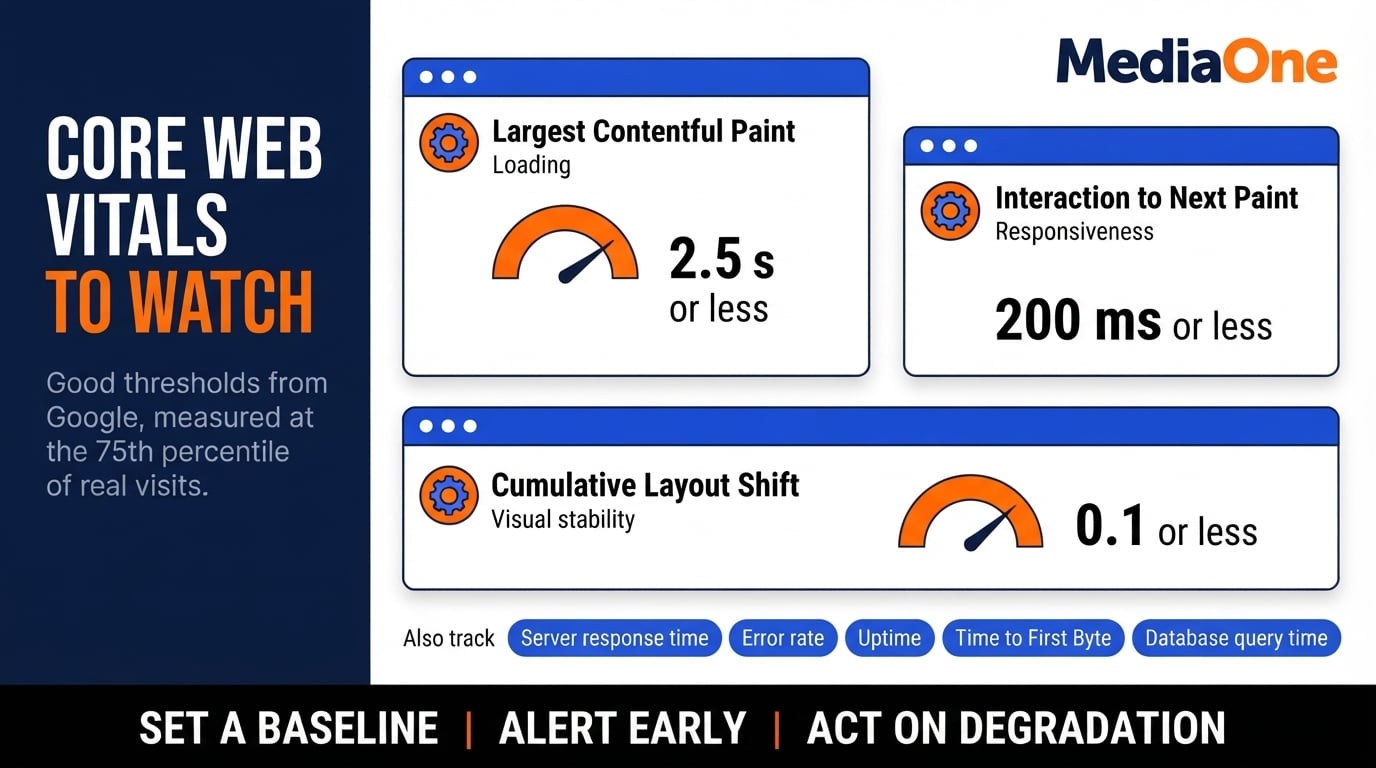
Core Web Vitals (Google’s real-user experience metrics):
- Largest Contentful Paint (LCP): loading performance. Google’s Core Web Vitals guidance sets a good threshold of 2.5 seconds or less at the 75th percentile of real-user visits.
- Cumulative Layout Shift (CLS): unexpected visual movement. Good threshold: 0.1 or less.
- Interaction to Next Paint (INP): responsiveness to user input. Good threshold: 200 milliseconds or less.
Server and database metrics:
- Response time: how long your server takes to answer a request. Set a site-specific baseline by page type and traffic conditions.
- Database query time: investigate queries that exceed your service’s expected latency or resource budget.
- CPU and memory utilisation: set alerts from observed peaks, capacity planning and provider guidance.
- Error rate: track 4xx and 5xx HTTP errors as a percentage of all requests. Spikes often signal plugin conflicts or database issues.
Infrastructure metrics:
- Uptime: measure both availability (is the site reachable?) and actual functionality (does the checkout work?).
- Time to First Byte (TTFB): how long before your server sends the first response. High TTFB often indicates database strain or network latency.
Set baselines for each metric during normal operation. MediaOne’s guide to improving Core Web Vitals explains how to prioritise actual user-experience problems. A 20 per cent increase in response time may be insignificant if your baseline is 100ms, but critical if it was 50ms.
Tools That Catch Problems Early
Use tools that provide continuous monitoring, not one-off snapshots.
Real User Monitoring (RUM) tools measure actual visitor behaviour:
- Google Analytics 4 can receive Web Vitals through custom events or a suitable measurement integration; collection is not automatic.
- Sentry tracks JavaScript errors and sends alerts when error rates spike.
- LogRocket records user sessions so you can replay exactly what happened when a complaint arrives.
Synthetic monitoring (testing your site from external servers on a schedule):
- Uptime monitors can check reachability at configured intervals and alert you after a failed check; plan settings determine detection latency.
- Lighthouse-based audit tools provide repeatable lab tests; verify scheduling features against the current provider plan.
- Pingdom alerts you when response time degrades or pages fail to load.
Infrastructure and database monitoring:
- Your hosting provider’s built-in dashboard: most cPanel, Plesk or cloud providers show CPU, memory and disk usage in real time.
- New Relic or Datadog: expensive, but give you deep visibility into application performance and database queries (often overkill for small sites).
- MySQL slow query log: enable it in your database configuration to log queries taking longer than 1 second. Review logs weekly.
Set alerts at thresholds, not at 100 per cent. For example, alert if response time exceeds 500ms, or if error rate jumps above 1 per cent, or if SSL certificate expires in 30 days.
Setting Performance Baselines
You cannot detect degradation without knowing what normal looks like.
- Run tests under normal traffic conditions. Test at midnight and at peak hours; note both. A site under heavy load will always be slower, but you need to know your peak baseline.
- Test across geographies if you serve multiple regions. A site hosted in Virginia will feel slower to users in Singapore; baseline each region separately.
- Document your baseline in a shared spreadsheet or wiki. Record the date, test conditions (time of day, device type, browser, network speed) and results. Include URLs tested and tool versions used.
- Re-baseline after any major change: a new theme, plugin, hosting upgrade or code deployment shifts the baseline. Run tests again and update your record.
- Use consistent testing conditions. Always test from the same geographic location, same device type and same network speed (or use a throttling profile, such as ‘Slow 4G’ in Chrome DevTools). Inconsistent test conditions hide real problems.
An illustrative baseline spreadsheet, with fictional values and dates, looks like this:
| Page | Metric | Baseline | Alert Threshold | Last Checked | Notes |
| Homepage | LCP | 1.8s | >3s | 2 Oct 2026 | Hosted in Singapore |
| Checkout | Response time | 180ms | >400ms | 2 Oct 2026 | Peak hours only |
| Blog listing | CLS | 0.05 | >0.15 | 2 Oct 2026 | Ad network loads slowly |
| Database query | Query time | 320ms | >800ms | 2 Oct 2026 | Product search query |
Note: adjust frequencies for high-traffic or payment-processing sites.
Acting on Degradation
A metric going red is useless without a response protocol.
Immediate diagnosis:
- If response time rises suddenly, check: whether CPU or memory spiked, whether a new plugin was installed, whether a cron job is running, or whether database size grew.
- If error rate jumped, check error logs first. Most errors will point to a specific plugin, theme file or permission issue.
- If a single page got slow but others are fine, the issue is usually that page’s code or its database queries, not your server.
Decision framework:
| Symptom | Check First | Typical Cause | Fix Priority |
| All pages slow, CPU 90 per cent or higher | Server load and recent changes | Plugin conflict, traffic spike or cron job | Immediate: disable new plugin or scale up |
| One page slow, others fine | That page’s code and queries | Slow database query or unoptimised image | High: optimise query or compress assets |
| Response time creeping up over weeks | Database size and table fragmentation | Orphaned data, post revisions or unused logs | Scheduled: clean database next week |
| Sudden error spike | Error logs and recent deployments | Code bug, permission issue or quota exceeded | Immediate: revert deployment or investigate logs |
| SSL certificate due to expire | Certificate details in your hosting panel | Forgetting to renew | Immediate: renew or switch to auto-renewal |
Response steps (in order):
- Alert your team immediately if downtime or error rate is above your SLA.
- Check if a change was deployed in the last 24 hours. If yes, revert it while investigating.
- Review infrastructure metrics (CPU, memory, disk). If full, add capacity or free space now.
- Check the database slow query log. If queries are slow, inspect query plans and test appropriate indexing or maintenance changes outside peak traffic.
- If you cannot fix it within 30 minutes, escalate to your hosting provider or bring in a contractor.
Do not ignore small degradations. Unexplained degradation can worsen if its underlying cause, such as query load or a poorly configured plugin, remains unresolved.
Review trends monthly. If response time has crept up 20 per cent over three months, investigate before it becomes a crisis. Schedule a maintenance window to clean the database, disable unused plugins or upgrade your hosting tier.
Common Maintenance Failure Modes and Recovery
Even with a solid maintenance plan, specific problems emerge repeatedly across sites. Knowing these patterns and their remedies saves hours of diagnosis.
| Failure Mode | Why It Happens | Early Warning Signs | Recovery Steps |
| SSL certificate expires silently | Renewal reminders sent to an old email address; no automated renewal configured | Browser shows ‘Not Secure’ warning; 30 days before expiry if you check manually | Renew immediately. Add hosting provider’s admin email to renewal notifications. Enable auto-renewal if available. |
| Database grows uncontrollably | Post revisions, spam comments, transient options, and logs accumulate without cleanup | Database growth exceeds your baseline; queries slow; backups take longer to complete | Run database cleanup tool (WP-Optimise for WordPress). Manually delete old revisions: remove only confirmed redundant revisions through a tested maintenance tool after backup. Set a monthly cleanup cron job. |
| Plugin conflict after update | Two plugins load conflicting versions of the same library, or a plugin calls a function removed in core update | Frontend renders partially, forms do not submit, admin panel fails to load, or PHP errors appear in logs | Identify the failing plugin via error logs. Disable it temporarily. Contact vendor or downgrade to last stable version. Test in staging before re-enabling. |
| Database connection pool exhausted | Too many long-running queries or unclosed connections; site traffic spikes | Error: ‘too many connections’; pages time out; error logs fill with database connection errors | Investigate connection leaks and slow queries; adjust pool or server limits with your host after reviewing capacity. Implement query result caching. Contact hosting provider if you lack database configuration access. |
| Backup fails silently | Backup script runs but does not verify integrity; corrupted archive goes unnoticed | Backup files exist but are 0 bytes or extraction fails; no email alerts configured | Test restoration immediately. Download latest backup and verify it extracts without corruption. Configure email alerts for failed backups. Add a monthly restoration test to your calendar. Test restores to verify backups work under your current environment and infrastructure. |
| Memory exhaustion during backup | Backing up large database or files on a shared hosting account with memory limits | Backups time out or are incomplete; server processes killed; PHP memory limit errors in logs | Use incremental backups (daily delta backups) instead of full backups. Split large databases into separate backup files. Increase PHP memory limit if possible, or switch to managed backup service. |
| API keys or credentials exposed in code | Developer checks configuration files containing secrets into version control; files accessible to attackers | Security scanner flags exposed keys; API calls show suspicious activity; vendor sends alerts about unusual usage | Revoke exposed keys immediately. Generate new ones. Remove secrets from codebase and move to environment variables. Scan Git history for old commits containing secrets using tools like git-secrets. Implement secret scanning in your CI/CD pipeline. |
| Third-party service deprecated | Vendor discontinues product or API; integration stops working without warning | Payment gateway stops processing; email notifications fail to send; API calls return 404 or 401 errors | Check vendor’s status page and changelog. Migrate to alternative service during low-traffic hours. Update integration code. Test all flows before deploying. Document migration steps for future reference. |
| Important pages disappear from search | Accidental noindex directives, blocking or server errors can prevent indexing | Search Console reports excluded important pages or unexpected drops | Check the affected URLs, robots rules, canonicals and server responses; fix the root cause before requesting indexing |
| User account privilege creep | Admin account created for a contractor; contractor leaves but account remains; user role elevated but never demoted | Unauthorised posts published; user audit shows unexpected role changes; login attempts from suspicious locations | Remove all inactive user accounts. Downgrade remaining accounts to minimum needed role. Enable two-factor authentication for Admin accounts. Log all user changes. Audit user table quarterly. |
Choosing Between In-House and Managed Maintenance
Maintenance requires time, expertise, and accountability. Most organisations cannot do it effectively in-house without dedicating a specialist.
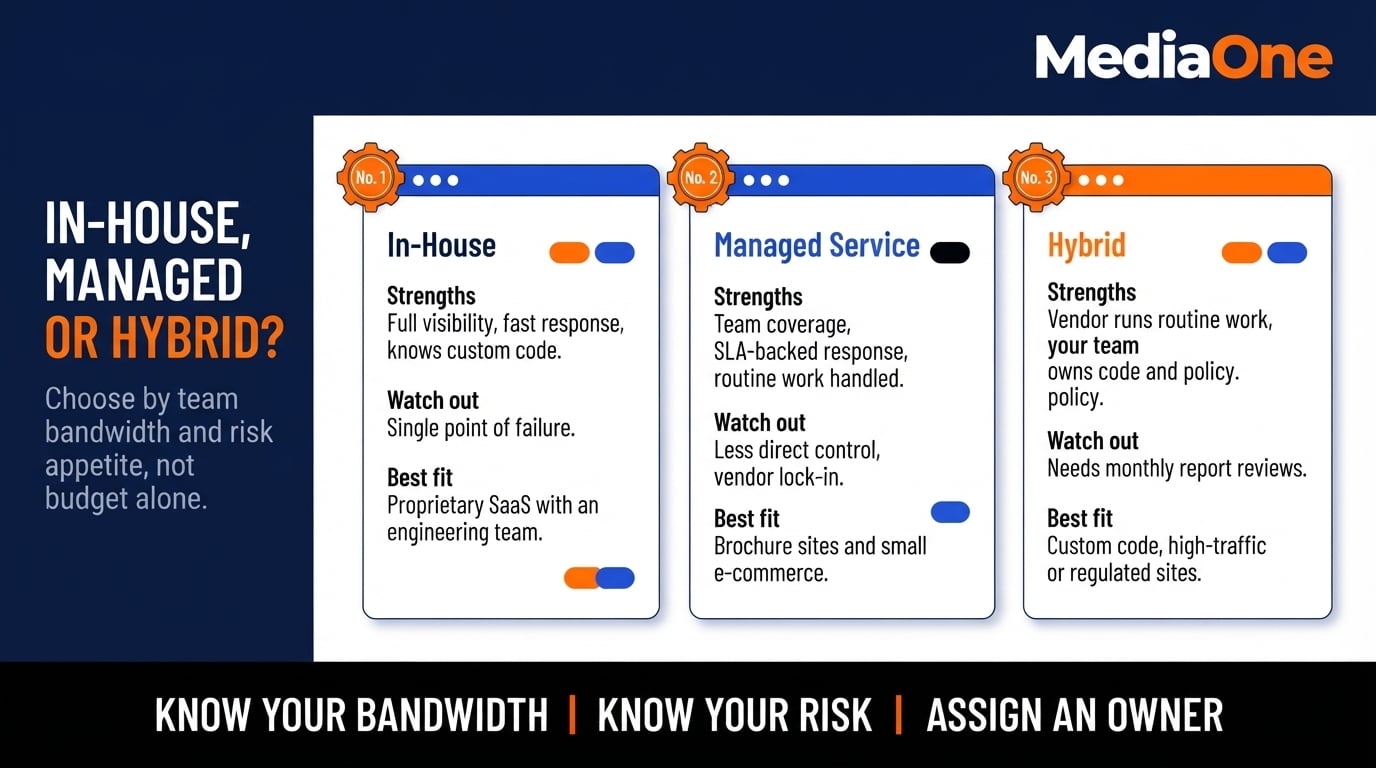
In-House Maintenance: When and Why
In-house maintenance makes sense when you have a team member who can own it and the site’s complexity justifies that investment.
Advantages:
- Full visibility into changes and decisions.
- Immediate response to issues (no waiting for vendor support).
- Understanding of custom code and unique architecture.
- Can enforce organisation-specific security and compliance policies.
Disadvantages:
- May require paid engineering capacity or allocating an existing developer’s time.
- Single point of failure if that person is ill, on holiday, or leaves.
- Operator burnout if they are on-call 24/7.
- Knowledge and credentials locked to one person.
- Harder to scale if you add more sites or grow traffic.
Typical scenario for in-house: A SaaS company with 5-20 engineers running a custom application. They maintain it in-house because the codebase is proprietary and the business cannot tolerate someone else having full access.
Managed Maintenance Services: How They Work
Managed maintenance vendors can handle updates, backups, monitoring and security reviews on an agreed schedule. Around-the-clock response is available from some providers and should be specified in the contract.
What is included (typically):
- Daily uptime monitoring and alerts.
- Weekly plugin, theme, and core software updates (tested before deployment).
- Daily or weekly automated backups with monthly restoration tests.
- Monthly performance review and optimisation recommendations.
- Quarterly security audits and malware scanning.
- Emergency response within contractually agreed hours and severity levels.
What is usually not included:
- Custom development or code review.
- Content updates or site design changes.
- Legal or compliance consulting (though some vendors offer it for an additional fee).
- Marketing or SEO optimisation.
Advantages:
- A quoted monthly fee based on site complexity and service-level agreement (SLA).
- Team of engineers, not a single person (no single point of failure).
- Accountability: vendors usually offer SLA guarantees (for example, response within 1 hour for critical issues).
- Allows your internal team to focus on content, strategy, or product rather than infrastructure.
Disadvantages:
- Loss of direct control over changes (you must trust the vendor’s processes).
- Vendor lock-in: switching providers requires transferring all access and credentials.
- Communication lag: you cannot immediately see why an issue happened or access logs yourself.
- If a vendor update breaks your site, you are dependent on their support team to fix it.
- Additional cost on top of hosting, which can surprise budget-conscious organisations.
Cost Comparison
| Scenario | In-House Cost Drivers | Managed Service Cost Drivers | Best Fit |
| Small brochure site (1–5 pages, few integrations) | Existing staff availability; occasional developer support | Monthly monitoring, updates and restoration tests | Managed service or shared internal owner |
| Small e-commerce site | Checkout QA, plugin compatibility and incident cover | Transaction testing, scheduled updates and response SLA | Managed service with business-owner oversight |
| Multi-site platform (10+ sites) | Shared engineering capacity and centralised tooling | Per-site scope, licensing and incident limits | Compare pooled in-house support with managed quotes |
| SaaS application with custom code | Product engineers, deployment and security expertise | Hosting operations; custom-code exclusions | Hybrid model |
| High-traffic or regulated website | Security specialists, audit and on-call cover | Agreed incident priority, monitoring and audit scope | Hybrid or specialist managed support |
Selecting a Managed Maintenance Provider
Not all vendors are equal. Evaluate them on these criteria. If a broader rebuild is also being considered, compare support commitments alongside website design and ongoing support.
- Specificity of SLA: Does the contract guarantee response time (for example, ‘within 30 minutes’) or just effort (‘will attempt to resolve within 2 hours’)? Specific guarantees are stronger.
- Uptime and monitoring: Do they monitor 24/7 and alert you, or do you have to tell them your site is down? Do they provide real-time dashboards?
- Backup verification: Do they test restores monthly or just run backups? A backup that cannot be restored is worthless.
- Transparency and communication: Do they provide detailed changelogs of what they updated each week? Can you request a staging test before updates? Are you locked into their update schedule or can you choose when updates happen?
- Security audit scope: Do quarterly audits include code review, vulnerability scanning, and penetration testing, or just automated scanning?
- Pricing transparency: Is pricing per site, per hour, or tiered by site complexity? Are there hidden overage fees if your site grows or if you exceed a certain incident count?
- Exit terms: What happens to your site access and backups if you cancel? How much advance notice must you give?
Request a reference from a current customer and ask specifically about their experience during an outage.
Hybrid Model: Best of Both
Some organisations benefit from a hybrid model:
- Managed service handles routine maintenance, backups, and monitoring.
- In-house engineer owns custom code, security policies, and vendor relationships.
- In-house engineer reviews managed service reports monthly and escalates issues.
This approach balances cost, control, and resilience. If an ageing site also needs rebuilding, MediaOne’s website design services can help frame the redesign separately from ongoing maintenance. The managed service handles the repeatable work; your team focuses on strategy and custom development.
Building a Maintenance Governance Structure
Maintenance without ownership becomes maintenance that does not happen. Governance ensures it stays a priority and that decisions are documented.
Roles and Responsibilities
Define who does what:
| Role | Responsibility | Frequency | Typical Owner |
| Daily monitor | Check uptime, error logs, and test critical flows | Daily, 15 minutes | On-call rotation (engineer or ops) |
| Weekly updater | Test and deploy plugin/theme updates; check SSL certificate | Weekly, 1 hour | Assigned engineer or managed service |
| Monthly reviewer | Performance audit, database cleanup, backup restoration test | Monthly, 2 hours | Dedicated engineer or managed service |
| Quarterly auditor | Security scan, integration audit, trend analysis | Quarterly, 4 hours | Senior engineer or external consultant |
| Annual planner | Full infrastructure review, budget planning, vendor renewals | Annually, 8 hours | Engineering lead or CTO |
Note: Frequencies and time allocations are illustrative. Adjust them for high-traffic or payment-processing sites.
Maintenance Calendar and Runbook
Create a shared calendar (Google Calendar, Outlook) that shows:
- Daily check-in times (e.g. 09:00 and 17:00 Singapore time).
- First Monday of each month: monthly maintenance window (2 hours).
- First week of each quarter: deep security audit.
- December: annual planning session.
- Vendor renewal dates (e.g. SSL certificate, backup service contract).
- Planned downtime windows for major updates or infrastructure changes.
Create a runbook, a one-page document for each critical task.
Example: Daily Uptime Check Runbook
- Log in to Uptime Robot at 09:00 Singapore time.
- Check for red alerts (any monitor showing ‘Down’).
- If no alerts, move to step 5.
- If alerts are present: log in to your hosting dashboard, check server status, review error logs in cPanel, restart services if needed, document what happened in Slack #maintenance channel, and alert the team lead if downtime exceeds 5 minutes.
- Test checkout flow: visit www.example.com/checkout, add test product to cart, proceed to payment (do not complete).
- If checkout fails, take a screenshot and alert the developer.
- Log completion time in shared spreadsheet with status (OK, issues found, issues escalated).
Runbooks prevent panic during an outage by clarifying the first action to take.

Documentation and Audit Trail
Record what you did and why. These entries are fictional examples of the format:
- Update changelog: ‘2026-10-05: Updated a supported WooCommerce plugin release. Tested checkout. No issues.’
- Incident log: ‘2026-10-04 14:30: Site down. Root cause: database connection pool exhausted. Action: tuned the connection pool after reviewing slow queries. Resolved 14:45.’
- Decision log: ‘2026-10-02: Delayed a planned PHP upgrade because a dependency failed testing. Scheduled a retry after remediation.’
Store these in a shared wiki or Git repository rather than email. When a new engineer joins or the site owner takes holiday, the documentation becomes your continuity safeguard.
Frequently Asked Questions About Website Maintenance
1. How Much Should Website Maintenance Actually Cost?
Maintenance should be priced separately from hosting because backup restoration, security reviews, testing and emergency cover depend on scope. Request itemised SGD quotations for regular tasks, response hours, recovery commitments, extra development and third-party licences. Compare the annual operating cost with the business impact of an outage. The real question is not whether maintenance is expensive, but how much downtime, security breaches, and emergency fixes will cost your business.
2. Can I Really Skip Maintenance If My Site Never Changes?
No. A static site with no content updates still needs maintenance. Security vulnerabilities do not care whether you publish new posts. An outdated installation with a known vulnerability may be targeted. A missing SSL certificate renewal breaks trust signals. Database logs accumulate even if you are not writing new content. The only scenario where maintenance is truly minimal is a fully static HTML site with no forms, database, or integrations served through a static CDN. Most business sites need monitoring and a backup schedule set to their recovery objectives, even if content rarely changes.
3. Is It Safe to Auto-update Plugins, or Should I Always Test First?
Auto-update minor releases and security patches; test major releases first. A minor release jump (6.3.0 to 6.3.1) is low-risk and fixes bugs or security issues. A major jump (6.2 to 6.3) can introduce breaking changes. For compatibility-affecting updates, test in a staging environment and check essential user flows before deployment. For actively exploited security issues, accelerate the process and use a rollback plan. If staging is unavailable, use your hosting provider’s backup and rollback facilities, keep tests focused on critical workflows and prioritise patches according to current exploit risk.
4. What Happens If a Backup Restoration Fails?
Test restores to verify backups work under your current environment and infrastructure. Infrastructure changes, database structure updates, and plugin compatibility shifts can render backups useless when you need them most. Once per quarter, restore a backup to a test environment and confirm the site runs correctly. Document the restore time and any manual steps required.
5. How Do I Know If My Site Maintenance Is Actually Working?
Track uptime percentage, average response time, and number of security incidents. Set a baseline after three months of consistent maintenance. Watch for degrading performance, unplanned downtime, or failed security scans. If these metrics improve or stay stable, your maintenance is working. If they degrade, review your checklist and increase frequency on weak areas.
6. Is Singapore-specific Compliance Part of Maintenance?
Yes. In Singapore, the PDPA requires organisations to assess suspected data breaches expeditiously, generally within 30 calendar days, and to notify the PDPC as soon as practicable, no later than three calendar days after determining a breach is notifiable. Maintenance includes audit logs that document access to personal data, regular security scans, and timely application of patches. Work with your Data Protection Officer and legal advisers to align records, access controls and incident procedures with applicable duties.