
Most beginners who search for SEO tools end up with a long list of logins, a monthly bill and a dashboard they never open. The problem is rarely a lack of tools; often, the constraint is the question, not the available tool. Starting with the right question matters more than choosing a tool. Studying what a competitor ranks for can sharpen that question, but it shouldn’t dictate the tool stack.

For most small businesses in Singapore, the answer is short: start with the free Google tools, one speed check and one plugin. Add nothing else until a specific question stays open. This article lays out a decision sequence for beginners to work through SEO tools in that order, with prices in S$ and examples drawn from local search behaviour.
Start here:
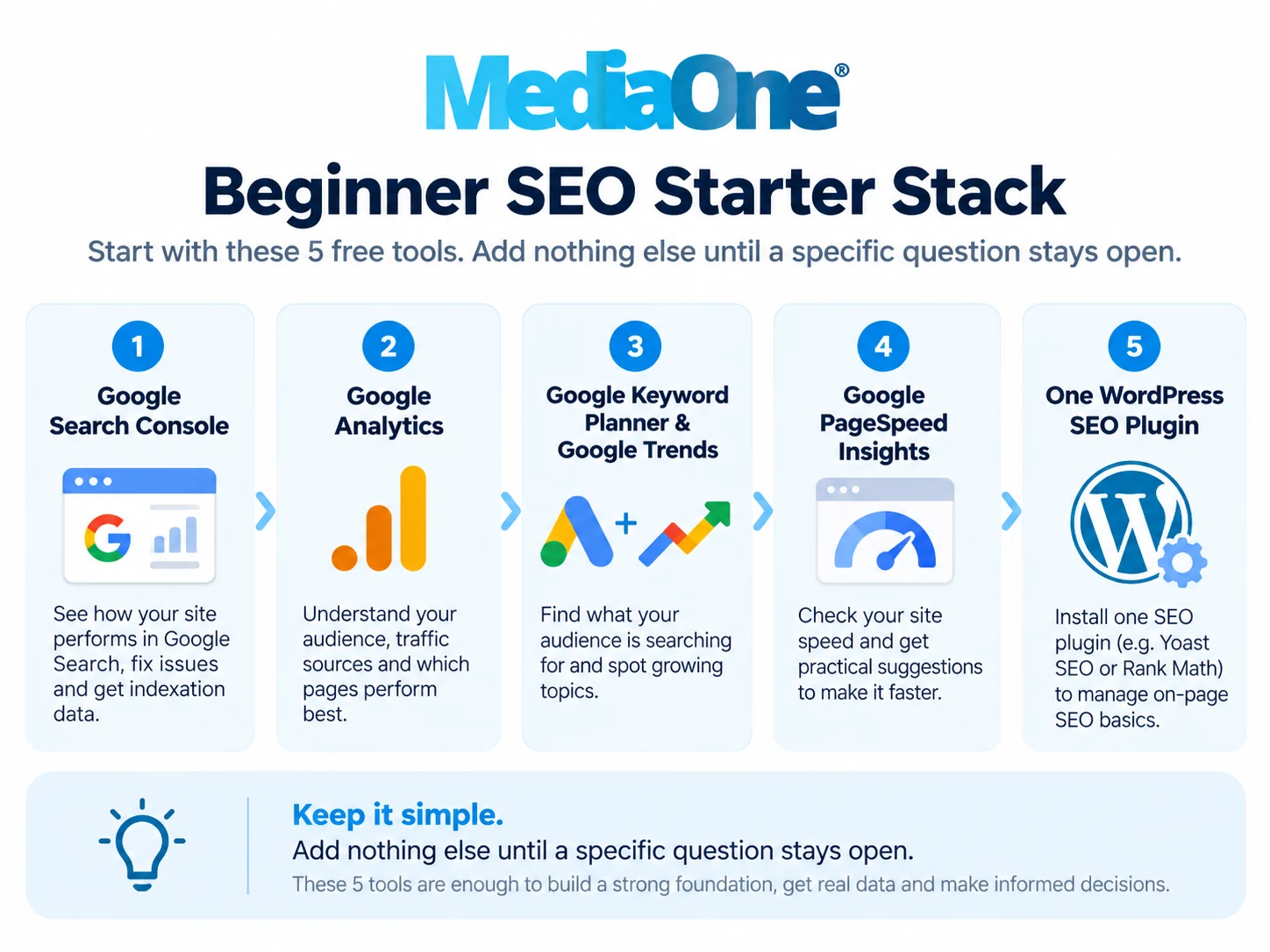
- Open Google Search Console to see which search queries already bring people to your pages and which keywords they use.
- Set up Google Analytics to see what visitors do after they land on your site and which content holds their attention.
- Check demand for seed ideas in Google Keyword Planner and Google Trends.
- Run Google PageSpeed Insights on key pages and address the most serious problems first, as speed is one of many ranking factors.
- Install one WordPress SEO plugin to handle on-page optimisation, configure its titles and meta descriptions, and then stop adding more tools.
Key Takeaways
- Google Search Console and Google Analytics are free and cover most beginner questions, making them the best starting point for beginner SEO tools.
- Keyword Planner and Google Trends show direction, so use them for ranges, not exact numbers.
- A PageSpeed Insights score flags problems but does not guarantee rankings.
- Limit WordPress plugins to one, and set titles and meta descriptions first.
- Pay for a tool only after a free one has run a full cycle and still leaves a question open.
- Performance data can run 2 to 4 days behind, so read it over weeks, not days.
Why Beginners Need Fewer Tools Than They Think
Most beginners open an SEO tool first and ask questions later. They run a site audit, get a list of 200 issues and stop. The tool did its job, but the beginner still doesn’t know what to fix first, and many of those issues may not matter for the business’s keywords or search visibility. Start with keyword research to identify which issues affect the pages that matter; the content on those pages is usually the first place to look. Many business sites never get that far because the audit report overwhelms the owner.
Start with the goal, not the purchase. A Singapore accountancy firm wants enquiries from people searching for a local service. A Tampines bakery wants walk-in orders from nearby residents. Each goal needs different data. Write down the goal and set a measurable target for next month.
Many beginner problems are not tool problems.

- Broad keyword targeting. Aiming for “accounting” when the business needs “accountant for sole proprietors in Singapore”
- Unfocused pages. Publishing pages with no clear purpose, so nothing ranks
- Generic metadata. Title tags and meta descriptions that repeat only the business name
- Neglected local listings. Ignoring the Google Business Profile, which drives local visibility for many Singapore businesses
No tool fixes a page that doesn’t answer a customer’s question. A rival page that answers it better will outrank yours, no matter how many reports you run. Studying the best SEO pages in your niche shows what a stronger page looks like.
Three questions help you decide what to buy:
- What decision am I trying to make this quarter? For example, which pages to rewrite or whether pages load fast enough.
- Does a free tool already answer this question? Google Search Console and Google Analytics cover much of what a beginner needs.
- If the free tool leaves the question open after a full cycle of use, what specific gap remains? Only that gap justifies a paid purchase.
The table below applies these questions to each tool covered in this article.
| Tool | Act now when | Upgrade only if | Next step |
|---|---|---|---|
| Google Search Console | Pages are published, and no one has checked the Performance report | Needed queries are hidden or the data does not answer your question | Rewrite the page with the most impressions and fewest clicks |
| Google Analytics | Visitors arrive, but you cannot tell which pages produce enquiries | You need channel attribution; the free reports cannot show | Mark one enquiry action as a conversion and review it monthly |
| Google Keyword Planner | You have a list of seed ideas for new pages | You need volume data for keywords the free ranges do not cover | Choose one target keyword per page |
| Google PageSpeed Insights | A key page feels slow or scores poorly on mobile | Problems recur across many pages and need site-wide monitoring | Fix the most serious issue on the highest-traffic page |
| One WordPress SEO plugin | Titles and meta descriptions are still generic | Your site needs bulk management beyond the free version | Rewrite titles and descriptions for your top five pages |
The Free Foundation: Google Search Console and Google Analytics
Two free tools cover most of what a beginner needs. Google Search Console shows which searches already find your site, and Google Analytics reveals what those visitors do next. Together, they cost nothing, making them a practical first step for any rank tracking you do later. Treat the output as raw material for your content, and let the data decide which pages to improve first.
Google Search Console: which queries bring people in
Search Console shows the searches that lead people to your site, including impressions, clicks and average position. Open the Performance report and sort by impressions. A result that appears often but gets few clicks usually has a weak title or description, and that’s a quick fix. Compare these results with a competitor’s visible titles to see where you can improve your wording.

A result in positions 8 to 15 for a useful query is a strong candidate for rewriting. Performance data can lag 2 to 4 days, so don’t judge a change the day after you make it. The Search Console Performance report help page explains each metric.
Review the Pages report monthly. An excluded URL you expected to rank is a problem no keyword tool can diagnose, and it is one of the most common causes of missing traffic.
Google Analytics: what visitors do after they land
Search Console stops at the click. Google Analytics picks up from there, showing visitors, the URLs they open, and whether they take an action such as an enquiry, booking or purchase. For a Singapore service business, mark a contact form submission or a WhatsApp tap as a conversion to see which landing URLs produce leads rather than just traffic.
Filter the acquisition report to organic search. A URL with high organic traffic and almost no conversions needs a better call to action, not more keywords.
Setting up both on a Singapore business site in an afternoon
Plan for about three hours on WordPress or a similar builder. Keep each step to one action:

- Verify ownership in Search Console using the domain property option.
- Submit your sitemap, such as /sitemap_index.xml, from your SEO plugin.
- Create a Google Analytics 4 property and add the measurement tag.
- Set up two conversions: a form submission and a WhatsApp or phone tap.
- Exclude your own visits by filtering your office IP address.
- Link the two tools under Admin in Analytics.
Expect the first full data set to take a few days.
Google Trends and Google Keyword Planner for Keyword Research
Keyword research is where beginners most often overspend. Before paying for a tool that lists search volumes to three decimal places, use two free Google products. Together, they show whether interest in a topic is rising or falling and roughly how many people search for it each month. Most beginner SEO tools in Singapore start with these free sources, which is the right order for a small business. Good keywords are the foundation of any content plan, so start with the data before committing to a single page.
Using Google Trends to judge seasonality and interest
Google Trends shows relative search interest over time, scaled from 0 to 100. It does not give absolute search counts, so 100 means “peak interest in this period”, not “100 searches”.
Set the region to Singapore and the time range to five years, then compare your terms. The examples below are illustrative only: a florist might expect “Mother’s Day flowers” to rise each May. Check the pattern for your terms, then publish a few weeks before each peak, not during it.
A downward curve over several years is a reason to choose a different target, even if the term still has volume. Many beginners actually discover seasonal patterns only after publishing, so checking early saves rework. Trend data helps you judge which months justify extra content work, which matters most for a small team with limited time each month.
Using Google Keyword Planner for search volume ranges
Google Keyword Planner sits inside a Google Ads account, and you can use it without running any ads. It returns average monthly searches as a range (e.g., 1K to 10K) for a chosen location and language. Treat those ranges as directional, not exact, since Google groups estimates and volumes shift with seasons and news.
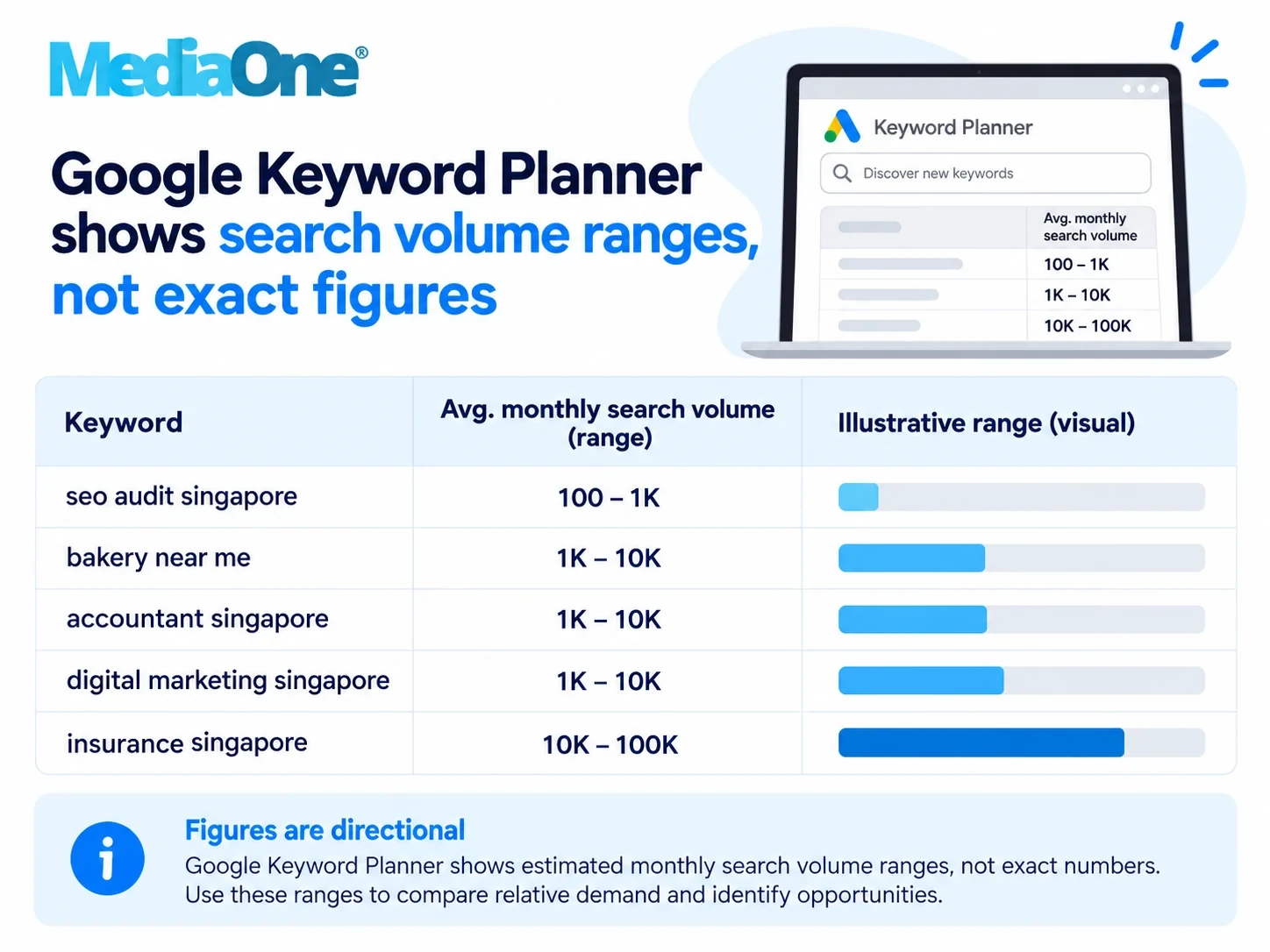

Keyword Planner is weak on small local terms and can show “low” or no data for niche phrases. That does not mean nobody searches for the term. Check Google Search Console later, since real impressions tell you more than an estimate. Its performance data can lag 2 to 4 days, so allow for that delay before judging a term.
Turning keyword lists into a page plan
A keyword list is not a plan. Group terms that share one search intent, then assign each group to a single page. “SEO tools for beginners” and “free SEO tools” can share one page, but “SEO tools pricing” needs its own because the reader actually wants a different answer.
For each group, record the main keyword, the monthly volume range and the trend direction. Use the table below to decide what to do next.
| Signal | When to act | Threshold to upgrade | Next step |
|---|---|---|---|
| Keyword Planner range | Range is “low” or missing for a local term | Range rises over two checks a few months apart | Keep the term, publish, and recheck in Search Console |
| Google Trends curve | Interest is flat or rising over five years | Clear seasonal peak you can plan around | Publish a few weeks before the peak |
| Search Console queries | Impressions with no clicks on a page | Enough impressions to show real demand | Rewrite the title and meta description for that page |
Groups with a clear keyword, a visible audience and a rising trend go to the top of the queue. For a practical starting point, visit digimetrics.ai to see how to build a page plan around your own data.
Page Speed and Technical Checks with Google PageSpeed Insights
PageSpeed Insights is a free Google tool that scores a page from 0 to 100 for both mobile and desktop. It is the quickest way for a beginner to see whether a page loads slowly enough to put visitors off. Run it on your homepage and 2 or 3 top service or product pages, and repeat monthly, since a score is a snapshot, not a fixed verdict. Track results over time, as rank tracking alone will not show why a page is slow. Speed is one part of on-page SEO, so keep these checks alongside your content review. Working professionals can use it as a first step to see whether their site supports their SEO efforts and helps visitors find what they need.
Reading the 0 to 100 mobile and desktop scores
The score summarises lab tests that simulate a page loading on a device. Scores above 90 are considered acceptable Mobile scores are usually lower than desktop scores because the test simulates a slower phone and connection.
Treat the number as a diagnostic signal, not a ranking guarantee. Google said page experience isn’t a ranking score in itself; each element has its own weight and ranking in the overall score. Speed is one factor among many, so focus on the warnings below the score and make sure the page’s keywords appear in the content. Compare your scores with those of each competitor ranking for the same searches, since a faster-loading page has an advantage worth noting. Search engines weigh speed alongside relevance when ranking pages.
Fixing the problems that matter first
PageSpeed Insights sorts suggestions by estimated savings. Start at the top and stop when the remaining items are small. For most small business sites on WordPress, the usual culprits are:
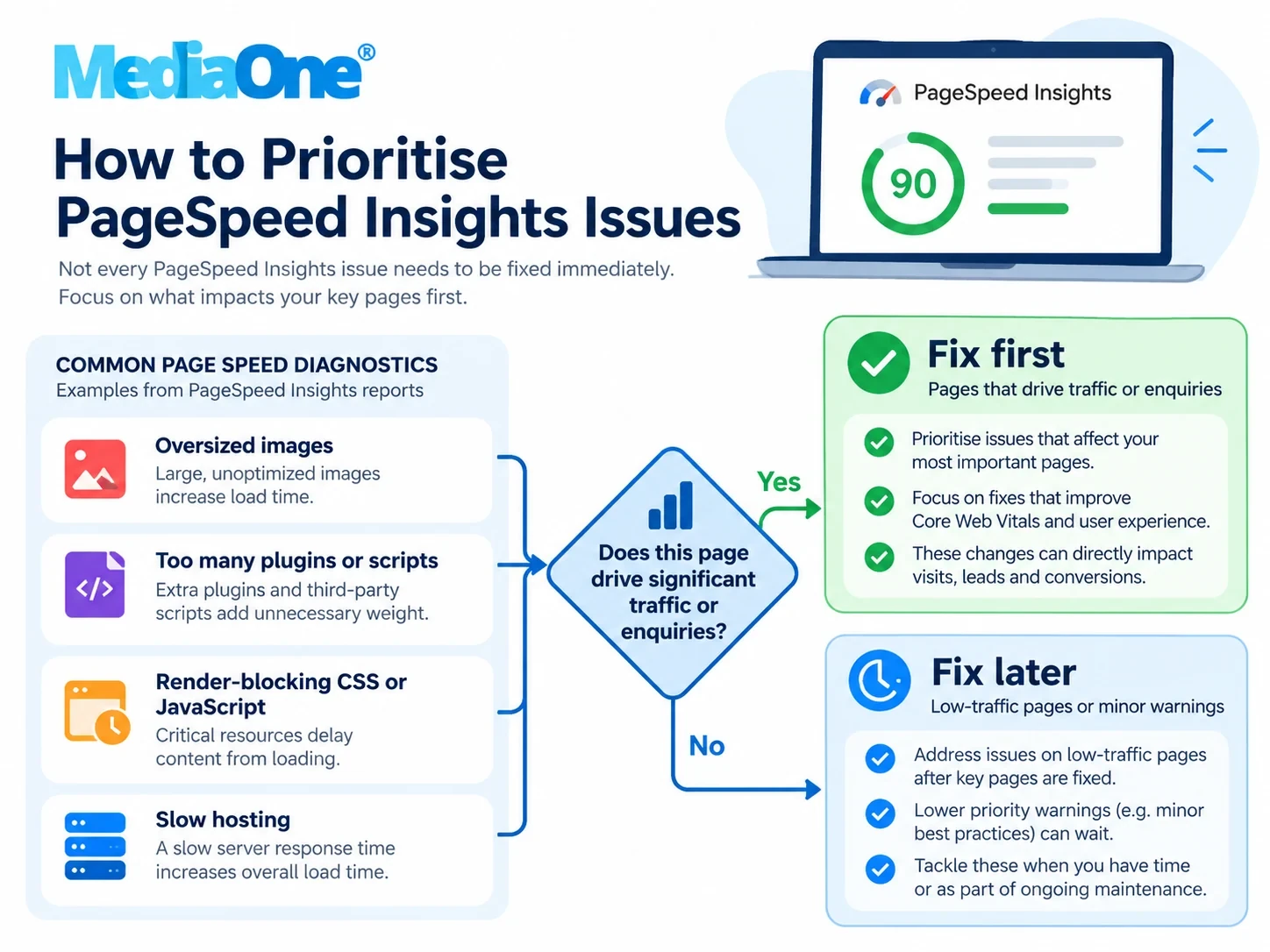
- Oversized images. Compress them and serve modern formats such as WebP.
- Too many plugins or scripts loading on every page, especially chat widgets and analytics tags.
- Render-blocking CSS or JavaScript delays the first visible content.
- A slow hosting plan. If server response time is consistently high, image work alone will not resolve it.
Rerun the test after each change. Lab scores update within minutes, but field data takes longer to settle, so do not expect rankings to move overnight.
When to bring in a technical SEO tool
PageSpeed Insights tests one page at a time. Once your site has dozens or hundreds of URLs, a crawler such as Screaming Frog SEO Spider checks them all for broken links, duplicate titles, redirect chains and missing tags. Its free version crawls up to 500 URLs, enough for a typical local business site. Confirm the current cap on the Screaming Frog pricing page, as free tier limits change. Upgrade only when a specific problem goes beyond the free checks. Beginners learning keyword research can start with the free checks and add paid tools later.
WordPress SEO Plugins: What They Do and Which to Start With
If your site runs on WordPress, you’ll usually install an SEO plugin first. It handles what WordPress does not do well by default: setting page titles and meta descriptions, generating an XML sitemap, and flagging obvious on-page issues. A plugin does not write your content or earn links. Keyword research determines which pages to optimise first, and the plugin records those choices. Keep the primary keyword “SEO tools for beginners” in mind when setting those fields. A competitor’s plugin may offer extra features, but the core job stays the same. Many search engines read the titles and descriptions your plugin records, so accurate fields matter more than extra features.
Free versus paid plugin tiers
Most popular WordPress SEO plugins offer a free version and a paid upgrade. All in One SEO (AIOSEO) offers a free Lite version and a paid Basic plan for $49.50 a year. MonsterInsights, which connects analytics data to WordPress, offers paid plans starting at $99.60 a year. Prices and free tier limits change, so confirm current figures with each vendor before buying.
For a beginner, the free tier covers the essentials: titles, descriptions, sitemaps and basic indexing controls. Upgrade only when you hit a specific limit, such as bulk-editing dozens of product titles, and first check that the paid feature solves that exact problem.
Settings beginners get wrong
The most common error is leaving the automatic templates untouched. A template such as “%title% | %sitename%” produces a usable title, but it often repeats the same wording across every site section. Write a unique title and description for your top 10 to 20 pages, starting with the services or products that bring in revenue. Review these fields once a month to catch repeated wording early.
Three other settings cause trouble:
- Indexing the wrong pages. Thank-you pages, search result pages, and tag archives can clutter your index. Set these to “noindex”.
- Duplicate sitemaps. If your theme or a second plugin also generates a sitemap, keep one and submit it through Google Search Console.
- Ignoring meta description length. Descriptions that run past the visible limit get cut off in search results.
Changes do not lift rankings overnight. Track results in Google Search Console over several weeks before judging a change a failure.
Choosing a plugin for a small business site
For a Singapore small business with no in-house marketer, start with one plugin and learn it properly. Installing two SEO plugins at once often leads to overwritten titles and meta tags. Choose the plugin that best supports your site’s size, then stick with it.
Use this test before committing:
- Can you set a unique title and description on any page in under two minutes?
- Does the plugin show you which pages are noindexed?
- Does it generate a sitemap you can submit to Google Search Console?
If the answer is yes to all three, the plugin is perfectly adequate for a beginner. Check that it also supports heading structure and image alt text, since these affect every page on your site. Keywords are a useful lens for deciding which of these fields to fill in first.
Conclusion and Summary
The best starting point for a beginner is a free stack: Google Search Console and Google Analytics, used together for at least a month, ideally a quarter, before spending anything. Together, they show which search keywords bring people in, what visitors do after landing, and whether key pages load quickly enough. Use this free data review to decide where your site stands before you buy any SEO tools. Pay close attention to which queries already bring people in, since that shows what your site already ranks for.
Start here, in this order:
- Set up Google Search Console and check which queries bring people in.
- Add Google Analytics and note what visitors do after they land.
- Use Google Keyword Planner to find search volume ranges for your main topics.
- Run Google PageSpeed Insights on key pages and note the 0 to 100 scores.
- Add one WordPress SEO plugin only after the steps above.
Paid tools earn their cost only when a specific question stays open after that free cycle. If you cannot name the decision a tool will help you make, the subscription will mostly produce dashboards nobody acts on. Paid tools are rarely needed for rank tracking in the first months, since Search Console already reports the average position for your queries. Before choosing any, compare how your competitors’ sites are performing, and actually test whether the tool answers the open question.
Confirm current prices with each vendor, as they change often and are usually quoted in US dollars or euros. Free tier limits also change, so check them before relying on any tool.
Frequently Asked Questions
Which SEO tool should a complete beginner start with?
Start with Google Search Console and Google Analytics. Both are free and provide real data from your own site. Search Console shows which searches bring people to your pages, and Analytics shows what visitors do after they arrive. Set up both before spending on any SEO tools.
Are free SEO tools good enough for a small business?
For most small businesses, yes. Free tools cover indexing, search queries, page speed and basic keyword ideas. Consider a paid tool only when free data can’t answer a specific question, and use a free tool for at least a month before deciding it is not enough.
Do I need Ahrefs or Semrush to rank in Singapore?
No. Rankings depend on useful content, a technically sound site and relevant links, not on a subscription. Many Singapore businesses rank well using only free data. Treat these suites as an upgrade, not a requirement.
How long does SEO tool data take to update?
Search Console performance data can lag 2 to 4 days, and third-party tools may refresh on different schedules. Judge performance over several weeks rather than reacting to a single day’s dip.
Which WordPress SEO plugin is best for beginners?
All in One SEO (AIOSEO) is a common starting point, with a free Lite version and a paid Basic plan for $49.50/year. Install only one SEO plugin, as running two can produce duplicate tags and conflicting settings.