
| AI Summary
Google Merchant Centre helps retailers manage the product data used for Shopping ads, free listings and other Google commerce experiences. Successful setup depends on accurate product information, compliant images, synchronised prices and availability, correct shipping settings and regular account monitoring. For Singapore retailers, submitted prices must include applicable GST and match the website. |
Google Merchant Centre is the platform where online retailers upload, manage and optimise product data for visibility across Google’s entire shopping ecosystem. Think of it as a product catalogue that Google reads directly. Without it, your products cannot appear in the Google Shopping tab. However, they can still appear organically in Google Search through your website content and Product structured data. This guide walks you through account setup, feed management, compliance and the strategic moves that separate retailers who gain consistent visibility from those who struggle with disapprovals and poor performance.
Whether you are launching your first shopping campaign or auditing an existing account, the principles and steps here apply directly to your operation. Note that Google’s policies, features and approval criteria change periodically; monitor your account regularly for policy updates.
Key Takeaways
- Google Merchant Centre is required for the Google Shopping tab and supplies product data for Shopping ads and free listings. Google can still discover products organically through website content and Product structured data.
- Account creation takes 15–30 minutes; feed validation and approval may take 24–48 hours or longer depending on feed size and complexity.
- Product feed quality determines whether your products appear at all. Feed errors may suppress listings; the type and scope of error determines the impact.
- Retailers selling across multiple countries must configure tax, shipping and return policies per jurisdiction. Misconfiguration can trigger account suspension.
- Product data optimisation directly affects click-through rates and conversion. Google’s quality score for Shopping Ads depends entirely on feed accuracy.
- Compliance breaches are the leading cause of account suspension. Though appeals are possible, Google does not guarantee reinstatement; prevention is preferable.
What Google Merchant Centre Is and Why It Matters
Source: What is Google Merchant Centre & How to Set It Up (Complete Guide)| KeyCourse
The Core Function: Connecting Your Products to Google’s Shopping Ecosystem
Google Merchant Centre is a free platform where you upload a structured file containing your complete product catalogue. That file, called a feed, tells Google everything it needs to know: product titles, descriptions, images, prices, stock levels, categories and shipping details.
Google then distributes that data across multiple channels. Your products appear in Google Shopping results when someone searches for them. Images surface in Google Image Search. Product data feeds Demand Gen campaigns, Performance Max ads and other automated buying tools. Local inventory data powers in-store pickup signals.
Merchant Centre itself does not display to customers. It is infrastructure. Without accurate, complete and compliant data flowing through it, none of those customer-facing channels work.
How Merchant Centre Feeds Product Data to Google Shopping and Beyond
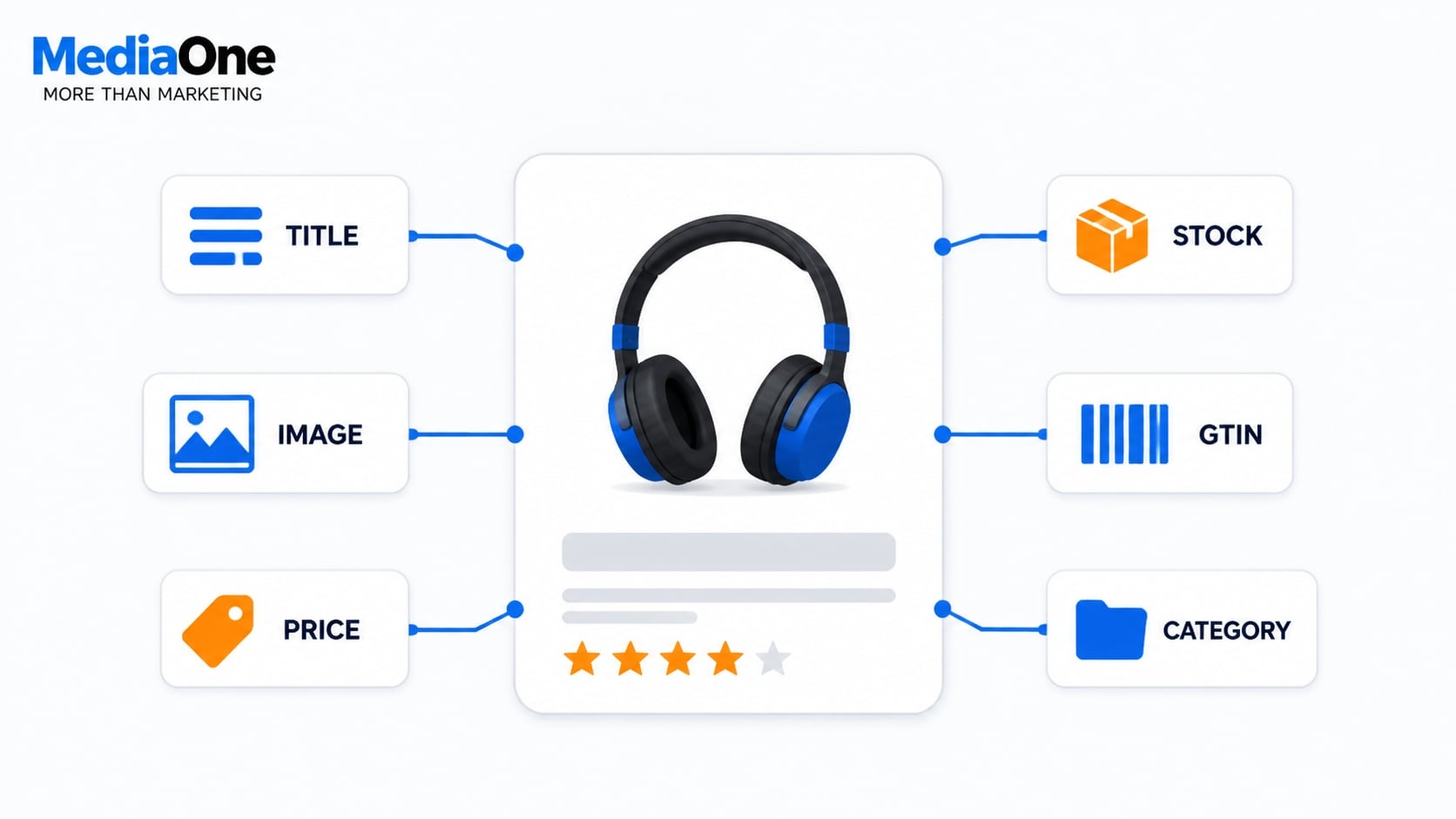
The process begins with your feed upload. Google processes the product data and checks it against its policies and technical requirements. Processing can take from a few minutes to a few hours, depending on the size of the data source. When a customer searches for a product you stock, Google can match that query against your product data. Eligible products may then appear in relevant Shopping experiences.
The same feed powers Google Images, where your product photos appear as rich snippets with price and availability. It also supplies Google Ads; when you link your Merchant Centre to Google Ads, your feed automatically populates Shopping campaigns, Performance Max campaigns and dynamic search ads.
Organic search also benefits. When Google crawls your website, it matches your on-site product information with your Merchant Centre feed. Rich snippets showing price, stock status and ratings appear in organic results when data consistency is high and your site uses schema.org markup.
Merchant Centre also powers local shopping signals. If you link physical store locations, customers can see in-store availability and arrange local pickup, turning your online feed into a bridge between digital and physical retail.
Scope and Regulatory Context
This guide covers Merchant Centre setup and optimisation for online retailers. It addresses international compliance requirements, with particular focus on markets where regulatory requirements are strict. For retailers in Singapore, the prevailing Goods and Services Tax (GST) rate is 9%. GST-registered businesses generally charge GST on local taxable supplies unless the transaction is zero-rated or exempt. Pricing displayed in Google Shopping must comply with local consumer protection laws. Google displays your return policy but does not enforce its legality; you must ensure compliance with your jurisdiction’s consumer protection standards.
If you operate across multiple countries, Merchant Centre supports multi-country feeds with separate language, currency and shipping rule configurations. A single feed can serve customers in different regions without cross-regional data conflicts.
For business registration and consumer dispute matters in Singapore, relevant bodies include the Accounting and Corporate Regulatory Authority (ACRA), the Consumers Association of Singapore (CASE) and the Personal Data Protection Commission (PDPC). For trademark and intellectual property issues, consult the Intellectual Property Office of Singapore (IPOS).
Your return policy displayed in Google Shopping must comply with local consumer protection laws. Google does not enforce compliance; you remain responsible. Similarly, competitive conduct must align with local competition law; in Singapore, the Competition Commission of Singapore (CCCS) enforces competition rules.
Retailers who treat Merchant Centre as a technical checkbox tend to face recurring disapprovals, limited visibility and wasted ad spend. Those who treat it as a core business asset, updated regularly and kept compliant, see faster indexing, lower policy violations and better campaign performance.
Why Merchant Centre Matters for Your Business
Without Merchant Centre, your products cannot appear in Google Shopping results or supply Performance Max campaigns. Even if you run organic search campaigns, feed data enriches your organic listings with rich snippets.
Feed accuracy directly impacts cost per click and conversion rate in Shopping Ads. Incomplete product attributes reduce the likelihood Google will show your products to relevant customers. Pricing errors and stock mismatches erode trust and trigger refund disputes. Policy violations lead to suspension, which stops all visibility until you appeal and Google reinstates your account.
The investment in Merchant Centre setup and ongoing optimisation pays dividends across all your Google marketing channels.
Step-by-Step Account Setup and Verification
Account creation takes 15–30 minutes if your business information is ready. Feed validation and approval may take 24–48 hours or longer. Missing a single step can delay product approval by days.
Creating Your First Merchant Centre Account
Start by visiting Google Merchant Centre and sign in with the Google account you plan to use for e-commerce. Use a business email address rather than a personal one. This makes team permissions clearer and protects your account if staff change roles.
Click “Create account” and select your primary country of operation. This choice determines which policies apply and which currency you’ll use by default. Select the countries where you sell and can fulfil orders. Additional target countries can be added later if your product data, shipping settings and policies meet Google’s requirements.
For Singapore-based retailers, select Singapore. If you sell internationally, you will configure additional target countries in the next step.
Enter your business name exactly as it appears on your website and legal documents. Google cross-references this during verification, and mismatches cause delays. If you operate under a trading name different from your registered entity name, enter the registered name here.
Accept the Google Merchant Centre Terms of Service. Read through them: they outline data handling expectations and policy violations that can suspend your account. Google updates these terms periodically, and compliance is mandatory.
You will see your Merchant Centre dashboard with numbered setup steps. Complete each step in order: website verification, business information and feed setup.
Verifying Website Ownership and Business Information
Google must confirm you own the website where your products are sold. This prevents unauthorised parties from claiming your e-commerce store.
Google may verify your online store automatically. If manual verification is required, available methods include your ecommerce platform, email verification, an HTML tag or file, Google Tag Manager or Google Analytics.
HTML file upload: Download the verification file provided by Merchant Centre and upload it to the required location on your web server. Return to Merchant Centre to complete verification.
HTML meta tag: Add the supplied meta tag to the <head> section of your website homepage. Save the change, then return to Merchant Centre to complete verification.
Google Analytics or Google Tag Manager: You can use Google Analytics or Google Tag Manager if they are already connected to your website and you have the required administrator access.
If verification fails, check that the verification file or meta tag is correctly installed and that the relevant Google account has the required access.
After verification, complete your business information profile:

- Business name and address: Enter the physical address where your business operates or is registered. This cannot be a post office box (PO Box); Google requires a street address for legitimacy checks.
- Customer service contact: Provide a phone number and email that customers can use. This appears in Google Shopping listings and must be monitored.
- Website URL: Confirm the primary domain where you sell products.
- Business type: Select “Online retailer”. If you operate on a third-party platform like Amazon or eBay instead, use “Marketplace vendor”.
These details are checked by Google’s compliance team during initial approval and periodically thereafter. Accuracy here prevents suspension due to business verification failures.
Setting Your Target Countries and Primary Language
Open the Settings section and locate “Target countries”. Select every country where you legally sell and can ship products.
If you sell to Singapore, Australia, Thailand and Malaysia, select all four. Google uses this setting to:
- Route your product feed to the correct regional versions of Google Shopping
- Apply the appropriate tax, shipping and return policies for each country
- Filter your products in search results by geographic relevance
You can add or remove target countries later, but configuring them correctly at setup prevents a backlog of data rejections.
Set your primary language to the language of your website and product content. For Singapore retailers, this is typically English. Google uses this setting to route your feed to the right Search and Shopping locale.
If you sell the same products in multiple languages, set up separate Merchant Centre accounts: one per language. A single account cannot manage multi-language feeds efficiently. Each account connects to a separate website (or language subdomain) and submits its own product feed.
Tax, Shipping and Return Policy Configuration
These settings are not optional. They determine whether your products are eligible to appear in Google Shopping. Missing or incorrect entries trigger “Shopping Ads eligibility” warnings and prevent product approval.
Tax settings: Go to Settings, then select Taxes and shipping. Declare which countries require sales tax on your products.
For Singapore sellers, enable Singapore tax settings. Declare the applicable Goods and Services Tax (GST) rate, currently 9 per cent. Certain goods are GST-exempt (for example, basic food items and medical services); exclude these from GST declarations if applicable to your products. Google does not collect tax on your behalf; this setting declares whether tax is included in the prices you submit in your feed. If your feed prices include GST, toggle “Tax included in price”. If they are exclusive, toggle it off.
For sellers targeting other countries, configure tax for each region. Different jurisdictions have different rates and thresholds. Document your obligations with local tax authorities before entering rates into Merchant Centre.
Shipping settings: Define the shipping costs and delivery times you offer.
Click “Add shipping rate” and specify:
- Country or region: Where the shipment originates (your warehouse location) and where it ships to (customer location).
- Delivery time: For example, “2 to 3 business days” or “5 to 7 business days”. This appears in Shopping ads and must match your actual promise.
- Shipping price: The cost the customer pays. You can set flat rates (for example, SGD 8 for all Singapore orders) or weight-based rates (for example, SGD 0.50 per kg plus SGD 3 base fee).
- Service type: Choose between “Standard” (ground shipping), “Express” (2 to 3 days) or “Overnight”.
If you offer free shipping above a certain order value, Merchant Centre can reflect this. Set the rate to SGD 0 for orders over that threshold.
If shipping costs vary by product type or region, add multiple shipping rates. Google applies the correct one based on the destination and product category in your feed.
For Singapore retailers using SingPost or other local fulfilment partners, enter realistic delivery windows based on your actual service levels. Overstating speed triggers customer complaints and can affect your account health.
Return policy: Click “Add return policy” and define:
- Return window: How many days after purchase a customer can return items (for example, 30 days, 14 days).
- Restocking fee: Whether you deduct a fee from the refund. If you do not charge restocking fees, set this to “No fee”.
- Return shipping: Whether the customer or you pay for return shipping. Declare “Customer pays return shipping” or “We pay return shipping”.
Your return policy displayed in Google Shopping must comply with local consumer protection laws. Google does not enforce compliance; you are responsible for ensuring your stated policy meets legal requirements. In Singapore, the Consumer Association of Singapore (CASE) provides guidance on fair trading and dispute resolution.
This policy must match what appears on your website and in your terms and conditions. Google cross-checks this during account review. Mismatches can trigger suspension under “Policy violation: misleading return policy”.
Once all four elements above are saved, your account is technically active and ready for product feed submission. However, products will not be approved until your feed passes validation checks.
Note: Google’s policies, features and approval criteria change periodically. Monitor your account regularly for policy updates to ensure continued compliance.
Product Feed Management: The Foundation of Success
Your feed is the foundation of Google Merchant Centre. Every time someone searches for a product you stock, Google decides whether to show your listing based on the data in that feed. A missing GTIN attribute, a wrongly formatted price or an image below the minimum resolution can suppress visibility for an entire product range. This section walks through the format rules, the three upload methods, correct attribute mapping and how to read the Diagnostics report when things go wrong.
Understanding Product Feed Format and Requirements
A product feed is a structured file that describes every item you sell. Google accepts three formats: XML (RSS 2.0 or Atom), tab-delimited text or a Google Sheets file. The specification includes roughly 70 possible attributes.
Here is what governs whether a feed works at all:
- One row per variant: If a shirt comes in five sizes and three colours, that is 15 rows, each with a unique id value. Consolidating them into one row loses you the product detail pages.
- Required attributes are non-negotiable: id, title, description, link, image_link, price and availability are mandatory. GTIN, brand and MPN are strongly recommended and required for most product categories unless you qualify for an exemption.
- Formatting is literal: Prices must include an ISO 4217 currency code (for example, 29.99 SGD for Singapore). Availability accepts only in_stock, out_of_stock, preorder or backorder. Condition accepts new, refurbished or used.
- Character limits are enforced: Product titles support up to 150 characters, while descriptions support up to 5,000 characters. Google truncates titles in some surfaces but keeps the full string for matching.
Google publishes the full attribute reference at the Merchant Centre help documentation.
Uploading via XML Feed, CSV or Direct API Integration
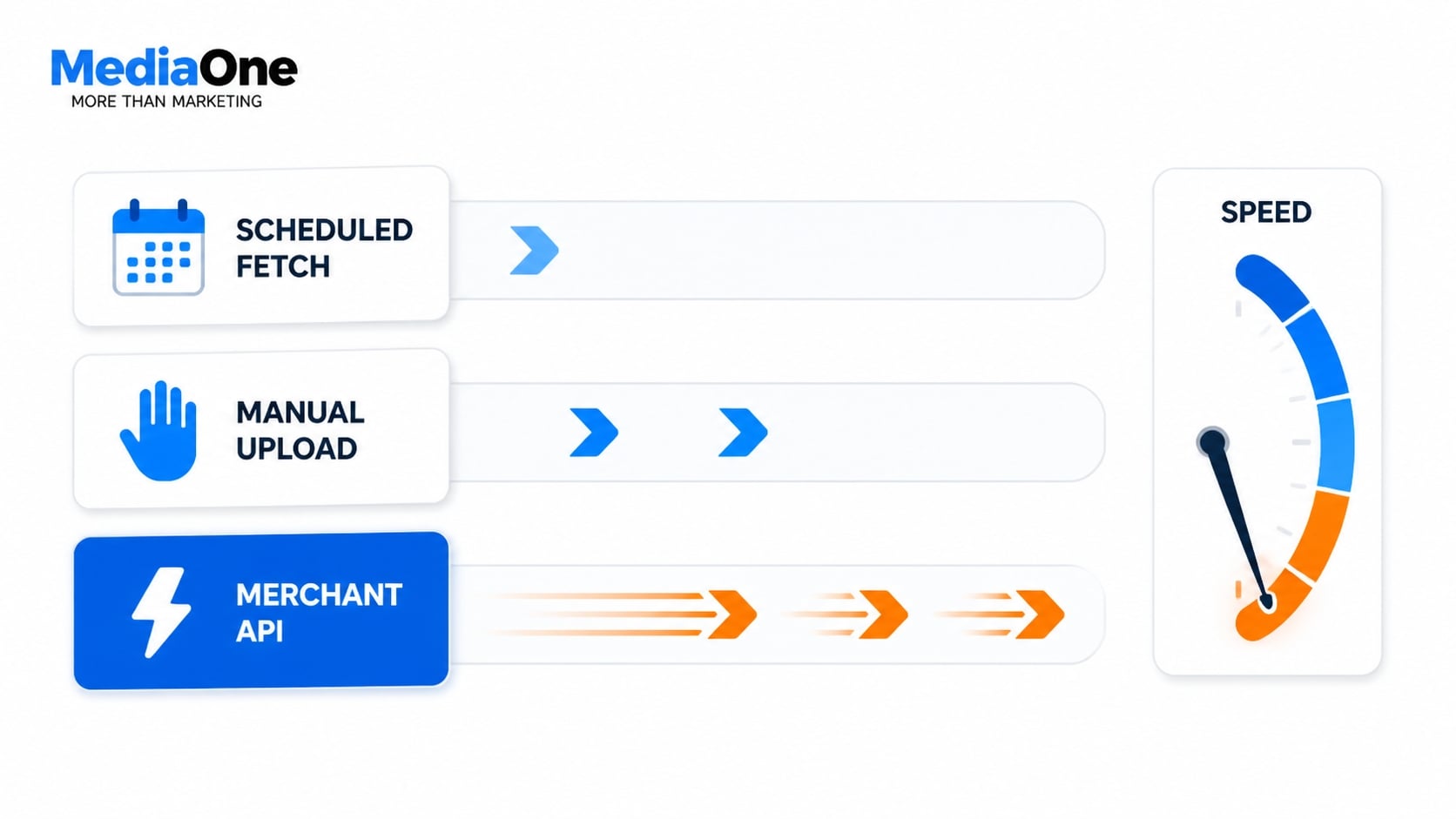
Three upload methods exist. The right one depends on how often your catalogue changes and how many SKUs you manage.
| Method | Best for | Update latency | Maintenance load |
|---|---|---|---|
| Scheduled fetch (XML/CSV) | Catalogues under approximately 50,000 SKUs | Up to 24 hours after Google’s crawler fetches your file | Low: Google pulls on your schedule |
| Manual upload (CSV/Sheets) | Small catalogues, one-off fixes | Immediate on upload | High: every change is manual |
| Merchant API | Dynamic pricing, large or fast-changing catalogues | Near real-time (minutes) | High initial build, low ongoing |
If you sell on marketplaces or run flash promotions, the API pays for itself within a quarter. A retailer pushing 10,000 price changes daily through a scheduled fetch will always be selling yesterday’s prices in Shopping results. The API pushes individual product changes, so a stock-out registers in minutes rather than hours.
Set your scheduled fetch to run at least daily. Make sure your server responds to Google’s fetch requests within 15 seconds. Slow responses cause intermittent fetch failures that are easy to miss.
Mapping Required vs. Optional Attributes Correctly
The trap most retailers fall into is over-filling optional attributes with weak data. Google treats a blank optional attribute as neutral and a badly filled one as a negative signal.
Fill these every time:
- GTIN (or MPN plus brand if no GTIN exists)
- google_product_category (use Google’s taxonomy, not your own)
- product_type (your own category path, useful for campaign segmentation)
- condition
- shipping (weight and service, or set it in account settings)
Fill only when accurate:
- colour, size, gender, age group, material
- item_group_id for variants
- sale_price and sale_price_effective_date
Skip rather than guess: A wrong colour value causes mismatches between your feed and your landing page, which violates Google Shopping policy. Missing data does not trigger disapproval.
One underused feature is custom_label_0 through custom_label_4. These carry no policy weight and let you tag products by margin band, season or stock depth. You can then bid differently in Google Ads on high-margin stock without changing your website. This is one of the highest-leverage, lowest-effort wins in feed management.
Common Feed Errors and How to Diagnose Them
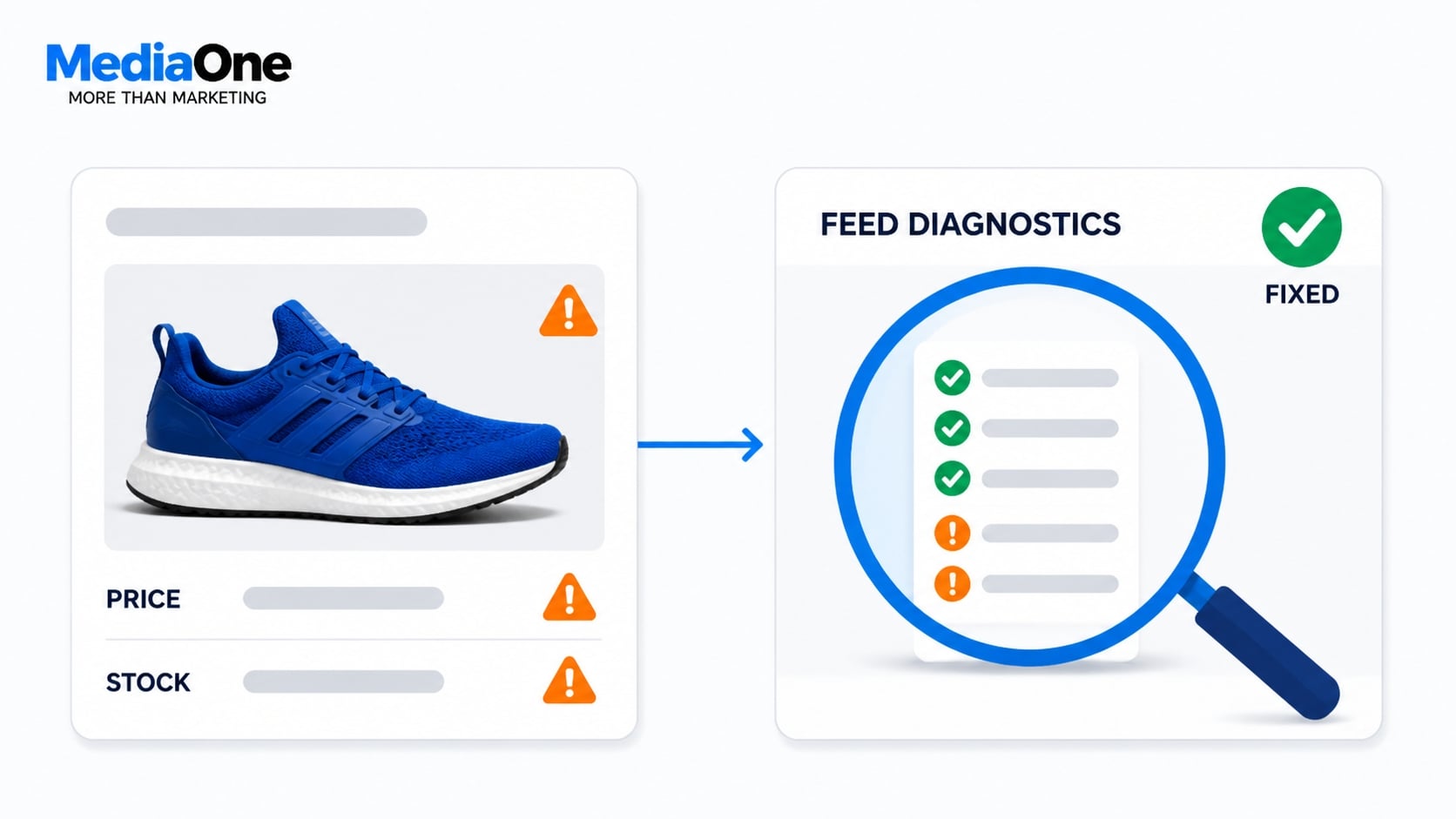
The Diagnostics tab groups issues into three severities: errors (the product is ineligible to serve), warnings (it serves with reduced performance) and notifications (informational only).
Diagnose systematically rather than item by item:
- Open Diagnostics and sort by item count, not by issue name. Fix the problem affecting 4,000 SKUs before the one affecting 12.
- Check whether the issue is feed-wide or item-level. A missing price across the file is a script bug. A single bad image_link is a broken URL.
- Filter to a sample of affected items, download the error CSV and cross-reference the id column against your source data.
- Fix at source, not in the feed export. Patching the file means the same error returns on the next fetch.
The five errors seen most often, their likely causes and first actions:
| Issue | Likely cause | First action |
|---|---|---|
| Missing value (GTIN) | Attribute column absent from export | Add GTIN to source product data |
| Invalid value (price) | Currency symbol included, or no ISO code | Strip symbols; use format 29.99 SGD |
| Image too small | Thumbnail served instead of main image | Enforce 100×100 px minimum; aim for 800×800 px |
| Mismatched value (availability) | Feed says in stock, landing page says out | Sync feed to live stock at fetch time |
| Unsupported image format | WebP served to a legacy endpoint | Serve JPEG or PNG for image_link |
Note that feed processing is not instantaneous. Google processes feeds hourly; changes may take up to 24 hours to appear in Shopping results. A single feed error may suppress listings for affected products, though the suppression mechanism and impact depend on error severity and product volume.
Monitor your Diagnostics tab weekly, not monthly. An error left for 30 days on a top-selling line costs more in lost impressions than any bid increase can recover.
Pricing and Availability Synchronisation
Pricing accuracy directly affects both visibility and conversion. Your feed must reflect your live website at all times.
- Currency format: Always include the ISO 4217 code. In Singapore, prices are formatted 29.99 SGD. If you sell across regions, use the code for each region’s target market.
- GST treatment: Pricing must reflect applicable Goods and Services Tax (GST). In Singapore, GST is currently 9 per cent on most products. Certain goods are GST-exempt (for example, most food, medicines, financial services). Ensure your feed pricing matches your website and complies with GST rules.
- Availability status: Use in_stock only if the product will ship within your stated delivery window. If stock is depleted, mark out_of_stock immediately; delay costs lost impressions and potential customer complaints.
- Stock synchronisation: If you use a scheduled feed, ensure your inventory management system pushes updates to the feed export at least once daily. For fast-moving inventory, use the Merchant API.
Policy Compliance and Consumer Protection
Your return policy and product representations displayed in Google Shopping must comply with Singapore’s Consumer Protection (Fair Trading) Act and guidance from the Consumers Association of Singapore (CASE). Google displays your policies in Shopping results but does not enforce legal compliance; you remain responsible.
Key compliance points:
- Return periods: If you state a return policy in your feed, it must align with your actual policy and local consumer law. CASE provides guidance on fair return practices.
- Product accuracy: Product titles, descriptions and images must match your landing page. Mismatched data is a policy violation and may trigger disapproval.
- Trademark and intellectual property: Respect trademark rights. The Intellectual Property Office of Singapore (IPOS) publishes trademark law; Google may disapprove listings that use trademarked terms improperly.
- Prohibited content: Do not sell counterfeit, restricted or prohibited goods. Google’s Shopping Ads policy prohibits dangerous, illegal or misrepresented items.
Google’s policies, features and approval criteria change periodically. Monitor your account regularly for policy updates and adjust your feed and practices accordingly.
Product Data Optimisation for Better Performance
Your product feed is only as strong as the data it contains. Google’s algorithm cannot sell what it cannot understand. Poor titles, blurry images, stale prices and misaligned categories will suppress visibility even if your feed uploads without error.
This section covers the four data levers that directly control click-through rate, quality score and conversion potential.
Title and Description Best Practices
Google Shopping titles appear in search results and on product cards across Google Images and Google Search. A weak title wastes your most valuable real estate.
Length and truncation: Google displays roughly 60 characters on desktop search results. On mobile, expect truncation at 35–40 characters. Your most critical information (brand, primary attribute, size or colour variant) must appear in the first 40 characters. Anything beyond 70 characters risks being cut off in some contexts.
Structure that works: Use this pattern: [Brand] [Primary Category] [Key Attribute] [Variant]. Example: “Sony WH-1000XM5 Wireless Headphones Black” tells the searcher exactly what they are viewing in four words.
Avoid redundancy. Do not repeat the product type in both title and description. Do not stuff variations of the same keyword. Google’s system detects keyword padding and may lower your quality score.
Keyword placement: Include your target search term once in the title, naturally positioned. If you sell “running trainers”, use that phrase once. Do not write “running trainers for running, trainers for running shoes”. The algorithm reads this as manipulation.
Description best practices: The description field supports up to 5,000 characters but Google typically displays only the first 150–200 in Shopping Ads. Use this space to answer the question “why buy this product?” Focus on differentiators: material quality, warranty, stock status, delivery speed or bundle contents.
Keep descriptions scannable. Use short sentences. Avoid marketing jargon that adds no information. “Premium craftsmanship” is hollow; “hand-stitched leather, vegetable-tanned, 5-year warranty” is specific and searchable.
Image Specifications That Improve Click-Through and Quality Score
Product images are the single largest driver of click-through rate in Google Shopping. A 10% improvement in image quality typically lifts click-through rate by 15–25%.
Minimum technical requirements:
- Resolution: At least 800 × 800 pixels (Google recommends 1,200 × 1,200 or higher for zoom functionality)
- Format: JPEG, PNG, GIF, WebP or SVG
- File size: Under 16MB per image
- Image ratio: Must not exceed 3:1 (width to height)
Images below 800 × 800 will be flagged as low quality. Google may display a warning but will not reject the feed; however, the image will underperform in search results.
Composition and framing:
- Show the product in its entirety against a clean, white or neutral background
- Ensure the product occupies at least 75% of the image frame
- Photograph the product straight on, not at an angle
- Avoid lifestyle images (people wearing or using the product) as your primary image; these drive clicks but not conversions if they obscure product detail
Use your first image slot for a clean, direct product shot. Reserve secondary image slots (you can upload up to 10) for alternate angles, size charts, detail shots or lifestyle context.
Colour accuracy: Product images must match what arrives at the customer’s door. Oversaturated colours or heavy filtering inflate click-through but trigger high return rates. Google’s system monitors return-to-order ratio. Retailers with high return rates on colour-sensitive products (clothing, electronics) may see lower placement even with identical bids.
Consistency across variants: If you sell the same product in multiple colours or sizes, upload a distinct, high-quality image for each variant. Using the same generic image for all variants confuses Google’s matching algorithm and limits your visibility in colour-filtered searches.
Pricing, Availability and Stock Synchronisation
Real-time pricing and stock data directly affect your Quality Score in Google Shopping. Outdated pricing creates friction. Users click expecting a price they saw in the ad, arrive at your site to find a different price and bounce. Google penalises this mismatch.
Price field requirements:
- Submit the current selling price (the price visible at checkout), not the list price
- Use the sale_price field only if the product is genuinely on promotion
- Include the currency code for your target market (for example, SGD for Singapore retailers, GBP for UK, EUR for European retailers)
- Update prices daily if possible; at minimum, sync every 48 hours
- Pricing must reflect applicable GST (currently 9% in Singapore); certain goods are GST-exempt
If your feed shows a price differing by more than 5% from your live website, Google’s crawler will flag a mismatch. Persistent mismatches lead to automatic disapprovals or lower impressions as Google deprioritises listings with poor price accuracy.
Availability and stock level:
Submit one of these statuses for each product:
- in_stock: Product is available for immediate shipment (ship within 3–5 days)
- out_of_stock: Product is unavailable but will be restocked
- preorder: Product is available for pre-order with a specified expected ship date
If you declare a product in_stock but it ships in 10 days, you are violating Google’s policies. Set realistic expectations. If your median ship time is 5–7 days, use in_stock. If it is 10–14 days, move to preorder and specify the expected ship date.
Synchronisation methods:
For retailers with inventory across multiple channels (Shopify, WooCommerce, Magento, custom builds), use one of these approaches:
- XML feed refresh: Regenerate and resubmit your entire feed every 24 hours. This works for small to medium catalogues (under 50,000 SKUs).
- Merchant API: Push price and stock updates in real time via API. Recommended for large, fast-moving catalogues.
- Feed rules and scheduling: Use Merchant Centre’s built-in feed rules to adjust prices automatically (for example, apply a 10% discount to clearance items) and schedule updates at specific times.
Stock synchronisation errors cost visibility. If Google’s crawler finds that 20% of your feed lists products as “in stock” that are actually unavailable, your entire account may be flagged for accuracy review, temporarily suppressing impressions.
Category Assignment and Attribute Mapping
Google’s product taxonomy contains over 6,000 predefined categories. Assigning your products to the correct category is non-negotiable. It determines where your product appears in filtered searches and which shoppers see your listing.
Google product category vs. your custom category:
Your internal category system (for example, “Men’s Fashion / Shoes”) is different from Google’s taxonomy. You must map your products to Google’s official categories. Use the google_product_category field in your feed.
A running trainer should be assigned to Apparel & Accessories > Shoes & Accessories > Shoes > Athletic Shoes, not your custom folder “Sports”. If you submit a generic category like “Shoes”, Google will attempt to auto-correct, but auto-assignment often fails, reducing visibility in specific searches.
Finding the correct category:
Use Google’s Product Taxonomy tool, available in Merchant Centre under Settings > Business Information > Product Category. Search your product type by name. If you sell “wireless earbuds”, the correct path is typically Electronics > Audio > Headphones & Accessories > Earbuds. Use this exact path code in your feed.
Required vs. optional attributes:
Google Merchant Centre demands certain attributes depending on category:
- Apparel: size, colour, gender, age group
- Electronics: brand, GTIN (barcode), condition (new/refurbished)
- Home & Garden: colour, material, pattern
Missing required attributes trigger warnings in your Diagnostics Dashboard. Warnings do not immediately remove your products from search, but Google deprioritises listings with incomplete data.
Attribute best practices:
- Use standard values: for size, submit “Small”, “Medium”, “Large” or numeric values (for example, “10” for shoe sizes), not “S/M/L” or “OneSise”
- For colour, submit the exact colour name: “Black”, “Deep Navy”, “Rose Gold”. Avoid ambiguous terms like “Dark” or “Natural”
- Use GTIN (Global Trade Item Number) if you have it. This ties your product to Google’s product database, improving matching and trust signals
Incomplete or malformed attributes reduce the likelihood that Google’s algorithm matches your product to the right search query. A dress listed as size “small-med” instead of “Small” will fail to appear in searches filtered by size, even if inventory is available.
Google’s policies, features and approval criteria change periodically; monitor your account regularly for policy updates.
Policy Compliance and Account Suspension Prevention
Google Merchant Centre policies protect consumers and maintain search quality. A policy violation does not always trigger immediate suspension, but repeated breaches or severe infractions lead to account-level sanctions. These can take weeks to resolve through appeal. This section covers the most common violations, how to detect them before escalation, and the appeals process if issues arise.
Common Policy Violations and Prevention Strategies
Google flags violations through two mechanisms: automated checks detect data mismatches and format errors, whilst manual review identifies misleading claims, prohibited content and problematic business practices.
Data accuracy and mismatch violations
These are the most common and easiest to prevent. They occur when your feed does not match your website.
- Price mismatch: Your feed states SGD 49.99, but your website shows SGD 59.99. Google’s crawler detects this discrepancy and flags it. Solution: sync your feed to live pricing hourly or daily, not weekly.
- Availability mismatch: Your feed shows “in_stock”, but your website displays “out of stock”. Solution: update stock status in real time using the Merchant API, or regenerate feeds after every inventory change.
- Product description mismatch: Your feed title says “Leather shoes”, but your landing page displays canvas shoes. Solution: ensure feed title and description match on-page product content exactly.
Misleading claims and restricted content
- False health or performance claims: Your description claims a supplement “cures diabetes” or a pillow “eliminates back pain”. Google prohibits unverified health claims. Solution: remove medical language entirely, or restrict claims to proven benefits with cited studies.
- Counterfeit or unauthorised goods: selling products without genuine brand authorisation. Solution: purchase only from authorised distributors and maintain proof of authenticity.
- Prohibited items: weapons, explosives, certain pharmaceuticals, counterfeit goods, endangered species products. Solution: check Google’s prohibited items list before adding new product lines.
Business practice violations
- Misleading return policy: your feed states “free returns”, but your website specifies “restocking fee of SGD 10”. Solution: ensure feed data matches your website and legal terms precisely. Your return policy displayed in Google Shopping must comply with local consumer protection laws; Google does not enforce compliance, but Singapore’s Consumer Protection (Fair Trading) Act applies to your business regardless.
- Unsupported payment methods: listing products as available for purchase via Merchant Centre when you only accept cryptocurrency or wire transfer. Solution: confirm your website accepts standard payment methods (credit cards, PayPal) and update Merchant Centre accordingly.
- Suspicious business activity: multiple account suspensions, frequent policy violations, sudden spikes in refunds or chargebacks. Solution: maintain clean compliance records and monitor your chargeback ratio.
Monitoring Your Account Health
Proactive monitoring prevents small issues from escalating to account-level suspensions.
Weekly tasks
- Check your Diagnostics tab for new warnings or errors. Filter by severity and address highest-impact issues first.
- Review the Notifications section for Google messages about data quality, policy reviews or upcoming policy changes.
- Spot-check 10-20 products in your feed by comparing their data (price, availability, image) against your live website.
Monthly tasks
- Run a full Diagnostics report. Export error lists and fix issues at source in your product data system, not in the feed alone.
- Check your account’s Policy status page to identify any disapproved products. Review the disapproval reason and resubmit corrected data.
- Audit your top 100 products by sales volume. Verify their images, descriptions and pricing match your website.
The Appeal and Resolution Process
If Google suspends your account or disapproves a large batch of products, you have the right to appeal. The process differs based on whether the suspension is automatic (triggered by policy breach detection) or manual (initiated by human review).
Product-level disapprovals
These are the most common and easiest to resolve. A product may be disapproved for:
- Missing or invalid required attribute
- Policy violation (misleading description, prohibited item)
- Data quality issue (image too small, price mismatch)
Merchant Centre specifies the reason for disapproval. Fix the data at its source and resubmit. Google re-checks the product within 24-48 hours. If the fix is valid, the product reappears. If not, you receive a more detailed disapproval reason.
Account-level suspension
This is rare but serious. Your entire account is disabled, and all products disappear from Google Shopping. Common causes include:
- Repeated policy violations across multiple products that were not corrected despite warnings
- Suspected fraudulent activity (unusual payment patterns, high chargeback rates)
- Business verification failure (address mismatch, non-responsiveness to inquiries)
If suspended, you will receive an email with a reason code. Though appeals are possible, Google does not guarantee reinstatement; prevention remains preferable. Google’s Policy team typically provides 24-48 hours to respond before the suspension is finalised.
How to appeal
- Read the full violation notice and write down the specific violation code and reasoning.
- Fix the root cause: if data quality issues exist, update your feed; if business practice problems caused the suspension, update your terms and customer service processes.
- Gather evidence: screenshots of your corrected website, updated privacy policy, proof of business registration (ACRA certificate for Singapore businesses), customer service email templates.
- Go to the Policy section of Merchant Centre and select Appeal. Submit a response explaining the violation, the steps you have taken to prevent recurrence, and supporting documentation.
- Wait for Google’s review. Account-level suspensions typically take 5-10 business days. Be specific and factual in your appeal rather than emotional or argumentative.
Successful appeals require evidence of deliberate correction and process changes, not apology alone. If price data was mismatched, demonstrate that you now sync daily. If your return policy was misleading, show the updated policy on your website. Google’s appeal reviewers assess reliability and compliance intent.
If corrections are genuine, appeals are rarely denied on the first attempt. However, multiple appeals for the same violation or lack of material change may result in permanent case closure.
Linking Merchant Centre to Google Ads for Maximum Visibility
Merchant Centre data becomes powerful when linked to Google Ads. This connection allows your product feed to populate Shopping Ads, Performance Max ads and dynamic search ads automatically. Without linking, your feed exists in isolation and reaches only organic search and Google Images.
Account Linking and Verification
Go to Settings in Merchant Centre and select “Linked accounts”. Click “Link Google Ads account” and sign in with the Google Ads account you plan to use for campaigns.
You must have admin access to both accounts. Linking is instant, but it can take up to 24 hours for your product feed to appear in Google Ads as available for campaign creation.
Once linked, every product in your Merchant Centre feed becomes available as a line item in Shopping Ads campaigns. When you create a Performance Max campaign, your feed data auto-populates ad headlines, descriptions and images.
Using Product Feed Data in Shopping Ads Campaigns
A Shopping Ads campaign pulls product data directly from your linked feed. You cannot edit individual product titles or descriptions in the ad interface; you must update them in your feed. This is by design and ensures your ads always match your landing pages.
You can customise bidding and targeting by product attribute. Use product groups to segment your catalogue by:
- Google product category (bid higher on Electronics, lower on Home and Garden)
- Brand (bid higher on your own brands, lower on white-label)
- Custom labels (bid higher on high-margin items, lower on clearance)
- Condition (bid higher on new, lower on refurbished)
Proper product group strategy multiplies your return on ad spend. A simple rule like “bid 20% lower on items tagged as clearance” automatically protects profit margins without manual rule updates.
Optimising Feed Data for Shopping Ads Performance
Not every feed attribute affects paid campaign performance equally. Focus optimisation on attributes that influence ad outcomes:
- Title: This is your ad headline. A weak title directly lowers click-through rate. Prioritise clarity and keyword inclusion.
- Image: This is your ad creative. High-quality, distinctive product images lift click-through rate significantly compared to generic images.
- Price: Displayed prominently. A competitive price or price with discount is a conversion lever.
- Promotion: If you have a sale_price, it displays with strikethrough. A promotion label (“20% off”) in your description adds urgency.
Custom labels (custom_label_0 through custom_label_4) are invisible to customers but enable bid strategy segmentation. A retailer selling both premium and budget lines can tag each product and bid differently, maximising return on ad spend across the range.
Troubleshooting Common Merchant Centre Issues
| Common Issue | Likely Cause | How to Resolve |
|---|---|---|
| Products not appearing in Google Shopping after upload | Feed validation errors; products not approved yet; targeting region mismatch | Check Diagnostics for errors. Verify feed has been processed (check Status tab). Confirm target country setting matches customer location. |
| Sudden drop in product impressions | Price or availability mismatch detected by Google; account flagged for review; feed upload failure | Compare feed prices to website. Verify stock levels are accurate. Check account notifications for policy messages. Confirm scheduled feed fetch succeeded. |
| Website verification stuck or failed | Verification file in wrong directory; meta tag not in actual HTML; Analytics account not linked correctly | Try a different verification method (e.g. switch from file upload to meta tag). Wait 24 hours and retry. Contact your hosting provider if unsure of directory structure. |
| Feed processing takes 48+ hours | Large feed exceeding 250,000 items; server response slow; Google’s queue backed up | Break large feeds into multiple smaller feeds (one per category or language). Ensure server responds within 15 seconds. Schedule fetches during off-peak hours. |
| Chargeback rate increasing, affecting account standing | Price mismatch (customers charged more than expected); shipping delays (customers demand refunds); poor product description accuracy | Audit your last 30 days of chargebacks. Fix any price sync issues immediately. Update delivery time expectations in feed and on website. Consider requiring order confirmation before processing payment. |
| Policy violation notifications appearing repeatedly | Your feed is not being updated after previous violations. Manual review detected recurring breaches. | Fix the violation at source and wait 24-48 hours for reprocessing. If violation persists, document your fix and file an appeal. Review Google’s policy guidelines to ensure compliance on new products. |
Important note: Google’s policies, features and approval criteria change periodically. Monitor your account regularly for policy updates to ensure ongoing compliance.
Managing Google Merchant Centre as an Ongoing Ecommerce Asset
Google Merchant Centre works best when product data stays accurate, current and consistent with your website. Pricing, availability, images, shipping information and policy compliance all require ongoing monitoring.
We recommend treating Merchant Centre as part of your ecommerce infrastructure rather than a one-time setup task. If you also use Shopping or Performance Max campaigns, connect accurate Merchant Centre data with a properly structured Google Ads strategy.
Frequently Asked Questions
How much does Google Merchant Centre cost?
Google Merchant Centre itself is free. You pay only for clicks on your products in Google Shopping through linked Google Ads campaigns, or for inclusion in free Google Shopping listings. There are no account fees, subscription charges or minimum spending requirements. The only cost is advertising spend if you choose to run paid Shopping campaigns.
Can I sell on Merchant Centre without linking to Google Ads?
Yes. Your products will appear in Google Shopping organic results, Google Images and Google Search if your feed is approved. However, you will not appear in paid Shopping Ads unless you link an active Google Ads account and create a Shopping campaign. For maximum visibility, link both to capture organic and paid impressions.
What is the difference between a GTIN, SKU and product ID?
A GTIN (Global Trade Item Number) is a standardised barcode used globally: EAN-13, UPC-A or UPC-E. A SKU is your internal product identifier for inventory tracking, unique to your business. A product ID (the “id” field in Merchant Centre) is a unique identifier you assign to each variant in your feed. Google recommends submitting a GTIN if available because it links your product to Google’s product database, improving matching. However, you can use a SKU or custom ID if a GTIN does not exist, provided it is unique within your feed.
How do I handle multi-variant products (different colours, sizes)?
Submit each variant as a separate row in your feed with a unique product ID. Use the item_group_id field to group them together so Google knows they are the same product. For example, a blue size small shirt gets ID “shirt-blue-s” and item_group_id “shirt”; the same shirt in blue size medium gets ID “shirt-blue-m” with the same item_group_id. This allows customers to filter by size and colour without losing the ability to see all variants together.
What happens if my website goes down? Will my products disappear from Google Shopping?
Not immediately. Google’s feed remains indexed until your next scheduled feed update. However, customers who click your product and find your site down will have a poor experience, which Google tracks. If your site is down frequently, your quality score may degrade and your listings may be deprioritised. Additionally, when your website comes back online and Google’s crawler attempts to verify your product data (for price, availability and image accuracy), failure to access your site may trigger a data mismatch violation. Keep your site uptime above 99.5% and maintain a backup host.
Can I use the same feed for multiple countries?
Only if your pricing, currency and language are identical across all countries, which is rare. The recommended approach is to create separate Merchant Centre accounts per country or language. Each account has its own target country setting, tax and shipping rules, and currency. This is simpler than managing multiple country contexts in a single feed and reduces the risk of data mismatches due to regional differences.
How does Google process my feed, and how often?
Google processes your feed periodically throughout the day. A single feed error may suppress affected listings rather than your entire feed. Common suppression triggers include missing required fields, price mismatches between your feed and website, or invalid GTINs. Minor issues typically generate warnings without suppression. Monitor your Merchant Centre dashboard for specific error messages and resolve them promptly. Processing times vary; allow 24 to 48 hours for full feed validation after upload.
What local tax and shipping rules apply in Singapore?
In Singapore, you must include Goods and Services Tax (GST) at the current rate of 9% in your product pricing, unless the item qualifies for GST exemption. Certain goods such as basic foodstuffs and educational materials are GST-exempt; confirm your product category with ACRA (Accounting and Corporate Regulatory Authority). Your shipping configuration should reflect local delivery partners such as SingPost and regional couriers, with accurate delivery timeframes for Singapore addresses. Your return policy must comply with the Consumer Protection (Fair Trading) Act; Google displays your policy in Shopping listings but does not enforce compliance. For disputes, consumers may refer to CASE (Consumers Association of Singapore).
What happens if my account is suspended?
Account suspension occurs when Google detects serious policy violations such as misleading product information, counterfeit goods, or repeated data mismatches. Though appeals are possible, Google does not guarantee reinstatement. To appeal, submit a detailed explanation through your Merchant Centre account explaining how you have corrected the issue. Prevention is preferable; review Google’s Merchant Centre policies regularly and audit your feed for accuracy. Google’s policies, features and approval criteria change periodically; monitor your account regularly for policy updates.