
You’ve signed up for the Shopline e-commerce platform and now have access to a range of website-building and store management tools. Everything you’ll need for e-commerce success is within reach, from an intuitive website builder to store hosting services to order management to an analytics dashboard.

However, as a Shopline merchant, you still have some ways to go before you see sustained business growth.
Though you have the lemons, you’ve yet to make lemonade. Even if you make lemonade, you’ll need to do so as efficiently as possible.
This playbook serves as a comprehensive guide for modern Shopline merchants looking to refine their daily workflows, retain a loyal customer base, and accelerate growth. By the end of this guide, you’ll know the ins and outs of running your store, as well as some crucial tips for growth.
Key Takeaways
- The Shopline platform serves as a centralised hub for managing inventory, logistics, and payment gateways.
- Efficient daily operations rely on streamlined order processing and unified customer communication channels.
- Scaling an e-commerce business involves implementing automation and leveraging data to increase average order values.
- External partnerships with logistics providers and SEO experts allow Shopline merchants to focus on core strategic tasks.
- Long-term profitability depends on retention tactics such as automated email sequences and membership tiers.
How Can Shopline Merchants Set Up Their Shopline Store

First, let’s get started with setting up the Shopline store. Though some of you may already have your Shopline stores set up, this section may include steps you haven’t done yet. These primary steps help build the basic functionality of your Shopline store.
Step 1: Add Products
Adding your products is the first step. For each product you add, you’ll create an SKU in Shopline to track it. Also, a templated product page will be created for each product you add. That way, you don’t need to manually add 5, 10, or 100 product pages. You can add products to your Shopline store in bulk from a spreadsheet file (.xlsx, .xls, or .csv).
To do that,
- Go to Products from the Shopline admin panel. Then, click Import > Import Locally.

- Download the template.
- Complete the template with the details of all products you’ll upload to Shopline.
- Save the spreadsheet file.
- Drag it into the ‘Upload Filled-in Template‘ box.
- Click ‘Import‘.
Following these steps allows you to add products in bulk to the Shopline e-commerce platform.

You can also add products to your Shopline store individually.
- From the Products dashboard, click on Create Product.
- Fill in all the fields
- Add images and videos that best represent the product
- Tick on ‘Activate‘ so that the product is live on your e-commerce site
- Click ‘Save.‘
Pro tip: If you have multiple products of the same type that differ only in colour (e.g., a black leather jacket and a brown leather jacket), you can register them as a single product.
After all, you wouldn’t see a fashion e-commerce store listing a ‘Small Red Dress,’ and a ‘Medium Red Dress’ as two separate items. Rather, they’re variant options under a single product. To utilise variants, modify the Variants section as you complete the fields. Note that each variant will have its own corresponding SKU.
Step 2: Set Up Your Delivery Methods
The next step is to set up your delivery methods. This lets Shopline know where you’ll be servicing from and what your serviceable area includes.
To set that up,
- Click on Settings > Shipping and delivery from the Admin Panel
- You’ll notice two sections: General shipping rates and Custom shipping profile
- Custom shipping profile allows you to set specific Shipping rules for specific regions.
- Locations not included in the Custom shipping profile will follow the rules set in the General shipping rates.
- Click Create next to Custom shipping profile.
- Fill in the fields
- Click on ‘Add Shipping Zone.’ Select the countries or regions you’d want included here. Ideally, this should be the nearby regions.
- Great! A shipping zone has been added.
- Now, add shipping rates for that zone. Click on ‘Add the Shipping Rates.’
- Customise the fields to reflect the shipping rate you want to implement for your chosen shipping zone.

- You can have multiple shipping rates under each shipping zone.
- Save your changes.
- Repeat the process for ‘General shipping rates.’ Remember that the rules you apply for General shipping rates will apply to all regions that you didn’t indicate under the ‘Custom shipping profile’
Setting up your delivery methods means telling Shopline which serviceable areas you cover. If you plan to ship locally, you’ll want the steps above to reflect that choice.
Pro tip: If you service local delivery (e.g., Grab, in-house courier) and pick-up (i.e., customers may visit the location), you may click on your locations within the Shipping and delivery section, then tick on “Local delivery is available at this location” or “This location supports in-store pickup.”
This will allow nearby customers to choose whether to have their order delivered by you (or by Grab) or pick it up from your warehouse.
Step 3: Set Up Payment Methods
Next, you’ll want to set up a payment method for customers.
From your Shopline admin dashboard,
- Go to Settings > Payments.

- You can click Activate SHOPLINE Payments to enable a wide range of payment methods (e.g., Apple Pay, Google Pay, GrabPay, PayNow, etc.)
- Click Activate next to the country you’re operating from.
- If you’re operating in Singapore, setting up SHOPLINE Payments will require the following:
- ACRA registration certificate
- Ultimate beneficiary info (passport, government-issued ID, etc.)
- SGD business bank account verification
Your store must be registered in Hong Kong, the United States, the United Kingdom, Australia, or Singapore to use SHOPLINE Payments.

If your store is not eligible for SHOPLINE Payments, you may use the alternative payment options that Shopline provides:
- Credit or Debit Card. This lets customers use their credit or debit cards to pay for their orders
- Other Payment Methods. This allows customers to use third-party payment providers, such as PayPal or Klarna, to pay for their orders.
- Manual Payment Methods. This allows customers to transact with the Shopline merchant offline (e.g., cash on delivery, e-wallet, bank transfer).
When setting up manual payment methods, make sure to provide descript instruction on what you expect your customer to do.
Step 4: Design the Shopline Website

You now have the skeleton of a functioning e-commerce site.
Now, to shape how it looks.
This process will demand your creativity and artistic flair. We strongly recommend engaging a web builder, a graphic designer, or someone with an eye for design to handle this part of the store-building process.
- To build your Shopline website, click on Online Store > Design from your admin panel.
- Click on Design.
- You will be taken to the theme editor. Here, you can drag-and-drop sections, add photos, and edit text until the site looks how you want it to.
- Save your changes.
The default theme will be ‘Fashion.’ This is the starting point for most Shopline users.

You may find additional themes in the Theme shop. Different themes will have different functionalities and features. Click ‘Preview theme’ for each Shopline theme listing to explore it before buying.
Step 5: Add Meta Title and Description
Finally, add a Meta Title and Meta Description to your online store. That way, when it appears in Google search results, it won’t appear blank, empty, or templated.

To do that,
- Go to Online Store > Preferences
- Under SEO Settings, click Edit
- Add your Page Title, Meta Description, and fill out the SEO Keywords field
- Preview your SERP snippet, then save your changes.
Adding a meta title and description is for both search crawlers and human visitors.
People need to know what a page is about before they click on it. So, they refer to the page title and meta description for that initial information.

This also helps search engines and AI crawlers understand what your page is about before they visit. This gives your page the added SEO and GEO it needs.
Day-to-Day Shopline Merchant Operations
Running a successful Shopline store involves its fair share of day-to-day tasks. These tasks are conducive to keeping the store running and operational — no different from manning a physical store. A Shopline merchant’s daily e-commerce operations involve the following tasks:
Managing Orders

The heart of any online store is its order management system.
A Shopline merchant must log in daily to its order management platform to review incoming transactions. Shopline provides integrated commerce solutions that display orders from your website, social media, and physical POS systems in a single view. This omnichannel is vital for streamlining orders and inventory across sales channels
In Shopline’s “Orders” tab, merchants can see and manage the following:

- Orders coming in from the online store, Facebook, and Instagram
- Abandoned checkouts
- Draft orders (Orders made offline, outside of Shopline’s system, but are being recorded and tallied)
- Shipping labels
Through the “Orders” section of the Shopline admin panel, Shopline merchants can process orders from online channels and draft orders from offline sources (e.g., friends and family, or customers who message via WhatsApp, Telegram, Facebook, or Instagram Messenger).
Order Fulfillment
Order fulfilment involves the following steps: 1) Picking the physical item from its shelf, 2) Packing the physical items included with the order, and 3) Shipping the orders out, whether manually or through a partnered logistics solution.
Shopline’s dashboard lets you buy and print shipping labels for your partnered courier services. This is the integrated, automated method of order fulfilment.

However, you can also print your shipping labels manually.
The following information is already available with each order on Shopline’s Order Management:
- Sender and Recipient Addresses
- Recipient Contact Information
- Order ID
If you’ve shipped out the customer’s order manually, click on their order, then select “Mark As Shipped”.

This will prompt you to enter the Tracking Number and the Logistics Service Provider you used to ship the order.
Once an order is marked “Shipped”, the recipient will receive an email with tracking information.
Updating Product Listings
For startups, updating product listings isn’t a daily task; it’s done once or twice a year. However, when the business scales, this becomes a daily undertaking. Updating product listings to reflect newly-added SKUs is a core day-to-day task for growing e-commerce businesses. Especially those in fast fashion.
Simply follow the steps outlined in the earlier section “Step 1: Add Products“. Apply this process to all the new SKUs for your store. Also, be sure to update product listings if pertinent product details change. This could be due to a change in branding tone, a correction to a catalogue item specification, or an update to the product’s information.
Updating your product listings ensures your e-commerce store accurately reflects new items and any updates to each SKU. It maintains an honest and accurate storefront for customers.
Customer Service
Managing inquiries through your support email lets your brand proactively answer potential customer queries. In addition to email, Shopline seamlessly integrates communication across WhatsApp, Facebook Messenger, Instagram, LINE, and Telegram, making your customer service team’s job easier.
To set that unified messaging platform up,
- Go to Messages from the Shopline admin panel.

- Activate each channel shown on the screen.
- To view incoming messages, click on View Messages from the Messages tab in the admin panel
- Each tab on the left corresponds to a different messaging channel (e.g., Messenger, Instagram, Email, LINE).
You can assign staff to Shopline’s Messaging features to ensure no message slips through the cracks.
Returns Processing
No business enjoys returns, but handling them efficiently is part of delivering good customer experiences. A Shopline merchant should have a clear policy visible on their store. You may need to create a dedicated page for your returns policy. It’s recommended that return policy navigation be placed in the footer, leaving more space for highlighted pages in the header.
Customers will express their intent to request a refund or return via your messaging platforms. Your customer service team will note this.
If the customer’s return or refund request meets your return policy, you may process it. To do that,
- Click on a fulfilled order in Shopline’s Order section

- Select either Refund or Return
-
- For Refunds, Shopline Merchants simply enter the amount they wish to refund to the customer. The customer does not need to return the item.
- For Returns, however, the Shopline Merchant and the customer must agree on how the return will be processed.
- It’s advisable that the Shopline Merchant print out a Return Label for the customer. That way, the customer can easily return the item.
Processing Returns and Refunds requires communicating and coordinating with customers to ensure they can properly reverse an unsatisfactory transaction. After all, depending on how you process the return, you might just win the customer back. Especially if their only issue is receiving the wrong size.
Tips for Scaling Shopline Business Growth
Once the daily operations are stable and you’ve found your rhythm, the focus shifts to the next phase: scaling. To scale effortlessly, you must move beyond the foundational, operational tasks that keep your business running and invest time in other core areas.
Increase your Average Order Value
Increasing the average order value (AOV)—the amount each customer spends—is the fastest way to achieve accelerated growth before you even double your traffic.
Shopline’s app store provides plenty of cross-selling and up-selling functionality:

- You can set up progress bars that trigger discounts when customers reach a specified order value (e.g., Free shipping for orders over $50).
- You can display “Frequently Bought Together” items below each product page to encourage customers to add more to their cart.
- You can incite FOMO by including a countdown timer or “real-time sales notifications” for each of your product pages.
This strategy ensures you are not just gaining more customers, but also getting more value from every visit.
So that when you eventually scale your marketing efforts and increase traffic, you’ll gain exponentially more value from your campaigns.
Automate Processes

Source: https://cdn.myshopline.com/sl/admin/ec2-admin-sales/20260123212724739/imgs/guide.3ffd9.png
To scale confidently, you must remove yourself from every menial task and micro-decision.
Shopline’s platform includes automation tools, such as
- Automated email campaigns for successful purchases, abandoned carts, and any other trigger action.
- Integrations enable automated inventory updates across online and physical POS systems, streamlining and improving inventory management.
- Automated order fulfilment routes orders to fulfilment centres for immediate processing.
- Automated responses provide immediate feedback to general customer queries.
Enabling these integrated commerce solutions effectively puts your store on “autopilot,” allowing your team to focus on marketing, R&D, and other transformative business tasks.
Invest in Marketing and SEO
Once you’re confident that your site is solid, meaning it can curate a brand experience and a customer journey, you may invest more into bringing high-intent traffic into the site. Marketing typically observed with e-commerce stores includes the following:
- SEO. E-commerce stores optimise for transactional keywords relevant to them. This could be “buy leather jackets,” or “buy brown leather shoes.” As such, e-commerce stores optimise their product pages for SEO.
- Social media marketing. In the fast-paced, engagement-centred world of social media, photos and videos of your products can reel in an enticed audience.
- Email marketing. Setting up email campaigns can retarget hot leads, such as those who previously made a purchase or added items to their cart but did not complete checkout.
This is where many Shopline merchants seek personalised mentorship from an SEO agency. Although they have store-management expertise, they often lack the marketing and data-analysis skills needed to scale their stores.
An SEO agency helps e-commerce stores increase traffic from their ideal audience and establish themselves as a key, authoritative player in the industry.
Partner with a 3PL
As your demands grow, your spare room or small office will no longer suffice for inventory storage. Partnering with a Third-Party Logistics (3PL) provider gives Shopline merchants not only the warehousing they need but also the order processing and delivery required to get customers’ orders to them.
A 3PL will handle the warehousing, picking, and packing of your merchandise.
These services scale with you. Whether you get 10, 100, or 1000 orders a day, they can accommodate your volume.
This allows you to scale effortlessly because you’re not locked into a fixed rate — something that would otherwise eat into your operating capital if you’re an SME.
Get a Shopline Partner
Sometimes, the limitless extensibility of a flexible platform can be overwhelming. Shopline Partners are experts and agencies curated by Shopline to provide a range of services to their users. Partners’ services range from custom apps and themes to marketing and analytics to general, day-to-day store management.
Working with a Partner helps you build workflows and systems and adopt best-in-class store management practices to unleash your store’s full potential. They can also help you market your store and advise you on best practices they have found to work with their previous clients.
A Shopline Partner is not limited to those on the Shopline Partner directory, though. Any e-commerce agency that provides services and offers transformative recommendations to Shopline merchants can be a Shopline Partner.
Here at MediaOne, our professional experience encompasses a range of e-commerce merchants. With our AI-driven SEO and GEO services, we can help your e-commerce site reach a wider, high-quality audience.
Customer Retention Tips for Shopline Merchants
Acquiring a new customer in Singapore is expensive. Retention is the key to a profitable business. You must focus on delivering seamless customer experiences that keep people coming back to your brand.
Leverage Email Marketing

Email remains one of the most effective channels for retention and conversion. Shopline offers native integrations with SmartPush to help you deliver automated campaigns (e.g., Cart abandonment campaign).

Some email sequences that e-commerce stores should take advantage of include:
- “Welcome” sequences are for new sign-ups. These email flows include the promised item (e.g., discount code) that customers get when signing up.
- “Abandoned Cart” email sequences are for customers who left the store with items in their cart. This email flow includes a gentle reminder, then a limited-time voucher as a final nudge.
- “Post-Purchase / Thank You” email flows are for those who successfully completed a purchase. They thank customers for their purchase and then ask for a review.
Note: These email flows should be integrated IN ADDITION to your evergreen email marketing content.
Your evergreen email marketing content should contain news about upcoming sales, blog curations, timely content (e.g., content relevant to current news), and the occasional discount vouchers.
For fashion retail businesses, sending a weekly newsletter with new arrivals or styling tips can keep your brand top of mind.
Leverage Retargeting Campaigns on Social Media
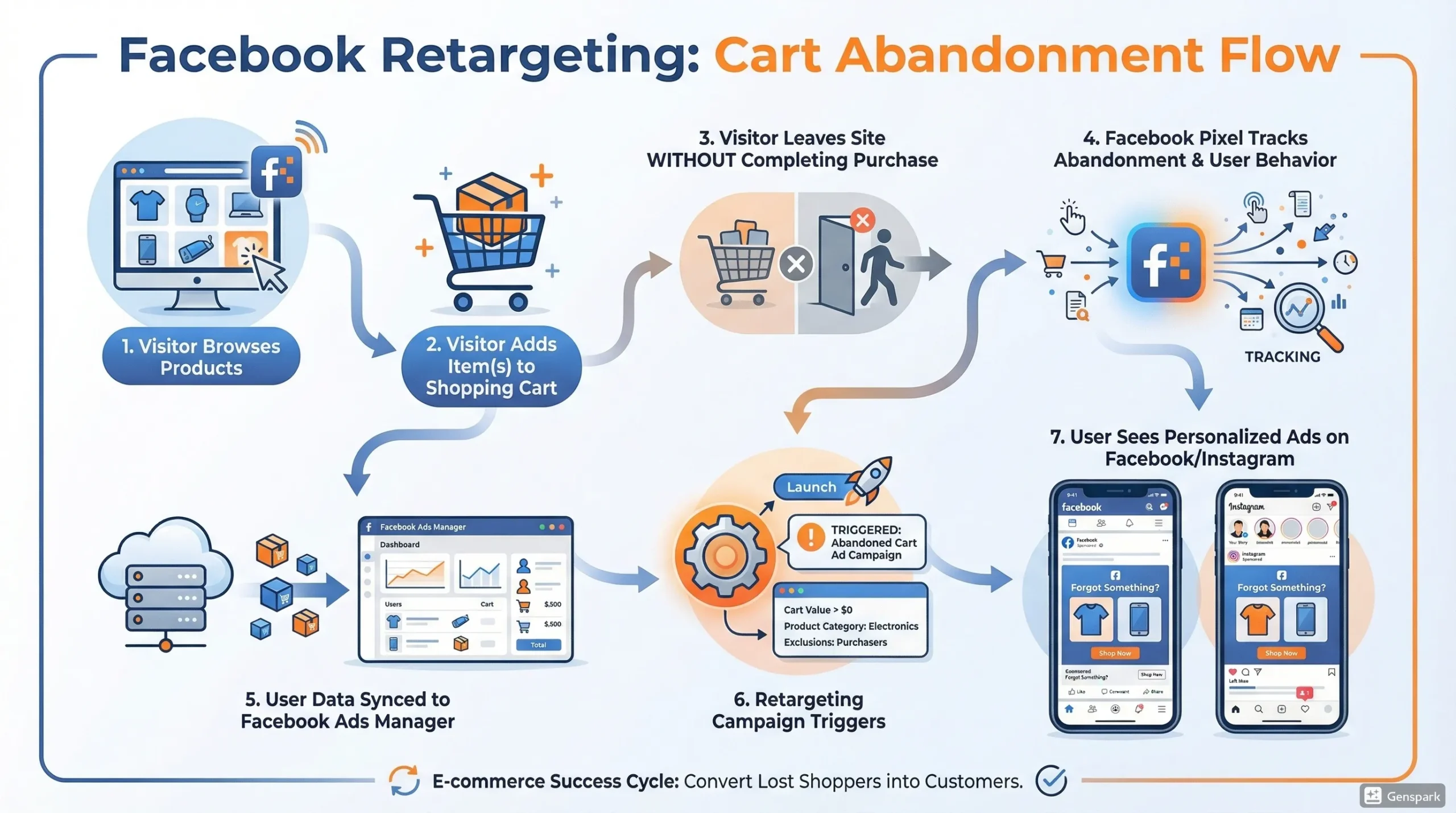
If a customer browses your online store but does not complete a purchase, retargeting keeps your brand in their feed. That way, even though they’ve left your website, they can still see your brand when they browse social media.
Much like email marketing, social media retargeting campaigns keep your brand top of mind for visitors.
Installing a Meta Pixel on your Shopline website lets Meta track customer actions on your site. It allows your marketing team to create content tailored to visitors who have items in their cart, have browsed, have used the search bar, have made a purchase, and have performed many other actions.
Marketers can use dynamic ads to show customers the exact apparel or jewellery pieces they were looking at. This creates a continuous experience as they move between their personal social media lives and your store. It reminds customers of the value they found in your products and encourages them to complete their purchase.
Send Coupon Codes, Discounts, and Vouchers to Loyal Customers
If you go to the Customers tab in the Shopline admin panel, you’ll see customers who have purchased from your store. You can use this information to see which customers have spent the most.
You may then send these customers various vouchers, such as discounts and free shipping offers, to retain their patronage.
This rewards your customers for their loyalty.
To set up promotional discounts and free shipping,
- Click Discounts from the Admin panel
- Click Create a Discount

- Select the discount you wish to apply
- Under Customer Eligibility, tick ‘Specific Customers‘
- Select the Customers whom you’d want to give the discount to
- Fill out the other fields, then save your changes
- Send an email update to the customers with the discount
Integrate Exclusive Membership
A membership program is the ultimate retention tool. It makes customers feel as if they’re part of an exclusive club, thereby increasing loyalty and brand affinity. To integrate a membership for your store, create a dedicated page. This page should outline the steps customers must take to access the exclusive membership and the benefits they’re entitled to.
Shopline merchants can use the features in the Discounts tab to implement their exclusive membership benefits. However, Shopline merchants can install the Member System app from the Shopline App Store to add membership system functionality. It includes gift cards, store credits, and a referral system for evangelist customers.
Having an exclusive membership builds a moat around your business, making it harder for competitors to steal your customers. A well-run membership program helps your business achieve sustained growth through loyal patronage and increased lifetime value for every customer.
Partner with a Shopline E-Commerce Agency Today for your Shopline Store
While the Shopline commerce platform provides the enterprise-grade tech you need to succeed, navigating the nuances of e-commerce requires specialised expertise in store management, marketing, and data analysis.
To truly scale and ensure your brand dominates your chosen industry, partnering with an e-commerce agency is a necessity.
At MediaOne, we specialise in unlocking the full potential of Shopline merchants’ online stores. Our team of Shopline experts focuses on the complex SEO and GEO undertakings, social media campaigns, SEM, and analysing both short- and long-term data, so you can focus on R&D and running your Shopline store.
Whether you’re refining content for apparel, jewellery, and accessories or establishing dominance in the combat sports niche, we have the expertise to guide you to business success.
Contact us today to learn how our solutions can transform your Shopline store into a market leader.
Frequently Asked Questions
Can I migrate my existing store data from Shopify or WooCommerce to Shopline?
Yes, Shopline provides migration tools and support to import product lists, customer data, and order history from other e-commerce platforms. You can use CSV files to import your data in bulk. Shopline makes migration easy, especially if it’s from Shopify. They can read Shopify’s CSV template and also provide a one-click Shopify migration function.
Does Shopline support international sales for Singaporean merchants?
The platform is designed for cross-border commerce. It includes features such as multi-currency displays, language toggles, and international shipping configurations to help you reach customers outside Southeast Asia. You can explore global reach more in the Shopline admin panel under Settings > Markets.
Are there transaction fees for using Shopline Payments in Singapore?
Shopline Payments charges as low as 2.4% + 0.25 USD per credit card transaction.
Can I manage my Shopline store through a mobile application?
Yes, Shopline offers a dedicated merchant app for iOS and Android. This allows you to track sales, manage orders, and respond to customer inquiries while you are away from your computer.