Choosing the right web design tools is less about flashy features and more about creating a seamless design-to-development pipeline.

Whether you’re building client websites or scaling your own creative workflow, the tools you choose will determine your efficiency, collaboration, and final output.
In this guide, you’ll find a curated list of design platforms, prototyping software, developer aids, and browser-based extensions that real designers use daily.
These tools are selected based on practical utility—not marketing hype.
Key Takeaways
- Choosing the right web design tools enhances efficiency, collaboration and quality across design and development teams.
- Popular tools like Figma, Adobe XD and Webflow each serve distinct purposes depending on project needs and team setups.
- Incorporating tools that support real-time collaboration and prototyping accelerates feedback cycles and client approvals.
- Free and accessible tools such as Canva, Visual Studio Code and Unsplash are valuable for beginners and small teams.
- Testing tools like Responsively App and browser DevTools improve responsiveness and performance on multiple devices.
What Are Web Design Tools and Why Use Them?
Web design tools are software platforms that help designers and front-end teams visualise, prototype, and build websites and applications.
In 2025, many offer real-time collaboration, interactive previews, and integration with CMS or no-code output. These tools streamline iteration and bridge the gap between vision and implementation.
1. Figma – The Gold Standard for Interface Design
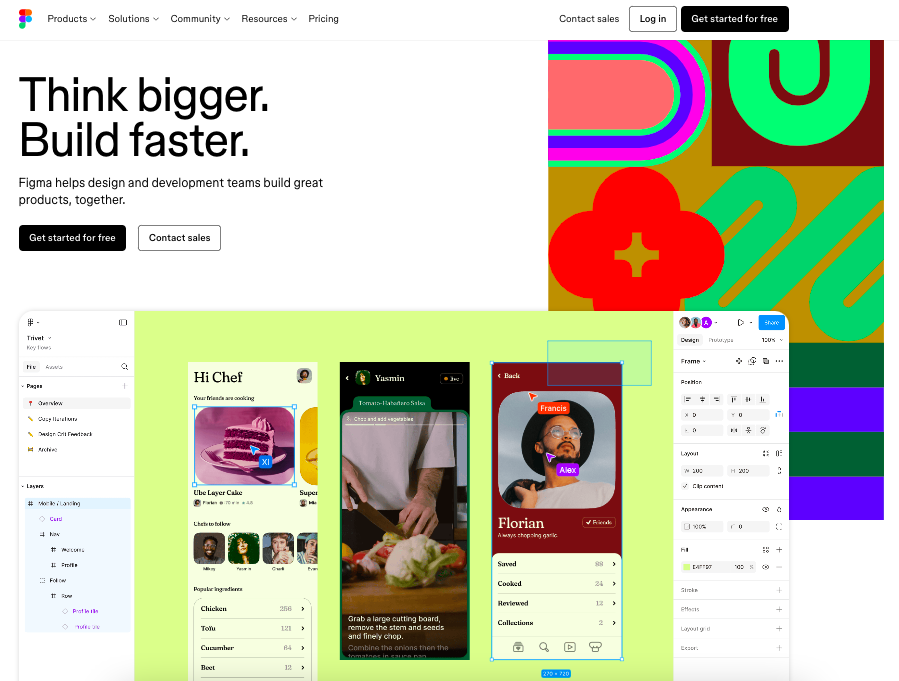
Figma is one of the most widely adopted web design tools by design teams globally, thanks to its cloud-based platform and real-time collaboration.
Unlike Adobe XD, it’s platform-agnostic and doesn’t require installation, making it ideal for cross-functional teams.
Key strengths:
- Live collaboration with unlimited viewers
- Easy component creation and reuse
- Rich plugin ecosystem (Content Reel, Unsplash, Chart)
Why Singapore creatives choose it: Designers in Singapore often favour Figma for projects that involve frequent client revisions or stakeholder input. Its intuitive interface and easy shareability make approvals smoother.
| Pros | Cons |
|
|
|
|
|
|
2. Adobe XD – Still a Solid Option for Adobe Workflows
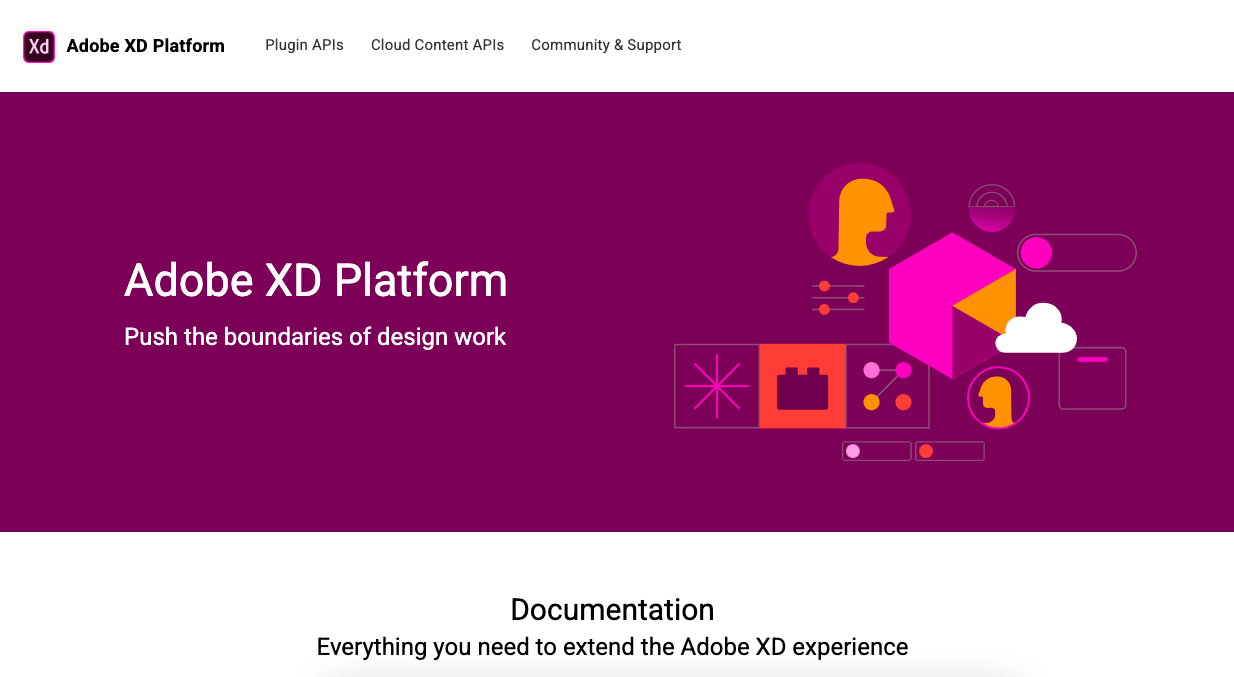
While Figma has gained popularity, Adobe XD remains a preferred choice for those embedded in the Adobe Creative Cloud environment. It integrates well with Photoshop and Illustrator, allowing visual assets to move fluidly between tools.
Where it fits best:
- Branding-heavy projects
- Designers already on Adobe CC
- Prototyping with voice and interaction triggers
Though no longer the top pick, Adobe XD is far from obsolete.
| Pros | Cons |
|
|
|
|
|
|
3. Sketch – Ideal for macOS-Centric Teams

Sketch pioneered many of the conventions seen in modern UI tools. Although it’s Mac-only, it still boasts a strong following for its lightweight interface and robust plugin ecosystem.
Why teams still use Sketch:
- Focused on UI and icon design
- Libraries and symbols for design systems
- Excellent typography controls
Designers who appreciate a minimalist workspace may find Sketch easier to navigate than Figma.
| Pros | Cons |
|
|
|
|
|
|
4. Webflow – Bridging Design and No-Code Development

Webflow allows designers to go from mockup to a fully functioning responsive site—without writing code. It’s more than a website builder; it generates production-grade HTML, CSS, and JavaScript.
Use cases:
- Launching MVPs quickly
- Small business or client sites
- Designers wanting more control over output
Compared to drag-and-drop builders like Wix or Squarespace, Webflow is significantly more customisable and performance-focused.
| Pros | Cons |
|
|
|
|
|
|
5. Canva – Lightweight Design for Marketing and Web Assets
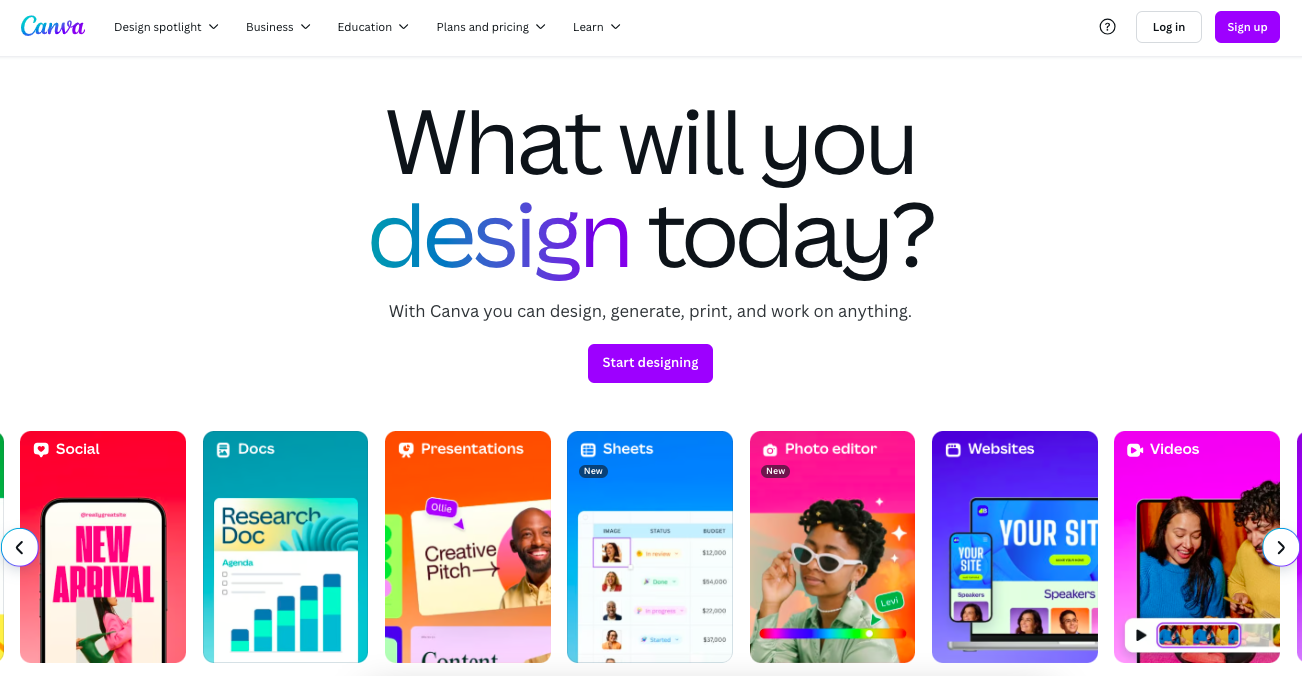
Canva isn’t a traditional web design tool, but its value in producing branded visuals, hero images, and social banners can’t be ignored.
Teams use it to maintain brand consistency across marketing and design functions, especially when implementing social media strategies for Singapore businesses.
What it’s good for:
- Fast design mockups
- Non-designers contributing to asset creation
- Web banners and ad graphics
It’s especially helpful for small businesses that lack dedicated designers but still want visually coherent assets.
| Pros | Cons |
|
|
|
|
|
|
6. Framer – For Interactive Web Prototypes

Framer lets you create high-fidelity prototypes with micro-interactions, animations, and custom behaviours. Unlike Figma or XD, it focuses on interaction design.
Notable features:
- Component-level animations
- Scroll, hover, and gesture interactions
- Auto layout and responsive resizing
Framer is particularly useful for app design teams testing user journeys and engagement patterns before development.
| Pros | Cons |
|
|
|
|
|
|
|
|
|
|
7. Visual Studio Code – The Developer’s Swiss Army Knife

Once design files are approved, developers need a reliable, customisable code editor. VS Code is the preferred choice for most front-end developers working on websites.

Top extensions:
- Live Server (for local preview)
- Prettier (code formatting)
- Emmet (HTML/CSS shortcuts)
While not a visual design tool, it’s central to the web design workflow when design meets development.
| Pros | Cons |
|
|
|
|
|
|
8. Notion – Design Ops and Project Management
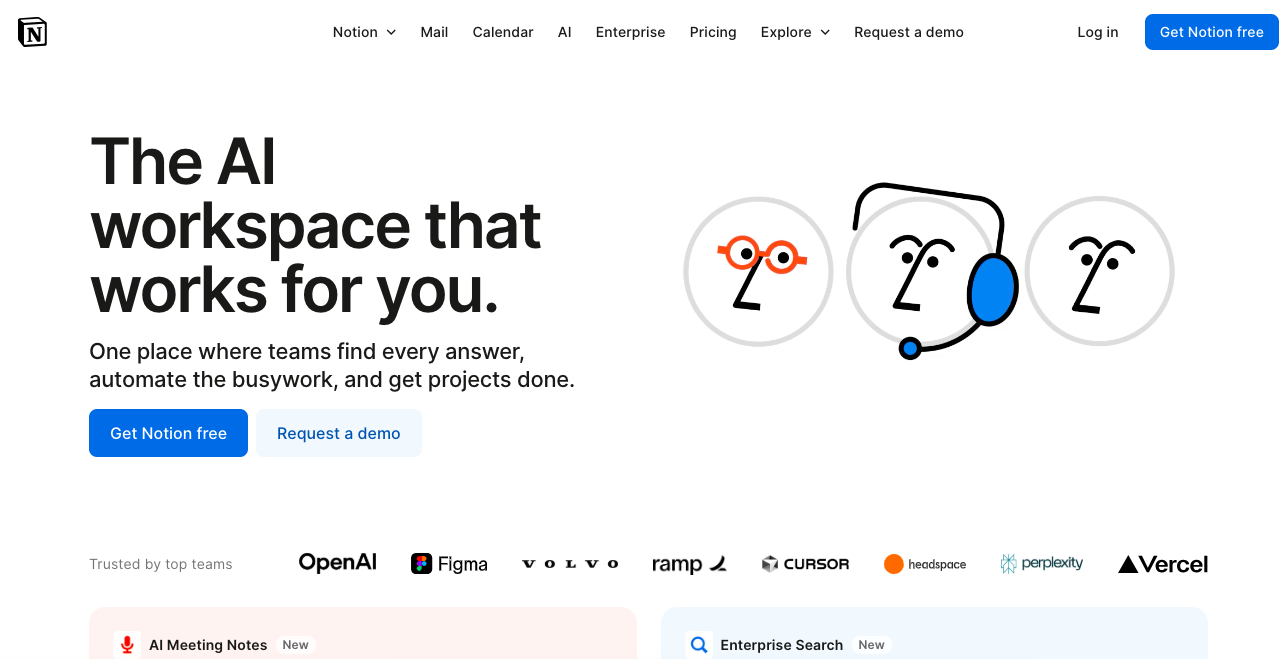
Although Notion is primarily a note-taking and organisation tool, many design teams use it to manage design systems, briefs, and project checklists. This aligns well with content marketing strategies that require organised workflows.
How it supports design workflows:
- Design system documentation
- Feedback tracking
- Team wikis and workflow logs
Used alongside design tools like Figma or Sketch, Notion helps teams stay aligned without switching between multiple platforms.
| Pros | Cons |
|
|
|
|
|
|
9. Zeplin – The Middleman Between Design and Development
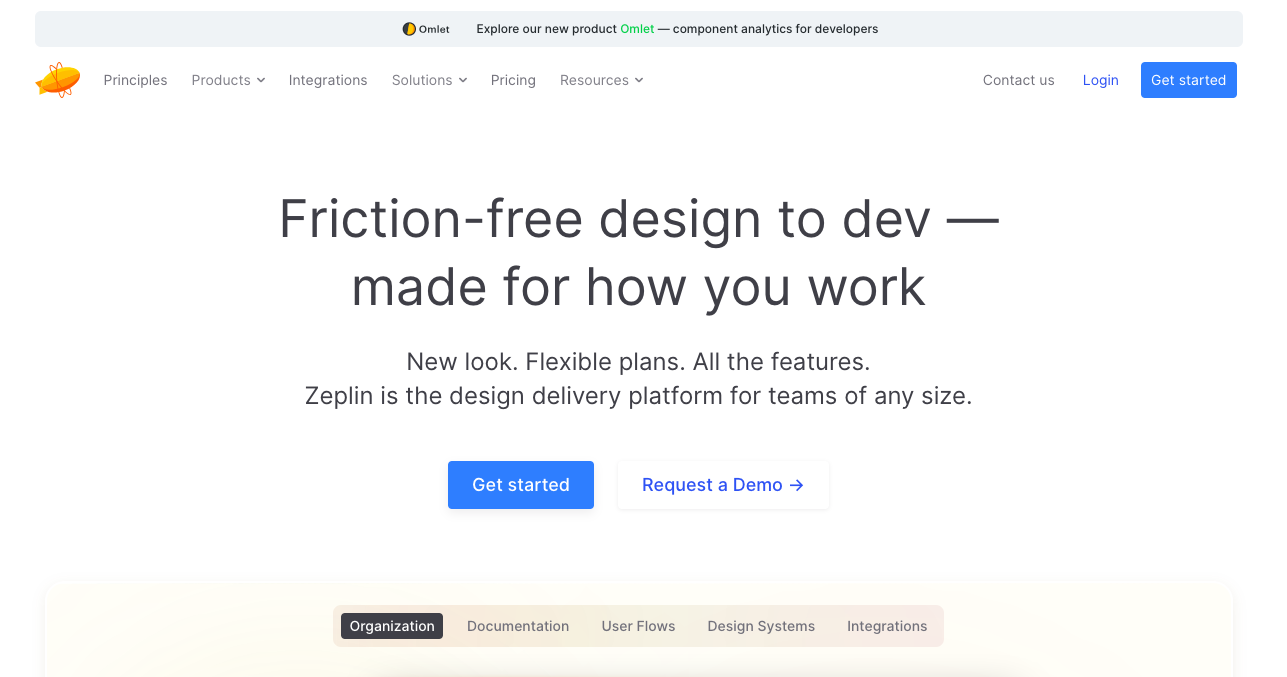
Zeplin translates visual designs into development-friendly specs. Designers upload artboards, and developers can see sizes, colours, fonts, and spacing in a clean interface.
Useful for:
- Streamlining handoffs
- Reducing front-end guesswork
- Cross-functional team clarity
It’s not essential for every workflow, but for teams where design and dev work asynchronously, it reduces friction significantly.
| Pros | Cons |
|
|
|
|
|
|
10. Overflow – Visual User Flows and Design Logic
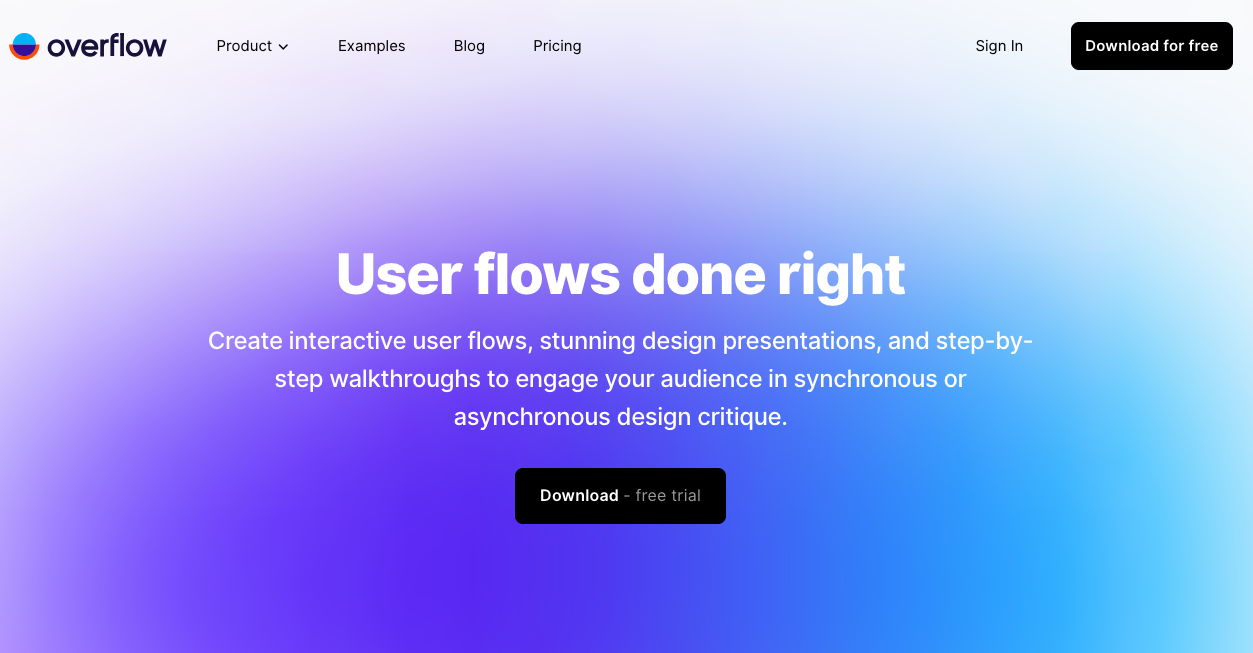
Overflow allows designers to create beautiful, interactive flow diagrams showing how users move through an application. It goes beyond static wireframes to communicate logic and structure.
Ideal for:
- UX walkthroughs
- Client approvals
- Internal design documentation
It’s especially valuable in stakeholder presentations when you need to defend UX decisions with clarity.
| Pros | Cons |
|
|
|
|
|
|
11. Chrome DevTools – For Front-End Debugging and Design Testing

Designers often overlook DevTools, thinking it’s only for developers. But it’s invaluable for testing responsiveness, tweaking layouts, and identifying performance bottlenecks.
What you can do:
- Inspect layout behaviour
- Modify styles on the fly
- Simulate different device viewports
A solid grasp of DevTools can turn a good designer into a great one.

| Pros | Cons |
|
|
|
|
|
|
12. FigJam – Whiteboarding for Design Brainstorms
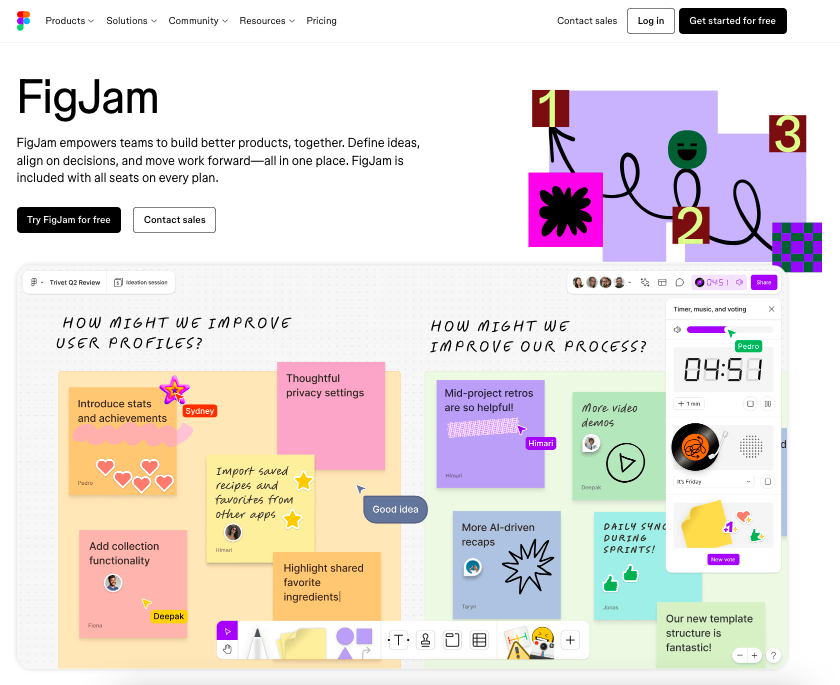
From the makers of Figma, FigJam is a whiteboarding tool that integrates into the same ecosystem. Use it for team ideation, user journey mapping, and remote collaboration.
Notable use cases:
- Sprint planning
- User personas and journey maps
- Design critiques and annotation
While not a wireframing tool, it’s highly effective for the discovery phase of web design.
| Pros | Cons |
|
|
|
|
|
|
13. Miro – Visual Collaboration for Cross-Team Strategy
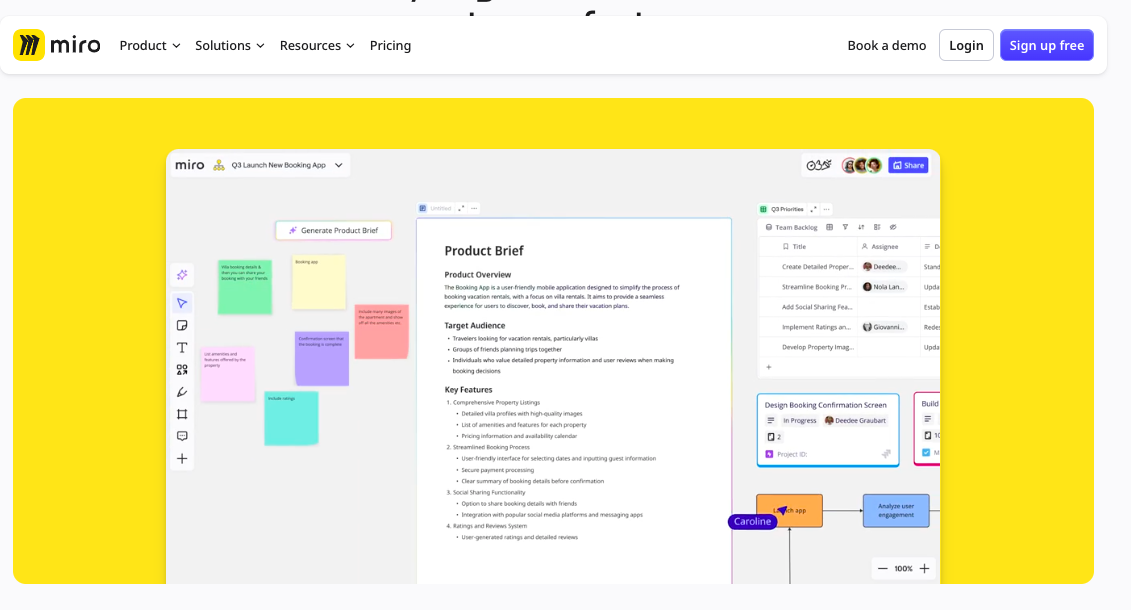
Similar to FigJam, Miro provides a broader set of integrations and templates. Design teams often use it for design sprints, service blueprints, and agile planning.
Why some prefer Miro:
- Cross-department collaboration
- API integrations with Jira, Slack
- Templates for UX workshops
Miro scales well for enterprise use, especially in multi-stakeholder design projects.

| Pros | Cons |
|
|
|
|
|
|
14. Unsplash and Pexels – Free High-Quality Images
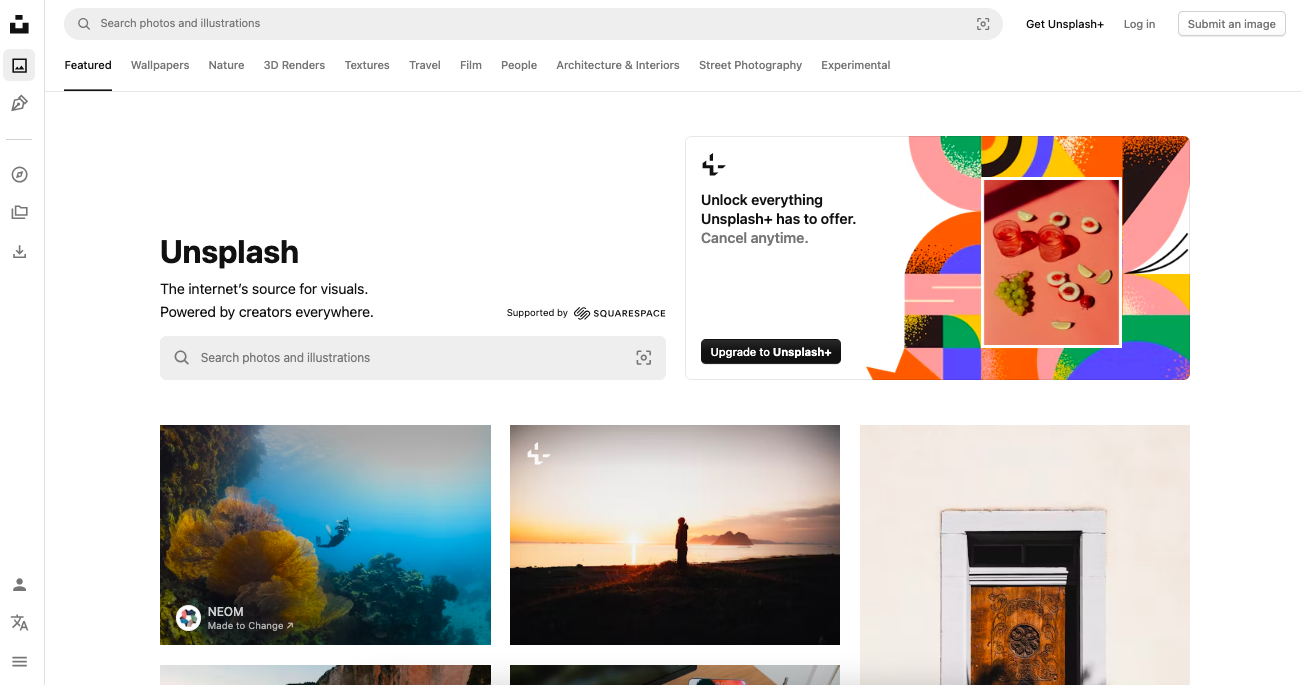

No modern website is complete without compelling visuals. Instead of stock-heavy sites, Unsplash and Pexels offer high-quality, royalty-free images suitable for most web design projects.
Why designers use them:
- Authentic visual style
- Easy image licensing
- API integrations with tools like Canva and Figma
Optimising images for load speed remains critical—compress them before deployment.
| Pros | Cons |
|
|
|
|
|
|
15. IconScout and Feather Icons – Scalable Vector Icons
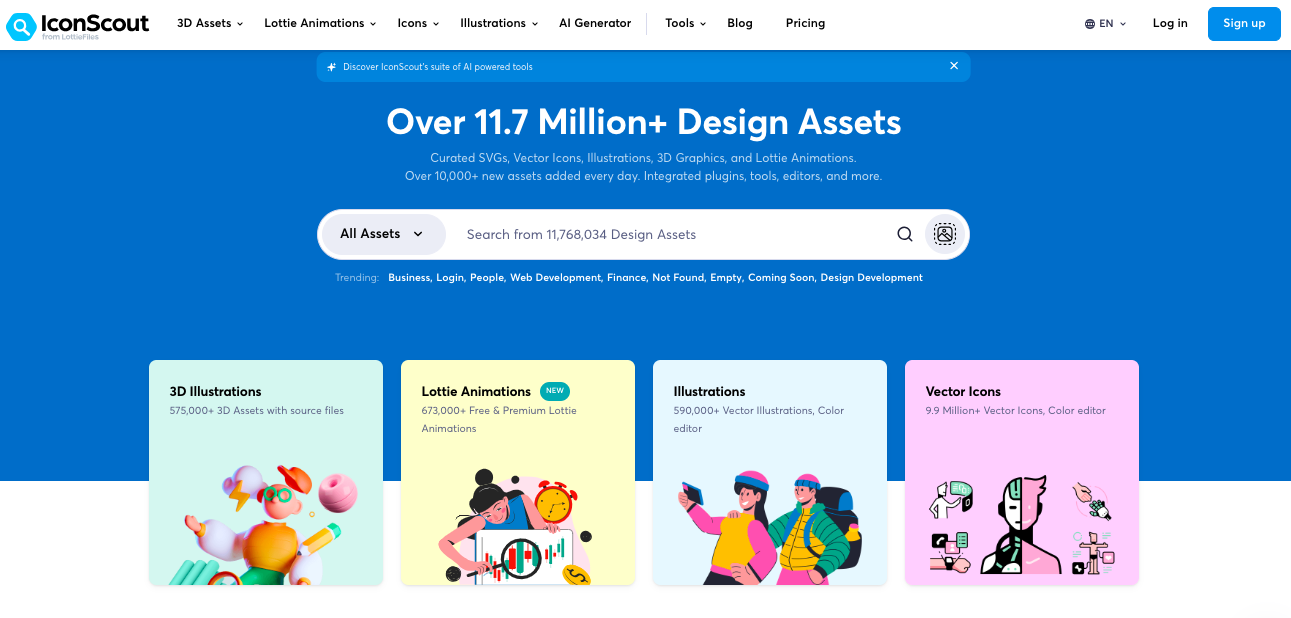
Icons help improve usability and interface clarity. IconScout and Feather Icons provide scalable, customisable SVGs that blend well with most UI design systems.
What to consider:
- Consistency in line weight
- Accessibility and clarity
- File size for performance
Always test how icons appear on different devices and background shades.
| Pros | Cons |
|
|
|
|
|
|
16. Responsively App – Multi-Device View Testing
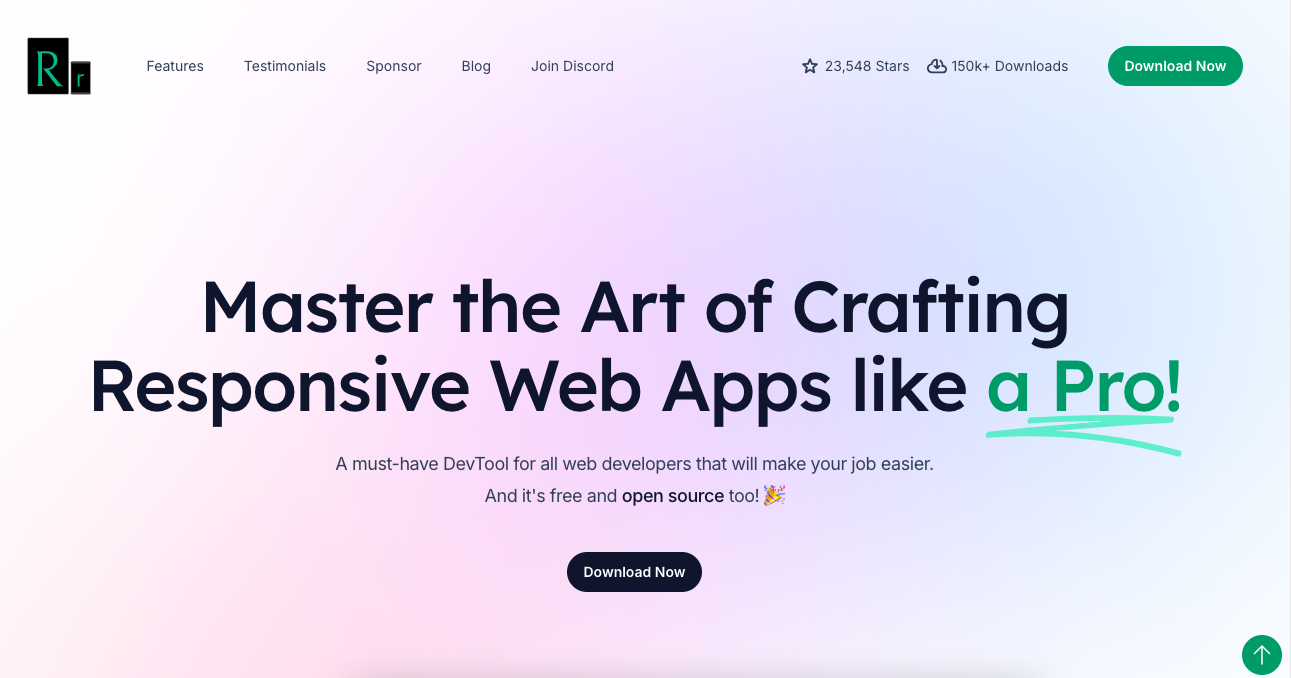
Rather than resizing your browser window repeatedly, Responsively App lets you test your web layouts across multiple screen sizes simultaneously.
Features include:
- Custom breakpoints
- Hot reloading with code updates
- Device presets for iOS and Android
This tool is a serious time-saver during final design QA and mobile optimisation.
| Pros | Cons |
|
|
|
|
|
|
17. Grammarly – For UX Copy and Content Review
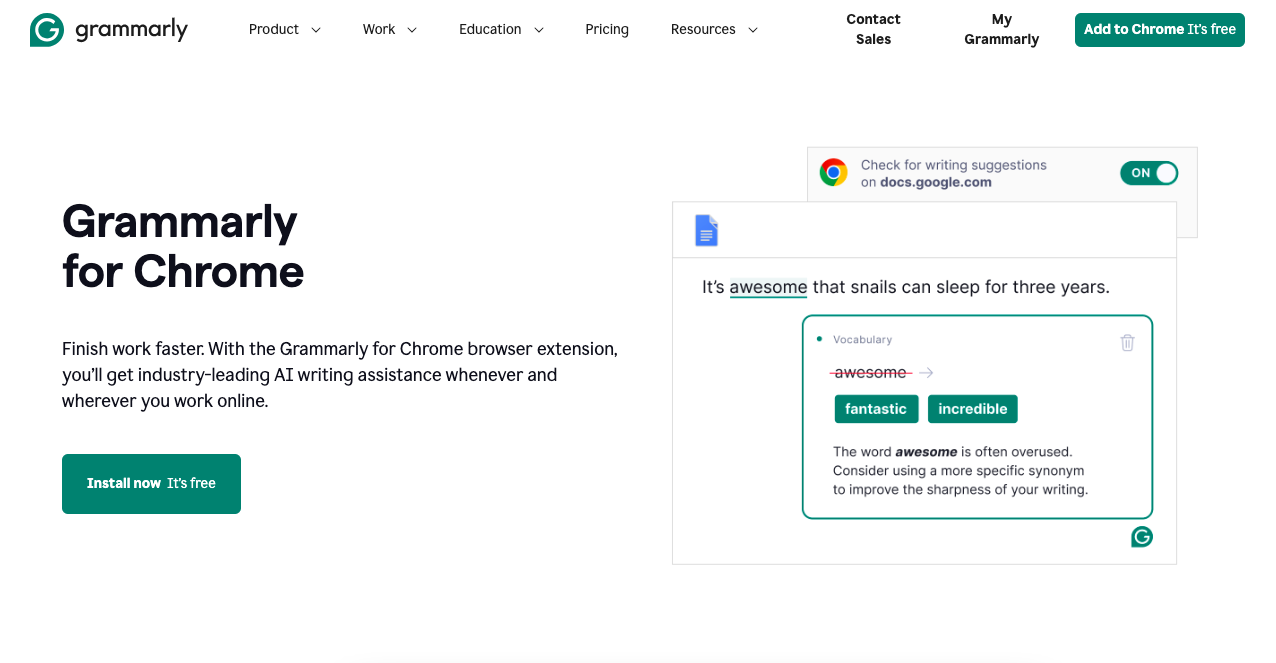
Well-designed interfaces lose credibility if riddled with typos or clunky phrasing. Grammarly helps keep your UX copy sharp and error-free, which is particularly important when staying ahead with digital marketing trends.
Great for:
- Button labels
- Error messages
- Headline and body copy polish
Used lightly, it ensures your design voice remains professional and consistent.
| Pros | Cons |
|
|
|
|
|
|
What Makes These Web Design Tools Worth Using?
The tools listed here reflect real-world usage among Singapore-based design professionals.
Whether you’re running a lean freelance practice or working in a 20-person digital agency, the right mix of platforms will streamline your team’s workflow, reduce back-and-forth, and speed up time to launch.
Each of these web design tools can support local teams operating across multilingual sites, mobile-first platforms, and client deliverables under tight turnaround times.
Choosing the Right Web Design Tools
There’s no single best setup that fits every team or project. But by focusing on functionality, ease of use, and integration, you’ll assemble a tech stack that supports creativity without slowing you down.
The best web design tools are the ones that make you faster, clearer, and more confident in your work. Choosing the right web design tools is just the first step to truly standing out in Singapore’s competitive digital landscape.
At MediaOne, we specialise in delivering customised web design solutions tailored to your business goals. Whether you want to build a new site from scratch or optimise an existing one, our team can help you maximise your online impact.
Explore our Web Design Services to learn how we can transform your ideas into a high-performing website that drives results. Take the next step with MediaOne and turn your vision into reality today.
Frequently Asked Questions
What is the best web design tool for beginners?
For beginners, Canva and Figma are the most user-friendly starting points. Canva’s drag-and-drop interface requires no prior design skills, making it ideal for marketing visuals.
Figma offers an intuitive UI with free plans and strong community support, perfect for learning interface design and prototyping.
Is Figma better than Adobe XD?
Figma excels in real-time collaboration and platform flexibility since it’s browser-based and works on any OS. Adobe XD integrates tightly with Adobe Creative Cloud, making it better suited for designers already using Adobe tools.
Both offer strong prototyping, but Figma’s faster plugin adoption and multi-user editing give it an edge in team workflows.
Which web design tools are free?
Several powerful tools offer free tiers:
- Figma allows unlimited viewers and three active projects for free
- Canva offers basic design features at no cost
- Visual Studio Code is entirely free for developers
- Unsplash and Pexels provide royalty-free images for commercial use without charge
Free plans are great for individuals or small teams starting out but often limit advanced features or collaboration.
Do I need coding to use Webflow?
No, Webflow lets you build fully responsive websites without writing code. It visually generates clean HTML, CSS, and JavaScript behind the scenes.
However, some familiarity with web design concepts helps you unlock its full potential, especially for complex interactions or CMS integration.
Can web design tools improve team collaboration?
Yes, many modern web design tools like Figma, Notion, and Miro are built with collaboration in mind.
Features such as real-time editing, comment threads, and shared project boards help teams work together smoothly, reduce miscommunication, and speed up project delivery.