
If you are serious about digital marketing services in Singapore, you already know this truth. Search visibility compounds. One good decision today can produce returns for months. One blind spot can quietly drain revenue without setting off alarms.

Google Search Console is where those blind spots live. It remains the only place where Google tells you, directly, how your site appears in search results. Not opinions, estimates, or scraped data. You get first-party signals from the source that decides whether you are visible or invisible.
In 2026, search is noisier. AI summaries compete for attention. Zero-click results are normal. Organic traffic does not behave as it did five years ago. That is exactly why Search Console matters more, not less. It shows you demand, intent, visibility, and technical trust signals before conversions ever happen.
This 2026 Google Search Console guide is not about how to “use” the tool. It is about how to think with it. How to turn raw search data into prioritised actions that make commercial sense for Singapore SMEs.
Key Takeaways
- Google Search Console is a decision engine, not a reporting tool. It shows demand, visibility, and technical trust signals directly from Google, long before revenue or traffic shifts appear.
- Impressions, CTR, indexing status, and crawl data only become valuable when segmented properly. Brand vs non-brand, mobile vs desktop, and country-level analysis are essential for Singapore-focused growth decisions.
- Indexing, sitemaps, and URL inspection are diagnostic tools, not levers. Excluded pages are often intentional, sitemaps guide discovery rather than force rankings, and URL inspection is for validation, not shortcuts.
- Enhancements, page experience, and links reports support visibility and stability, but they do not replace content quality, authority, or commercial intent. Treat them as technical hygiene.
- The real value of this GSC guide lies in interpretation. Businesses that act with discipline and context compound visibility over time, while those chasing metrics react themselves into decline.
What is Google Search Console?
One of the biggest misunderstandings about Search Console is that it does not track your website in the way analytics tools do. Unlike Analytics, there is no tracking code, user session data, or behavioural modelling.
Search Console is a reflection layer. It simply shows you how Google’s search systems interact with your site as part of crawling, indexing, and serving results. That distinction matters because it explains both the tool’s power and its limitations.
At its core, every report in Search Console is built from three primary data sources. Understanding these sources helps you interpret what you are seeing without jumping to the wrong conclusions.
Search Logs
Search logs power the Performance reports. This is where queries, impressions, clicks, and average positions come from. When a user performs a search, and your site is eligible to appear, Google records:
- Whether your page was shown
- Which query triggered that appearance
- Where the page appeared relative to other results
- Whether the user clicked
This data is aggregated, not individual. It is anonymised to protect privacy. Rare queries may be grouped or excluded entirely. Low-volume searches often disappear from view. Google documents this clearly at Search Central.
What you see in Search Console is not a full search log export. It is a summarised view designed to show patterns, not precision. That is why you should never treat impression counts or average position as exact numbers. They are directional indicators. Used correctly, they tell you where demand exists and how visible you are against it.
Crawl Data
Crawl data reflects how Googlebot interacts with your infrastructure. This includes:
- How often does Googlebot visits
- Which URLs does it requests
- What HTTP status codes does it receives
- Whether resources are blocked or accessible
Crawl behaviour is adaptive. Google increases crawling when it detects fresh or updated content and reduces it when a site appears unstable, slow, or low value.
The Crawl Stats report summarises this behaviour over time. It does not show individual crawl paths or request logs. For that, you still need server log analysis.
Importantly, crawl data in the Search Console shows outcomes, not intent. A spike in crawling does not guarantee indexing. A drop does not necessarily signal a problem. It often reflects shifting priorities inside Google’s systems.
Indexation Signals
Indexing is not a technical switch, it is a quality decision. Search Console surfaces indexation signals such as:
- Canonical declarations and Google-selected canonicals
- Duplicate detection
- Soft 404 classification
- Coverage status
These signals indicate how Google has evaluated your content, not whether your implementation is “correct” in isolation.
For example, when Google chooses a different canonical than the one you declared, it is telling you something important. It does not trust your signal enough to follow it. That lack of trust usually comes from content similarity, weak internal linking, or inconsistent signals across the site.
Indexation reports help you diagnose patterns. They are not a checklist to force every URL into the index.
How to Set Up Google Search Console
Although setting up Google Search Console may look simple, there are consequences when you do it incorrectly.
Most digital marketing companies treat setting up Google Search Console as a formality. They verify something quickly, see data coming in, and move on. That decision quietly shapes every SEO conclusion you make from that point forward.
If your setup is incomplete, your data is incomplete as well. If your data is fragmented, your decisions are flawed. There is no workaround later that fixes a broken foundation.
You are not just “adding a site”. You are defining what Google is allowed to show you about your business.
How to Add a Domain Property

Source: SERanking
A Domain Property tracks every version of your site automatically. That includes:
- HTTP and HTTPS
- www and non-www
- All subdomains, present and future
This is the recommended option for most businesses because it reflects how Google actually sees your site. Google does not evaluate URLs in isolation. It evaluates domains as ecosystems.
Verification is done via DNS. You add a TXT record to your domain host. Once verified, Google treats you as the owner of the entire domain namespace. This is not just cleaner, it is safer.
Why This Matters
DNS verification is stable. It survives:
- CMS migrations
- Theme or template changes
- Tracking tag removals
- Redesigns
- Analytics reconfigurations
Other verification methods break silently. DNS does not. Google explicitly recommends Domain Properties for completeness and durability. If you operate multiple subdomains today, or even think you might in the future, this should be your default choice.
If you only verify one URL variant, you are analysing a partial reality. That leads to false confidence or unnecessary panic. Domain Properties prevent that.
How to Add a URL Prefix Property

Source: Contactora
A URL Prefix Property tracks only a specific URL structure. Examples:
- https://www.example.com
- https://shop.example.com
Nothing outside that exact prefix is included.
Verification methods include:
- HTML file upload
- Meta tag
- Google Analytics
- Google Tag Manager
This option exists for control and isolation, not completeness. It is useful when you need to study a specific environment or section without interference. Legitimate use cases include:
- Campaign microsites
- Staging or pre-production environments
- Section-specific audits, such as /blog or /resources
In these scenarios, isolation is a feature. But as your only property, it is a liability. Why? Because too much data is excluded:
- Canonical signals pointing outside the prefix
- Cross-subdomain internal links
- Protocol migrations
- Historical URL variations
You end up analysing performance without seeing the full set of signals influencing it.
That is how teams misdiagnose:
- Indexing issues that are actually canonical decisions
- Ranking drops caused by redirects that they cannot see
- Crawl problems are happening outside the tracked prefix
URL Prefix Properties are scalpels. Domain Properties are X-rays. Use the right tool for the right job.
Google Search Console’s Owners, Users, and Permissions
Source: Neil Patel
Access control in Search Console is not a technical afterthought; it is governance. If you get this wrong, everything else you do with SEO becomes fragile.

When you give someone access to your Search Console property, you are not just letting them view data. You are granting visibility into how Google sees your business. In some cases, you are also handing over the ability to remove the property entirely. That is not an operational detail; that is risk management.
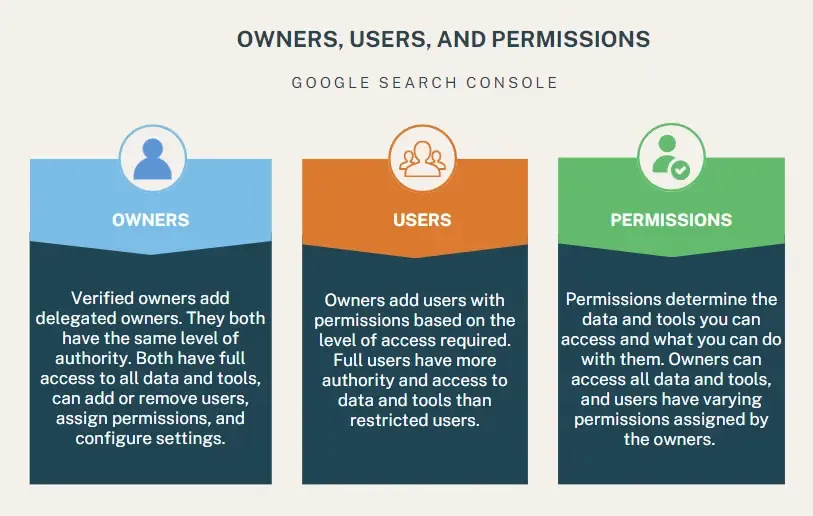
Search Console supports three permission levels, each with very different implications for control and accountability.
Owners
Owners have full control. They can add and remove users, change settings, submit sitemaps, request indexing, view all reports, and critically, remove the property from Search Console altogether. If someone is an owner, they can effectively lock everyone else out.
Users
Full users have almost complete operational access. They can view all data, submit sitemaps, use the URL Inspection tool, and see performance, coverage, and enhancement reports. What they cannot do is remove the property or manage user permissions.
This is the level most agencies and senior in-house specialists actually need.
Permissions
Restricted users are read-only. They can view reports but cannot submit changes or requests. This is ideal for stakeholders, junior team members, or external partners who need visibility but should not be touching live signals.
Google’s official documentation clearly outlines these roles. Where businesses get into trouble is not misunderstanding the definitions. It treats access as convenience rather than control.
A common scenario. You hire an SEO agency in Singapore. They ask for owner access “to make things easier.” You agree, because it feels faster. Six months later, the relationship ended. During a CMS migration or domain change, access is lost, removed, or contested.
Suddenly, you cannot submit sitemaps, check indexing issues, or see manual action alerts. Visibility drops, and recovery takes weeks because Search Console ownership disputes are not resolved instantly.
This is not hypothetical. It happens regularly, especially during rebrands, acquisitions, or platform migrations. The best practice for businesses is simple, but it requires discipline:
- Limit ownership to senior technical or marketing leads who are accountable to the business, not to a vendor. Ideally, ownership should sit with at least two internal people to avoid single points of failure.
- Avoid granting ownership to agencies unless it is contractually required and time-bound. In most cases, full user access is more than sufficient for day-to-day SEO work. If an agency insists on ownership without a clear reason, that is a governance red flag.
- Review access quarterly. People change roles. Agencies rotate staff. Contractors leave. Old permissions linger quietly until they become a problem. A quarterly review takes minutes and prevents months of disruption.
- Document who owns what and why. Access should be intentional, not inherited.
Lost access to Search Console during a migration, dispute, or internal reshuffle not only slows reporting but also disrupts it. It can delay indexing fixes, hide crawl errors, and blind you to penalties or security issues. In competitive markets, weeks of reduced visibility can translate directly into lost pipeline and revenue.
If you treat permissions as governance instead of admin, Search Console becomes a stable asset. If you treat it casually, it becomes a liability.
How to Add a Sitemap to Google Search Console

Source: Semrush
A sitemap is one of the cleanest ways to communicate with Google. Not because it gives you control, but because it gives Google clarity.
At its core, a sitemap is a list of URLs that you want Google to crawl. It helps discovery. It does not force indexing, ranking, or visibility. That distinction matters more than most guides admit.
If you treat a sitemap as a lever, you will be disappointed. If you treat it as a signal of intent and structure, it becomes extremely useful.
How to Submit a Sitemap
The mechanics are simple. To add a sitemap in Google Search Console:
- Go to the Sitemaps section in the left-hand navigation
- Enter the full sitemap URL (for example: https://yourdomain.com/sitemap.xml)
- Click Submit
That is it. No confirmation emails or instant feedback loop. Google will fetch it when it decides to.
Google’s own documentation is very clear on what happens next. Submitting a sitemap does not guarantee that Google will index the URLs it contains. It means Google will consider them for crawling and evaluation.
If you expect immediate indexing or ranking changes after submission, you are misunderstanding how the tool works.
What Google Actually Uses Your Sitemap For

Think of a sitemap as a hint for prioritisation. Google already discovers many URLs through internal links, external links, and redirects. A sitemap helps in three specific scenarios:
- Large sites where not all pages are well linked
- New sites or new sections with few external links
- Sites where URL discovery is slowed by complex navigation
It does not override quality signals. It does not override canonicalisation. It does not rescue weak pages.
If Google believes a URL is low value, duplicative, or misaligned with search intent, it will remain unindexed even if it sits neatly in your sitemap.
Expert Guidance: What to Include and Exclude
This is where most businesses get it wrong. Your sitemap should not reflect everything your CMS can generate. It should reflect what you actually want indexed and trusted.
Include only:
- Canonical URLs
- URLs returning a clean 200 status
- Pages you would be comfortable seeing in search results
- Pages that are supported by internal links
Exclude:
- Filtered and faceted URLs
- Parameterised URLs created by sorting or tracking
- Duplicate or near-duplicate pages
- Paginated URLs unless they are strategically necessary
Google explicitly warns against bloated sitemaps because they dilute the signal you are trying to send. A sitemap full of low-quality or duplicate URLs makes it harder for Google to identify what truly matters on your site.
There is also a critical alignment rule that many teams miss. Your sitemap should mirror your internal linking strategy. If a URL appears in your sitemap but is buried or orphaned internally, you are sending mixed signals. Internally, you are saying it does not matter. Externally, you are saying it does.
Google will trust your internal structure more than your sitemap every time.
How to Use Sitemap Reporting Correctly
After submission, Search Console will show you:
- Whether the sitemap was fetched successfully
- Whether Google encountered errors
- How many URLs were discovered
It will not tell you why individual URLs were not indexed. That diagnosis lives in the Page Indexing report and the URL Inspection tool.
A common mistake is trying to “fix” sitemap errors when the real issue is content quality or intent mismatch. The sitemap is rarely the problem. It just surfaces it.
What You Need to Know
A sitemap is not a command. It is a suggestion backed by your site architecture. When your sitemap, internal links, and content quality all point in the same direction, Google moves faster and with more confidence. When they conflict, the sitemap loses influence.
Used properly, your sitemap becomes a clean map of your priorities. Used carelessly, it becomes noise. Treat it as a hint, not a lever. That is how experienced teams use it.
Google Search Console Reports and Features
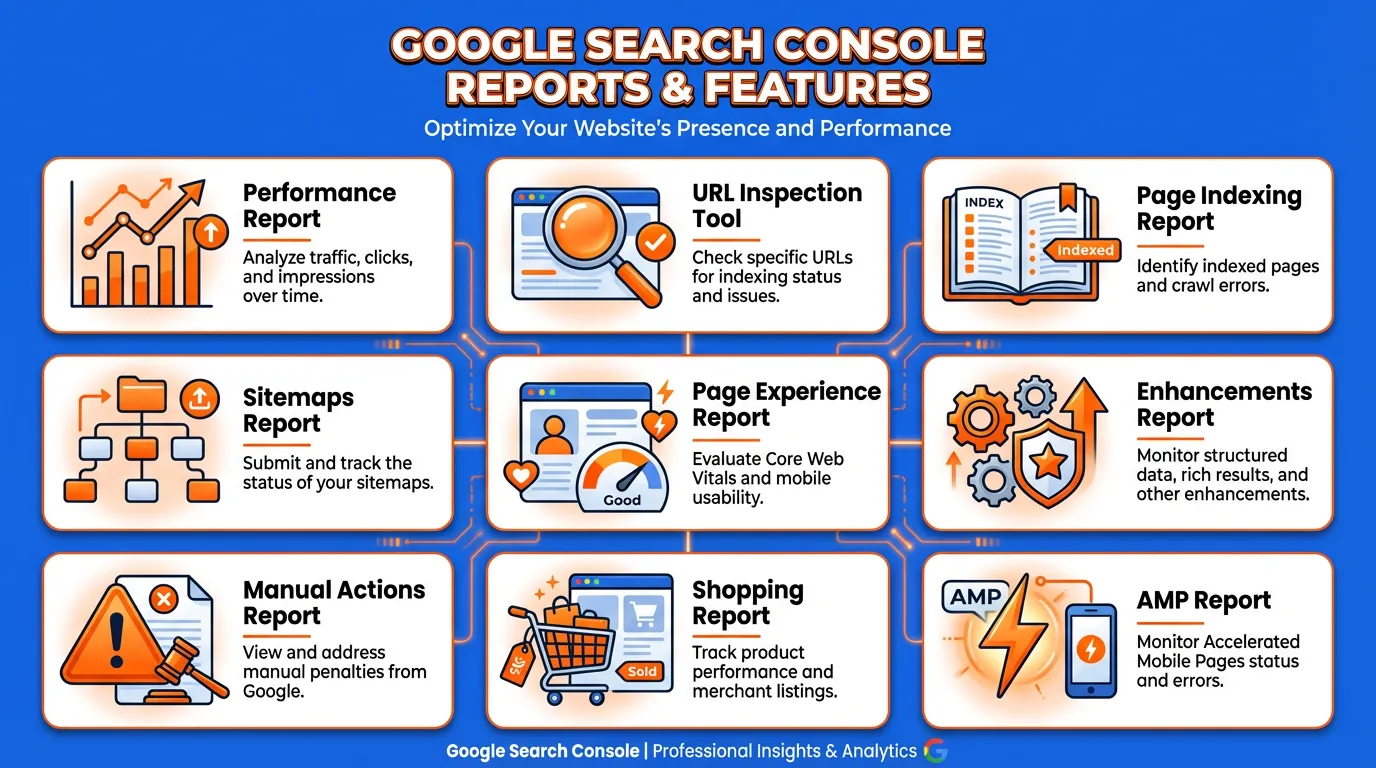
This is where Search Console stops being theoretical and becomes operational. If you only glance at Search Console once a month, you are missing its real value. Each report exists to answer a specific question about visibility, trust, or technical alignment with Google Search.
The mistake most teams make is treating all reports as equal. They are not. What follows is how experienced practitioners actually read these reports and how you should use them to make decisions, not just monitor numbers.
Performance Report
Source: Google Search Central
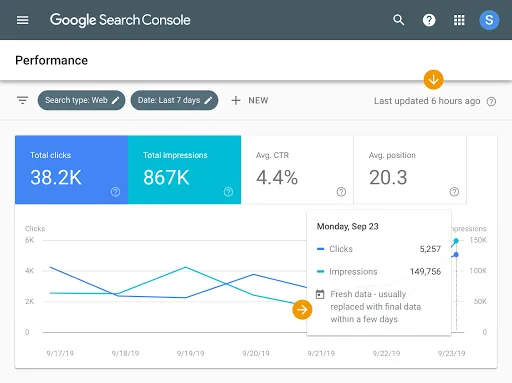
The Performance report shows how your site appears in Google Search. Not how users behave on your site. Not how much revenue you made. Visibility, demand, and competitive context.
It includes four core metrics that may look basic, but are actually diagnostic:
Clicks
Clicks tell you how much visible demand you are actually capturing. Not how valuable that traffic is. Not whether users convert. Simply whether your result was compelling enough to earn the visit once it appeared.
Impressions
Impressions tell you something clicks never will. They show demand before traffic exists. If impressions are rising and clicks are flat, demand is growing, but you are not capturing it. That is a positioning or messaging problem, not a traffic problem.
Click-through Rate
CTR indicates whether your result matches the user’s intent. A low CTR with strong impressions often means your page is ranking for the right topic but presenting the wrong promise. Titles, descriptions, and sometimes the content angle are misaligned.
Average Position
Average position shows relative competitiveness, not ranking certainty. It is an average across queries, devices, and locations. Treat it as directional context, not a KPI. This is where segmentation becomes non-negotiable.
Always segment:
- Brand vs non-brand queries
- Mobile vs desktop
- Country vs global traffic
In markets like Singapore, mobile intent often differs sharply from desktop. Brand queries can mask organic decay. Country-level data reveals localisation gaps long before revenue is affected.
URL Inspection Tool
The URL Inspection tool shows what Google knows about a specific URL. Nothing more, nothing less.
It provides visibility into:
- Indexed state
- Canonical selection
- Crawl status
- Rendered HTML
One of the most common misunderstandings is live testing. Live testing shows fetch capability, not indexation. It confirms that Google can access and render the page at this moment. It does not mean the page will be indexed or ranked.
Where this tool truly matters is in diagnosis. High-value use cases:
- Debugging canonical conflicts where Google ignores your declared canonical
- Validating fixes after launches, migrations, or template changes
- Checking JavaScript rendering for SPAs and headless builds
If Google selects a different canonical than the one you specify, it is a trust issue. Usually content duplication, weak internal linking, or inconsistent signals. The fix is rarely technical alone.
Do not use this tool as an indexing shortcut. Google limits requests for a reason. Overuse does not speed growth. It wastes your most precise diagnostic instrument.
Page Indexing Report
Source: TheEgg
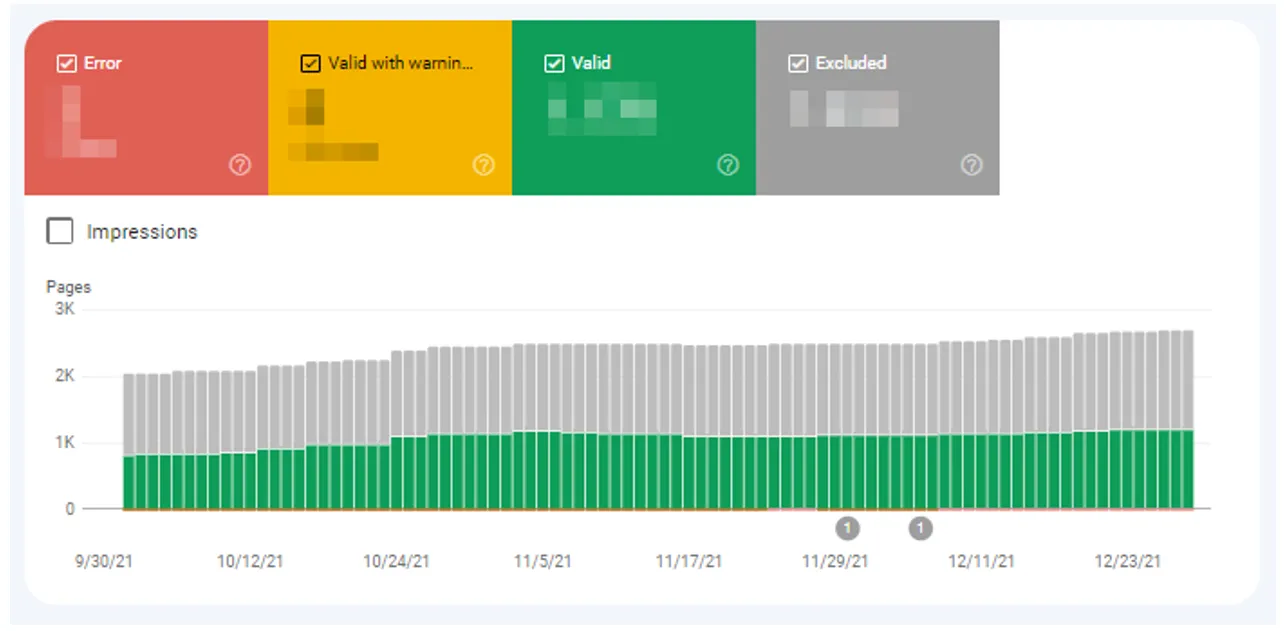
This report shows which pages Google has indexed and why others are excluded. It is also the most misunderstood report in Search Console.
One important clarification: Excluded does not mean broken. Google states clearly that not all discovered URLs are intended to be indexed. Experienced practitioners focus on exceptions, not totals. Pay attention to:
- Pages you expect to rank but are excluded
- Unexpected canonicalisation behaviour
- Sudden shifts in indexed counts after releases or migrations
Ignore:
- Intentional duplicates
- Paginated, filtered, or faceted URLs
- Low-value system pages like internal search results
“Crawled but not indexed” is often a quality or relevance signal. Forcing indexation without improving value usually makes things worse.
This report is not a to-do list. It is a prioritisation filter.
Sitemaps Report

Source: SEO
The Sitemaps report answers one question: Can Google read your sitemap and discover the URLs you intend it to? Use it to:
- Validate sitemap syntax
- Confirm URL discovery trends
- Detect sudden drops after deployments
What it does not do is measure success. A submitted URL is not a ranked URL. A discovered URL is not a valuable URL.
Do not use the Sitemaps report as an indexation scorecard. Google has been clear that sitemaps are a discovery aid, not a ranking signal.
If discovery drops suddenly, investigate immediately. That often points to technical deployment errors, blocked resources, or CMS changes.
Page Experience Report
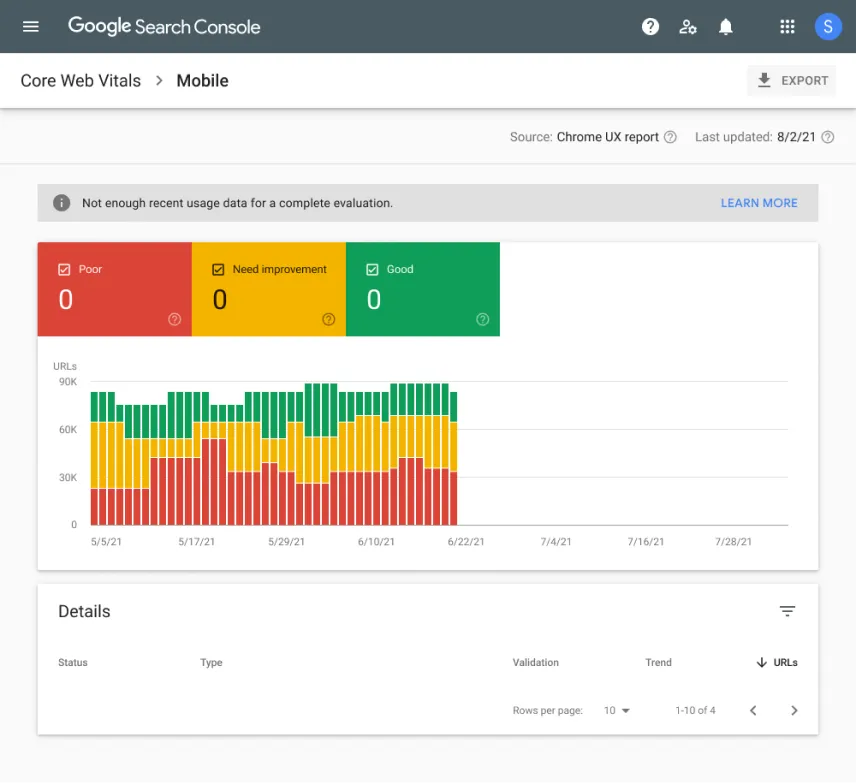
The Page Experience report reflects real-world user experience data from Chrome users, not simulations or lab estimates. It includes:
- Core Web Vitals
- Mobile usability signals
The key reality is uncomfortable but important. Good scores do not guarantee rankings. Poor scores can suppress competitiveness.
In competitive verticals, especially for mobile-heavy audiences, a poor experience can be the difference between page one and page two. Prioritise fixes that affect:
- Revenue-driving pages
- High-impression URLs
- Mobile performance first
Search Console uses field data. That means changes take time to reflect. Do not chase daily score fluctuations. Fix systemic issues and monitor trends.

Enhancements Report
Source: SERoundtable
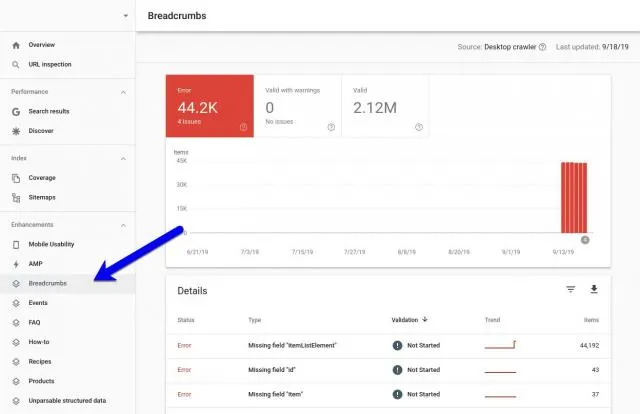
Enhancement reports validate structured data eligibility. They do not measure performance. Each report shows three states:
- Valid: Indicates that Google can read your structured data and that the page is eligible for the associated rich result type. It does not mean the enhancement will appear in search. Google decides when and where to show rich results based on relevance, query intent, and overall page quality.
- Warning: A warning is not a failure. It usually indicates that optional or recommended fields are missing. The page remains eligible for the enhancement. Warnings matter only if completing the missing fields improves clarity or aligns with your business objective for that result type.
- Error: Required structured data fields are missing or invalid. The page is not eligible for the enhancement until the issue is fixed. Errors matter only if the enhancement supports a result type that aligns with your business goal. Fixing errors for irrelevant enhancements does not create value.
Treat enhancement reports as technical hygiene. Not a growth strategy. Structured data supports visibility. It does not replace content, authority, or relevance.
Manual Actions Report
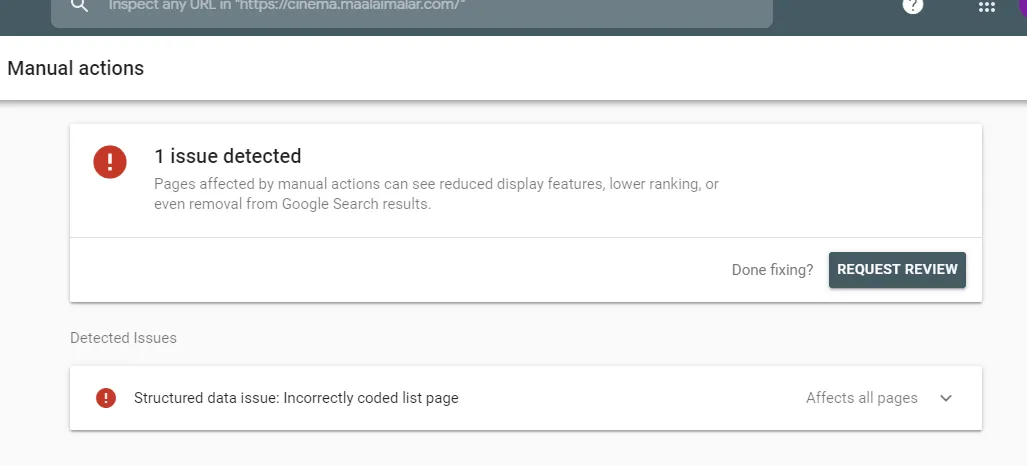
This report tells you whether Google has applied a manual penalty. When it appears, everything else becomes secondary. Manual actions are rare but serious. If you see one:
- Identify the root cause
- Fix comprehensively, not selectively
- Submit a reconsideration request
There are no shortcuts. Partial clean-ups fail. Defensive explanations fail. Google expects evidence of resolution, not intent. Most businesses never see this report triggered. Those who do often underestimated risk for too long.
Links Report
Source: SERoundtable
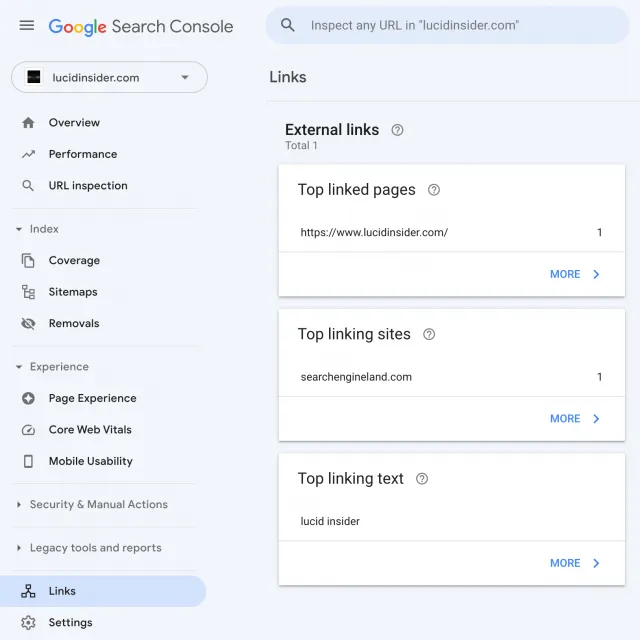
The Links report shows internal and external linking patterns as Google sees them. Use it to:
- Identify internal linking gaps
- Confirm consolidation after migrations
- Spot unnatural spikes in external links
Do not treat it as a backlink audit tool. It is directional, not exhaustive. Google does not show all known links. It shows representative samples. Its real value lies in internal linking. If critical pages are weakly linked internally, authority distribution suffers regardless of external links.
Shopping Report
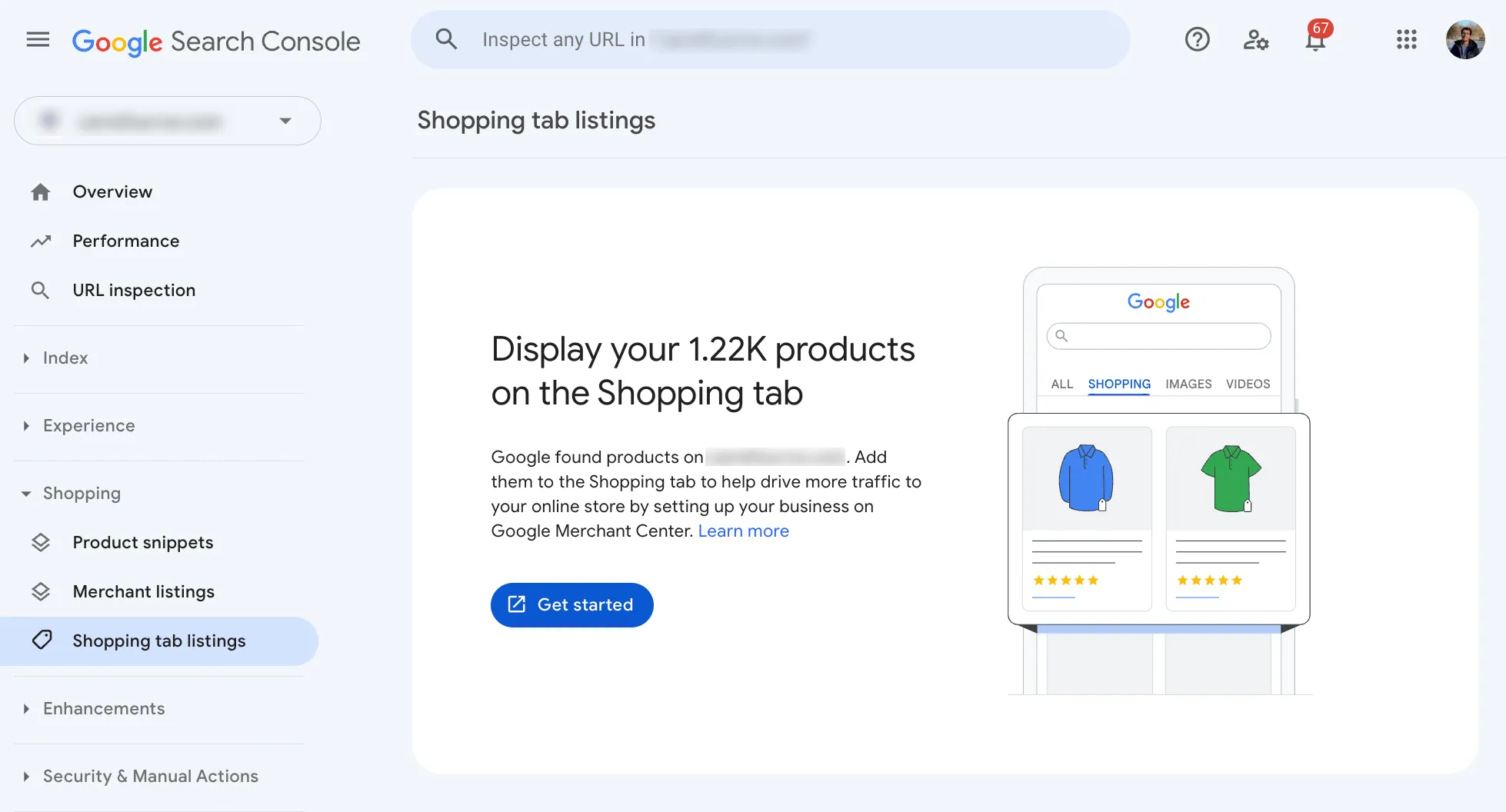
For eCommerce sites, the Shopping report shows product listing visibility. It depends on:
- Product structured data
- Merchant Centre integration
This report reflects eligibility, not sales. Visibility does not guarantee conversions. Treat it as a diagnostic layer for product exposure, not a revenue report.
AMP Report

Source: Technoblog
The AMP report exists only if your site uses AMP. If you are not intentionally using AMP, this report is irrelevant.
Many modern sites no longer need AMP. Keeping it without purpose creates maintenance overhead with little upside.
Why You Need to Start Using Google Search Console Today
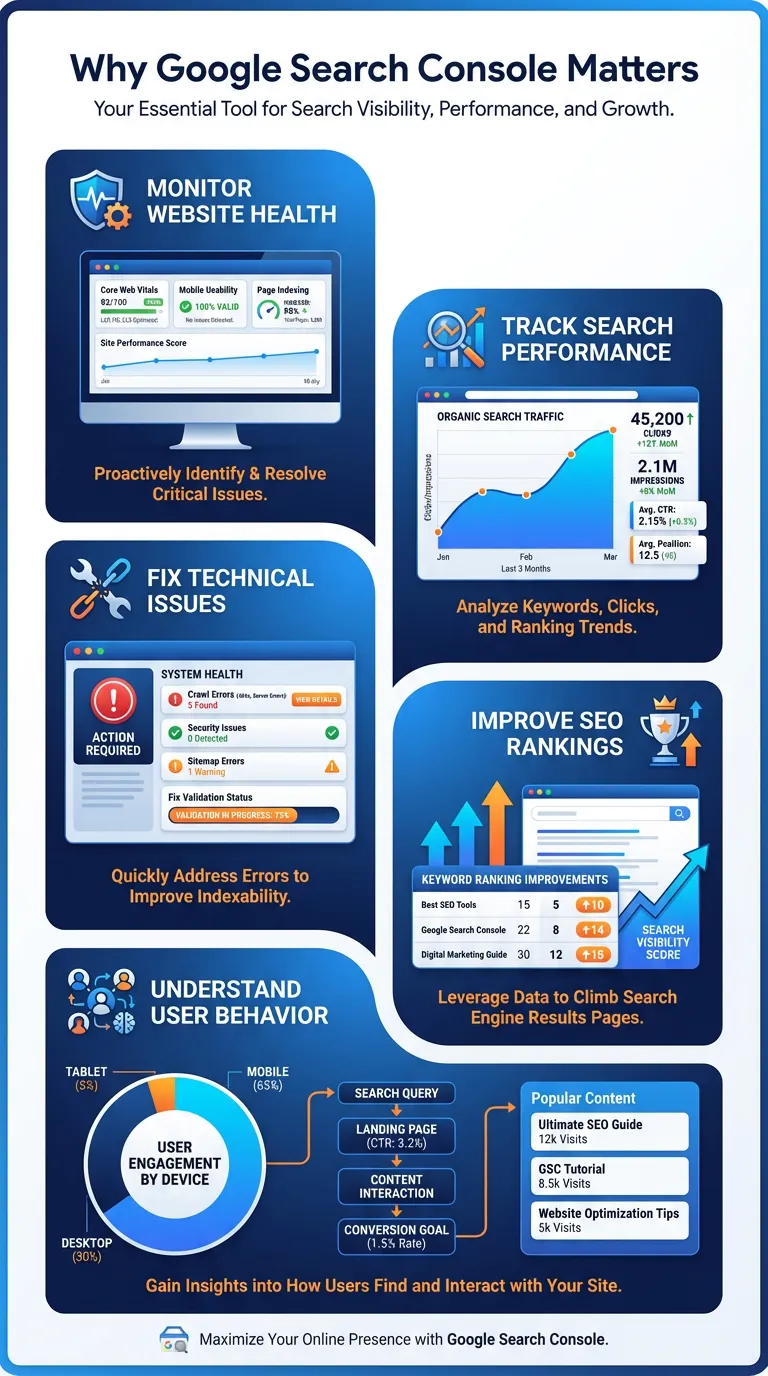
If you are serious about growth, visibility, and long-term digital performance, there is no excuse for treating Google Search Console as optional. This is the only platform where Google tells you, directly, how it sees your site. The data here is not inferred, modelled, or estimated. Actual search data that reflects demand, trust, and technical alignment.
Used properly, Search Console shows you where opportunity exists before revenue appears. It flags risk before rankings collapse. It helps you decide what to fix, what to improve, and what to leave alone. Most importantly, it forces discipline. You stop guessing and reacting to noise. You start making decisions based on evidence.
The problem is not access. The problem is interpretation.
Many businesses in Singapore have Search Console set up, but underused. Reports are checked occasionally. Metrics are skimmed. Insights are missed. This is where professional guidance matters. Knowing what each report means is one thing. Knowing how to act on it without causing damage is another.
If you want Search Console to work as a decision engine rather than a passive dashboard, you need experienced hands. That is where MediaOne comes in.
Our SEO team uses Search Console as part of a broader, integrated strategy that connects technical health, content performance, and commercial outcomes. No vanity metrics and guesswork. Just clear priorities and measurable impact.
Don’t stop after reading our comprehensive Google Search Console guide for 2026. To move faster, reduce missed opportunities, and turn Search Console insights into measurable outcomes, working with MediaOne’s professional SEO team gives you experienced execution, not just theory. Call us today to learn how to lead with it.
Frequently Asked Questions
Does Google Search Console show data for featured snippets?
Yes. If your page appears in a featured snippet or position zero, Search Console will count impressions and clicks for those occurrences in the Performance report along with other search appearances. It does not explicitly differentiate snippet types, but the position and query context can indicate when featured snippets contribute to visibility.
Can Search Console help with FAQ structured data performance?
Search Console does not show FAQ schema performance as a separate metric, but you can monitor clicks and impressions for pages that use FAQ structured data in the Performance report. Using Search Console alongside structured data testing tools lets you confirm that the markup is eligible and is tracked after implementation.
Does Search Console show data for People Also Ask exposure?
Search Console tracks impressions and clicks for URLs displayed in People Also Ask results when those URLs appear in the SERP and are expanded or shown, counting them as it would for any other result. The ranking position recorded reflects the PAA block’s position in the search results.
Can Search Console Insights combine Analytics data?
Search Console Insights, a feature separate from the main GSC interface, blends Search Console data with Google Analytics to provide a holistic view of how content performs across both search visibility and engagement. If the property is linked to a GA property with sufficient permissions, Insights will show combined trends and top queries alongside page engagement.
Is there a way to use Search Console for local SEO targeting?
Search Console does not provide explicit local SEO reporting, such as local pack placement, but you can segment the Performance report data by country and query to infer local search demand and visibility. For Singapore or other specific markets, filtering by country helps identify geo-specific impressions and clicks that indicate local search traction.